A slow site can be frustrating, especially when you know it's causing visitors to leave before they even see your content. (Not to mention, Google isn’t a fan of high bounce rates, making it harder for you to rank.)
The good news is you don't need to be a developer to make a difference. You can significantly improve your site's performance with a few simple changes.
In this guide, I'll walk you through 5 easy steps for WordPress speed optimization that you can do today.
In This Article
Why Page Speed Is a Big Deal
Before we dive into the “how,” let's quickly cover the “why.” A fast website isn't just a nice-to-have; it's a must.
Here's what a speedy site does for you:
- You'll Keep Your Visitors Happy: No one likes to wait. A slow website frustrates people and sends them clicking the ‘back' button. A faster site creates a much better user experience and reduces bounce rates.
- You Can Improve Your SEO Rankings: Google uses page speed as a ranking signal. A faster site can give you an edge over slower competitors in search results.
- You'll Get Better Results on Mobile: More than half of all web traffic comes from mobile devices. Mobile users expect speed, and Google's mobile-first indexing prioritizes sites that deliver it.
- You'll Build Trust: A fast, snappy website feels professional and reliable. A slow one can feel outdated and untrustworthy, which can hurt your brand's reputation.
What Does Website Speed Optimization Involve?
Optimizing site speed is considered part of technical SEO, which aims to improve the back-end functions of your website.
For many site owners, technical optimizations require hiring web developers to modify code and load times.
But WordPress users can take a different (easier) approach. By choosing a theme that’s already coded to load fast, you can bypass many of these technical headaches.
There are also image and caching plugins that will speed up your site, as well as web hosts designed for optimized performance.
So, want to know how to do it?
Let’s walk through each of these options, step-by-step.
Why You Should Trust Me
I've been optimizing WordPress sites for 6+ years. In that time, I've become a bit obsessed with site speed. I've seen firsthand how taking a site from slow to fast can dramatically improve traffic and conversions. The steps I'm sharing below are the exact ones I use on my own projects to get real results, without touching a single line of complicated code.
How to Optimize Your WordPress Site Speed
Follow these steps to improve your website speed optimization in WordPress.
Step 1: Test Your Current Website Speed
First, you need to know where you're starting from. The best way to do this is with a free tool called Google PageSpeed Insights.
Just go to the PageSpeed Insights website, enter your website's domain or a specific URL, and click Analyze.
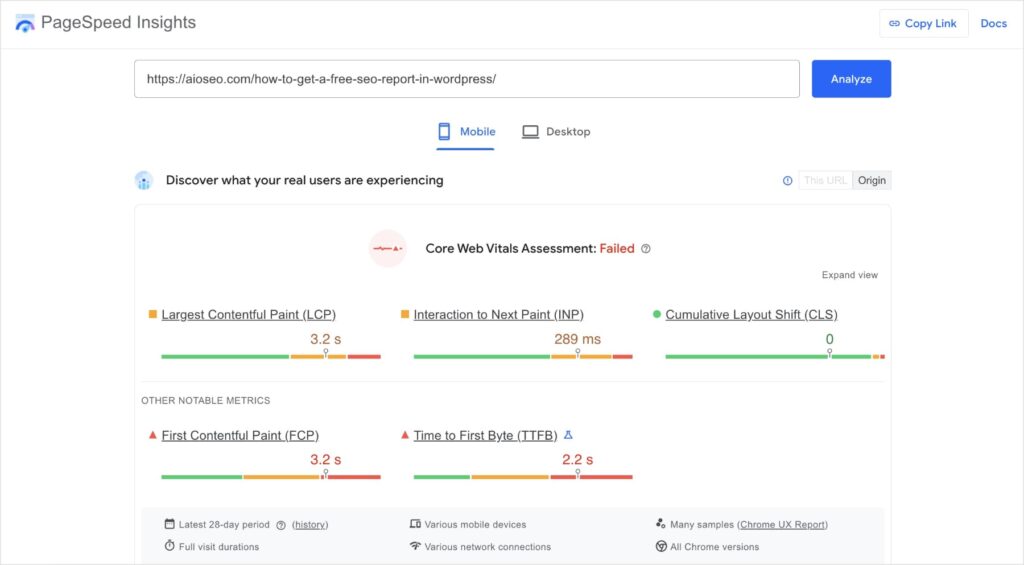
In a few moments, you'll get a color-coded report with performance feedback:
- Green: Your site is fast.
- Yellow: Your site has room for improvement.
- Red: Your site is slow and needs urgent attention.
If you continue scrolling down the page, you’ll also get numbered scores for various elements.
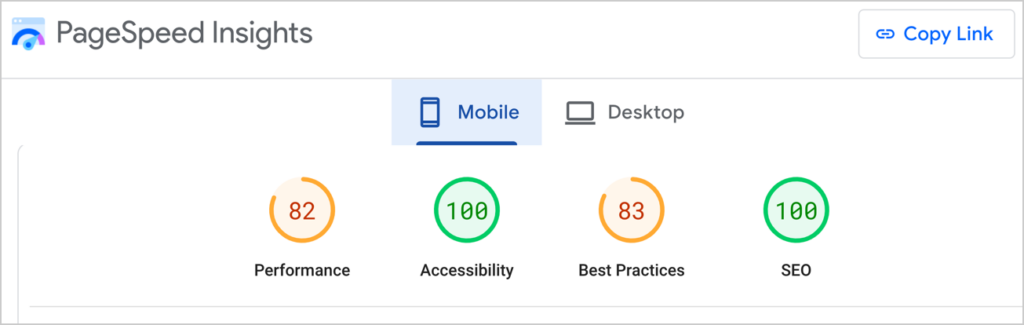
The goal isn’t necessarily to hit 100 for every report. The goal is to increase your site speed and improve the user experience (UX).
To do this, you’ll want to scroll down until you see the Diagnostics. You’ll find specific areas for improvement. But realize, these diagnostics are for professionals. Very few of the recommendations will make sense to the average user (including myself).
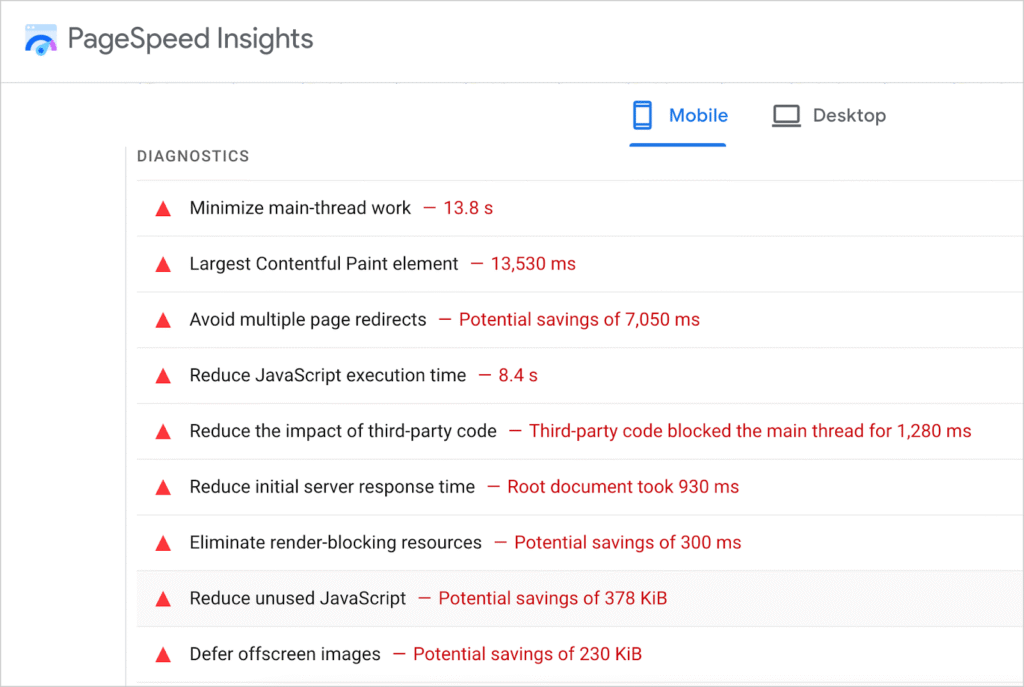
If you are comfortable working through this method, you can click any item to get detailed recommendations on what to change.
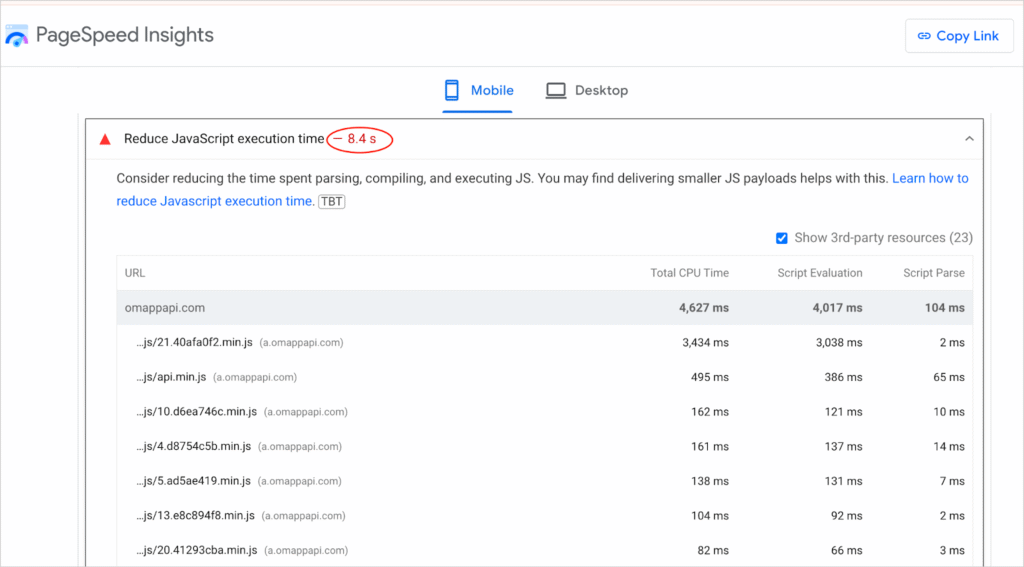
Now, you know where your performances issues are and how to fix them.
You can also add competitors to PageSpeed Insights and compare your Performance Score with theirs.
A Note for WordPress Users
The easiest way to run a site speed test in WordPress is to use All In One SEO (AIOSEO).
I’ve used too many SEO plugins to count over the years, and I’ve found AIOSEO to be the most user-friendly option for testing site speed.
AIOSEO helps users improve their websites’ visibility in search results with on-page SEO features and technical SEO tools. Today, it has over 3 million active users.
For step-by-step instructions on how to install AIOSEO, visit our Installation Guide.
To check your site speed using AIOSEO, start by navigating to the AIOSEO Dashboard. Then, look for the SEO Site Score section.
You’ll get an overall score with a detailed breakdown of “good” (SEO checks), warnings, and issues.
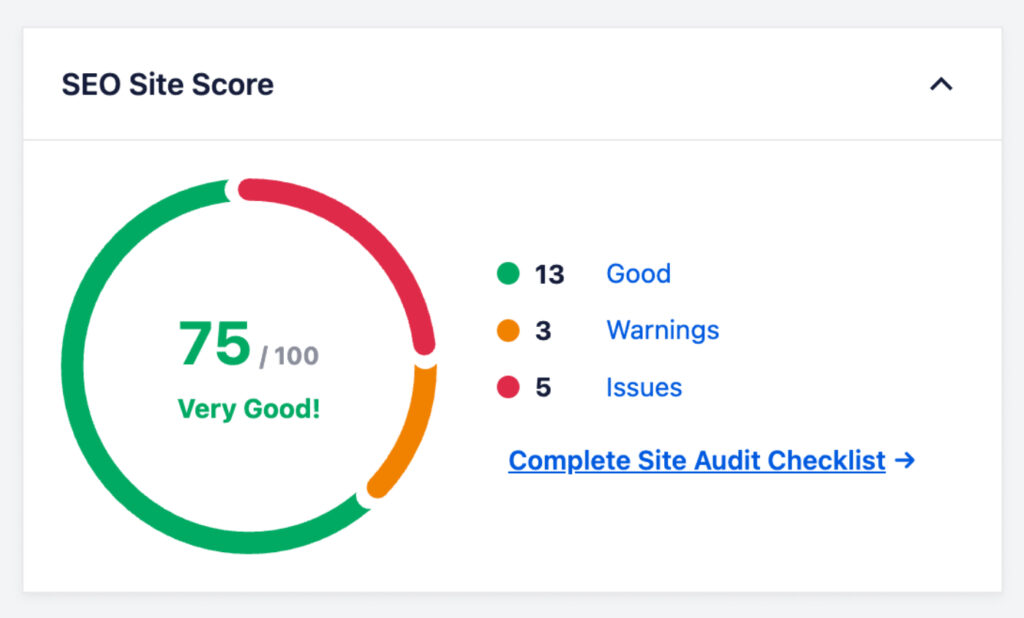
From here, click on “Complete Site Audit Checklist” to navigate to the SEO Analysis tool.
Then, scroll down until you see the Performance SEO section.
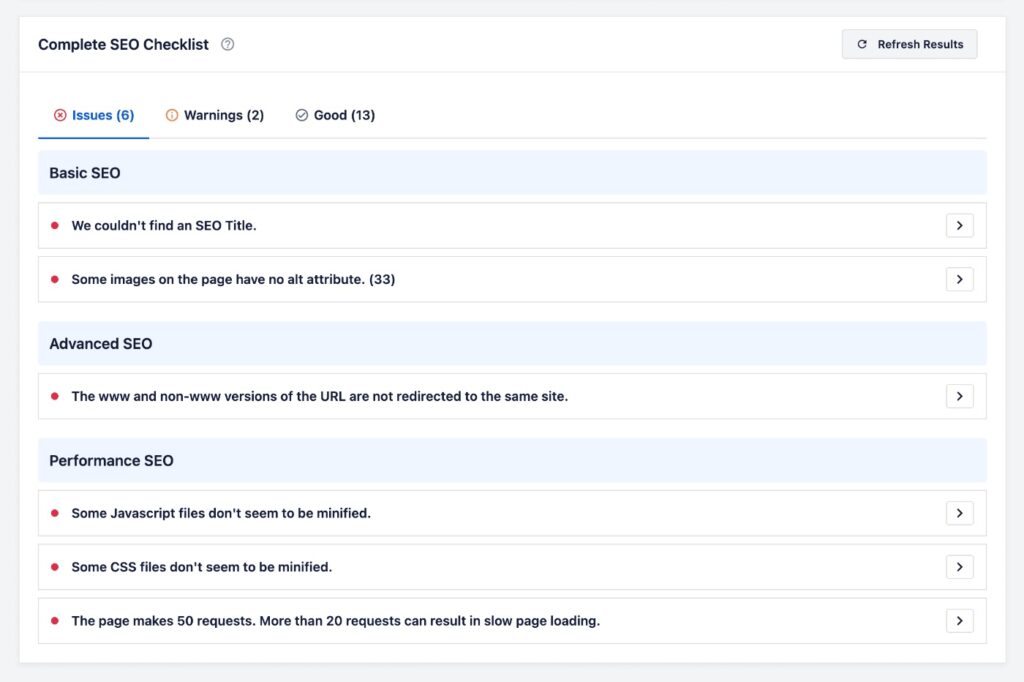
You can expand any of these sections to learn more about the performance issue and get recommendations on what to improve.
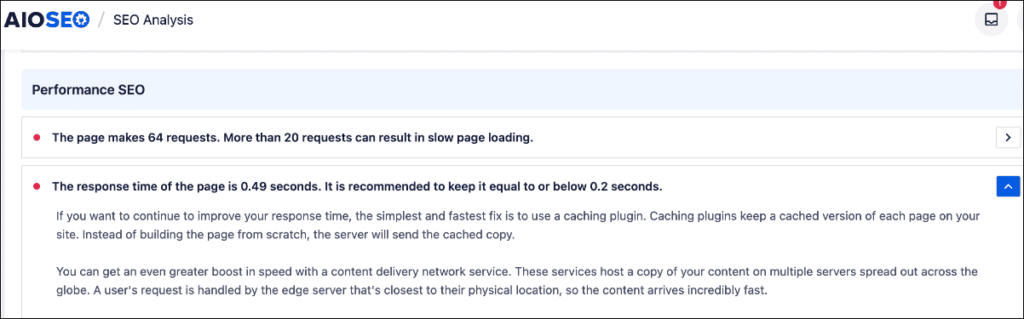
Personally, I find this method much easier than digging through PageSpeed Insights.
The language is also more beginner-friendly, making understanding issues and how to fix them more accessible.
Want more tool recommendations? Check out my list of the best page speed test tools.
Ultimately, AIOSEO is a handy way to keep an eye on your site’s performance without the technical headache.
Step 2: Choose a Fast-Loading Theme
A WordPress theme controls the entire look and feel of your website. Think of it like the design and layout of a house. It determines your site’s colors, fonts, and page structure without changing your actual content (the furniture).
Your theme is the foundation of your website's design and plays a huge role in your site's speed. Some themes are bloated with unnecessary code that can slow you down.
The easiest way to get a fast site is to start with a theme built for speed.
If you're starting a new site or planning a redesign, consider using a lightweight theme known for great performance. Some popular and fast themes include:
You can also use page builders. My personal favorite is SeedProd.
SeedProd comes with a lot of pre-built designs, sorted by industry. This makes creating a beautiful (and fast) site painless.

It also has a particular emphasis on designs that boost conversions.
Ultimately, it doesn’t really matter whether you use a theme or page builder. You can choose whichever one suits you.
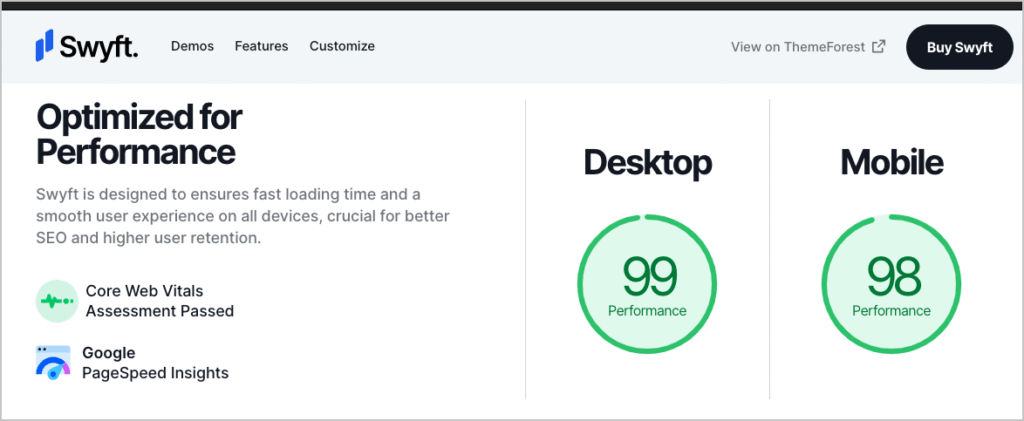
Another way to find fast-loading themes is to browse a marketplace like ThemeForest.net. Then use search terms like “fast-loading” or “page speed optimized.”
That’s how I found the theme below, Swyft.
Now let’s look at what’s commonly the biggest culprit in slow loading speed: images.
Step 3: Compress Your Images
Large, uncompressed images are the #1 cause of slow websites.
When you download a photo from a stock site, that image file can be huge—sometimes 4MB or more. Uploading that directly to your site is like trying to stuff a moose into a MINI Cooper. Something’s gotta give, and what goes is your site's loading speed.
The solution is to compress your images. This means reducing the file size without sacrificing much visual quality.
You can do this using a WordPress plugin like WP Rocket. This plugin is designed to boost your site speed overall.
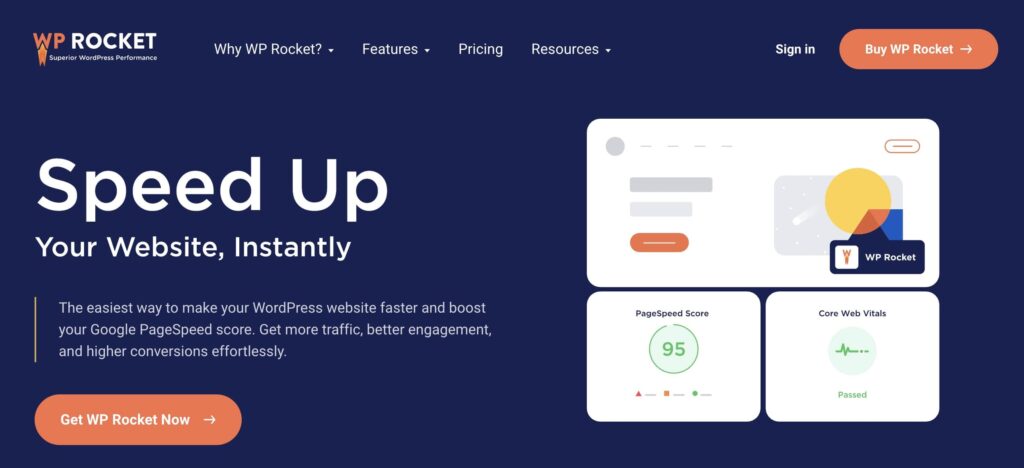
Here’s how it helps:
Lazy Load Your Images
WP Rocket compresses images and uses lazy loading.
Lazy loading is a best practice that prioritizes loading images at the top of the screen, then loading the rest of the images on the page in rapid succession.
This gives the user a sense of instantaneous loading.
If they happen to scroll down the screen quickly, before the rest of the images have loaded, they’ll see a blurred image that rapidly comes into focus. This is more satisfying than seeing a red X, which makes the page look broken.
Let’s look at an example.
Here, I navigated to a page using a mobile phone on a slow public network. When I scrolled down quickly, I saw this image, blurred out, which hadn’t quite loaded yet.
The blurring is a function of lazy loading. We see some colors, but not much else.

In an instant (around 1 second or even less), the image came into focus.
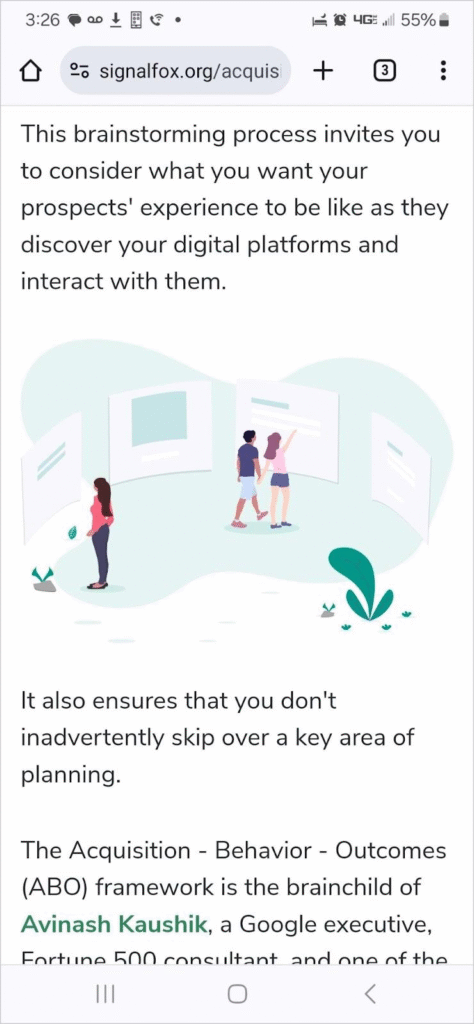
Note that lazy loading can use various blurring styles, but you get the idea. It helps users access all your images when they need them and without weighing down your site speed.
Did you know? Lazy loading is one of my top website optimization tips for site owners. It sounds intimidating, but it’s actually really easy to do when have the right tools. Plus, it makes a big difference for your site speed and UX.
Shameless Plug: I also want to mention that we recently released an AI Image Generator for WordPress. I’ve been using it a lot for my content and have been blown away with the results.
You just enter a text prompt, click Generate, and the tool will produce an original image right in the WordPress editor. You can even submit edit request, and it will keep an entire revision history of your prompts and images.

Once you’re happy with the result, click Insert Image to add it right into your content.
It’s one of the best AI image generators I’ve ever used, and the fact that you can use it in WordPress is a game-changer.
Step 4: Use a Caching Plugin
This is the most impactful technical step you can take, and a good plugin makes it incredibly easy.
So, what is caching?
Imagine someone asks you a complicated math problem. The first time, it takes you a while to figure it out. But if they ask you the same question again, you remember the answer and can say it instantly.
Caching works like that for your website. It creates and saves a static copy of your site. When a user visits, your server shows them the saved copy instead of rebuilding the page from scratch every time.
This is much, much faster.
With just a few clicks, WP Rocket will:
- Turn on caching for your site
- Minify your CSS and JavaScript files (this means removing unnecessary spaces and characters from code to make it smaller)
- Apply Lazy Loading to your images
Simply installing and activating a plugin like WP Rocket can take your performance score from red or orange straight into the green.
Step 5: Check Web Hosting Speed Options
Lastly, your web host can be a valuable resource in speeding up your site.
Contact them and ask what they can do to speed up your site.
Most web hosts offer content delivery networks (CDNs). These networks save a copy of your site whenever it’s updated in various geographic locations around the world. This way, a user can connect to your site from a location near them.
You can also discuss your hosting plan with them. Some “shared hosting” plans, which are typically low-cost plans, can limit your speed.
Finally, ask them if they have other resources or recommendations for speeding up your site. Sometimes it’s best to get information straight from the source rather than trying to figure it all out on your own.
And there you have it! 5 steps to better, faster website speed optimization.
Now, before we wrap things up, I want to discuss one more technical element for advanced users.
Core Web Vitals
When it comes to website performance, a good speed is one that provides a seamless and fast experience for users.
Since PageSpeed Insights breaks overall performance down to specific metrics, called Core Web Vitals, I’ve defined a few of them below.
Please note that this is for more advanced users. Do not panic if you’re an average site owner and don’t understand them. Core Web Vitals are designed for web professionals, so feel free to skip this section.
- Page Load Time: Aim for a page load time of 2 seconds or less. Studies have shown that users start to abandon websites that take longer than 3 seconds to load. Google recommends a load time of under 1 second for e-commerce websites.
- Time to First Byte (TTFB): TTFB is the time it takes for a user's browser to receive the first byte of data from the server. A good TTFB should be under 200ms.
- First Contentful Paint (FCP): FCP measures the time it takes for the first piece of content to appear on the screen. A good FCP should be within 1 second.
- Largest Contentful Paint (LCP): LCP measures the time it takes for the largest content element (e.g., an image or block of text) to appear on the screen. A good LCP should be within 2.5 seconds.
- Cumulative Layout Shift (CLS): CLS measures the visual stability of a page as it loads. A good CLS score should be less than 0.1.
- Time to Interactive (TTI): TTI measures the time it takes for a page to become fully interactive. A good TTI should be within 5 seconds.
Keep in mind that the ideal website speed may vary depending on your target audience, industry, and the complexity of your website.
However, by aiming for the above-mentioned benchmarks, you can ensure a good browsing experience for your visitors.
Want Us to Do It For You?
I know this can seem like a lot to take on, especially when you're busy running your business. If you’d rather have an expert handle all of this for you, we can help.
Our Site Optimization Service is a completely done-for-you solution designed to get you the best possible PageSpeed score without you having to lift a finger.
Our team of experts will do all the heavy lifting, including:
- A full audit of your site to find exactly what's slowing it down
- Expert configuration of the best caching settings using powerful tools like WP Rocket
- Full image optimization across your entire site so your pictures look great without the performance drag
- A thorough database cleanup to keep your site running efficiently behind the scenes
We’ll get your site running lightning-fast and provide you with a full before-and-after report so you can see the difference.
Learn more about our Site Optimization Service today and let us take care of the rest.
After Website Speed Optimization…
Now that you have a path forward for improving your site speed, what’s next?
Read our review of the best caching plugins, and learn how WP Beginner sped up their site. Then, check out our SEO secrets for driving revenue.
You can also come join us on our YouTube Channel to find simple WordPress SEO tutorials. Or follow us on X (Twitter), LinkedIn, or Facebook to stay in the loop.
FAQs About Website Speed Optimization
Will speeding up my site actually improve my SEO rankings?
Improving your site speed can definitely influence your rankings for the better. Google uses site speed as a ranking signal because a fast site provides a better user experience.
While high-quality content is still the most important factor, speed matters. If your site is noticeably slower than your competitors, a speed boost can give you a real competitive edge in search results.
But even beyond SEO, a faster site helps you keep visitors from leaving and encourages them to convert. That's a win no matter what.
How can I control costs if I hire a professional?
The best way to control costs is to ask the professional to focus on the highest-impact tasks first. This usually includes proper image optimization and expert cache plugin configuration, which often deliver the biggest speed improvements.
Also, look for services that offer a fixed-price package instead of an open-ended hourly rate. This way, you know the full cost upfront with no surprises. For example, our own Site Optimization Service is a one-time fee for a complete speed overhaul.
What's a good PageSpeed score to aim for?
While it's tempting to chase a perfect score of 100, it's often not necessary. The real goal is to provide a fast, smooth experience for your visitors. A score in the green (90-100) is an excellent target.
The most important thing is to see a significant improvement from your starting score and ensure your site feels fast to a real user. Don't stress about the last few points; focus on the user experience.
It felt like I was doing all this work for nothing. I would check my stats each day and the traffic just wasn't coming.
It turns out, I was missing a key piece of the puzzle: a clear and focused strategy for improving my keyword rankings. Wanting higher rankings is one thing. Knowing and executing the steps to get them is another story.
In this guide, I’m going to share the exact steps I used to boost my rankings and drive organic traffic. This is the guide I wish I had when I was starting out!
Let’s get started.
In This Article
- Why You Need to Improve Your Keyword Rankings
- How to Improve Your Keyword Rankings in 10 Easy Steps
- Step 1: Set Up Rank Tracking
- Step 2: Conduct Keyword Research
- Step 3: Include Related Keywords
- Step 4: Create High-Quality, Valuable Content
- Step 5: Optimize On-Page Elements
- Step 6: Focus on Link Building
- Step 7: Monitor & Adjust Your SEO Strategy
- Step 8: Optimize for Local SEO
- Step 9: Implement Schema Markup
- Step 10: Analyze Competitor SEO Strategies
- Keyword Rankings Shouldn’t Rely on Guesswork
- FAQs About Keyword Rankings
Why You Need to Improve Your Keyword Rankings
Let's be honest. Ranking in Google is harder than ever. And you’re doing SEO because you want to get more traffic, customers, and conversions, right?
Well, building organic traffic is one of the best ways to grow your business.
Here’s why investing in your SEO rankings matters:
- Increases Visibility & Traffic: High-ranking keywords bring your website to people who need it. More qualified traffic means more chances for customers.
- Builds Trust & Authority: When your website shows up in search results, potential customers trust you more. It’s simple psychology: Google wouldn’t show untrustworthy results.
- Attracts Qualified Leads: When viewers are already researching something, they're already thinking about the purchase.
- Provides Sustainable Growth: Unlike paid ads, organic search traffic continues to deliver results over time.
- Keeps You Ahead of the Competition: If you're not ranking, a competitor will.
Ultimately, improving your keyword rankings isn’t just about SEO— it’s about creating a sustainable, thriving business for the long haul.
How to Improve Your Keyword Rankings in 10 Easy Steps
Okay, you’ve decided to prioritize keyword rankings. Awesome!
Here’s how to do it step-by-step:
Step 1: Set Up Rank Tracking
First thing’s first: you need to know where you stand.
Without tracking, you're essentially flying blind. It's like driving with your eyes closed.
Rank tracking is the process of monitoring your website's position for specific keywords in search engine results pages (SERPs). This is important because it gives you a baseline to measure progress and identify areas for improvement.
For a long time I manually checked my keyword rankings. It was a time suck.
Then I discovered tools that do it automatically.
If you’re a WordPress user, this is where All In One SEO (AIOSEO) comes in.
AIOSEO is a comprehensive plugin that helps with all aspects of SEO, from optimizing your content to generating sitemaps and tracking your performance.
But it’s not just about the fancy features. It's also super easy to use.
AIOSEO allows you to easily track your keywords right from your WordPress dashboard. No complicated setups or manual keyword uploading required.
The plugin has a powerful Keyword Rank Tracker, which integrates with Google Search Console.
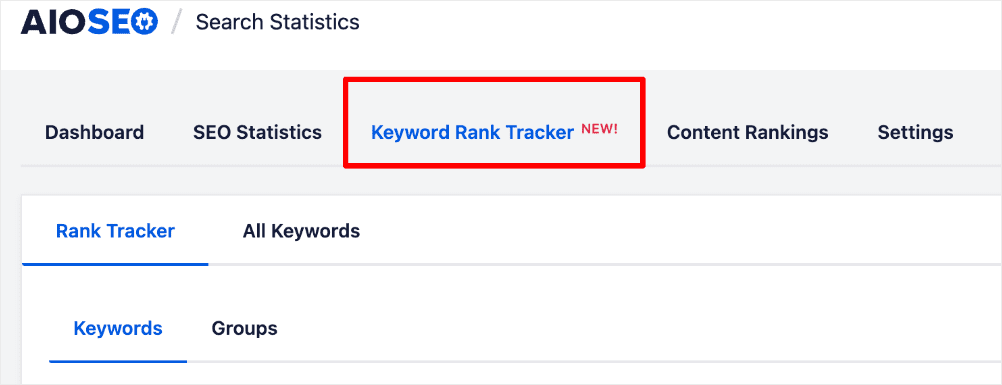
Google Search Console (GSC) is a free tool that helps website owners monitor their keyword rankings in Google. When you use AIOSEO’s Google Search Console Integration, you get GSC data directly inside WordPress.
What I like about the Keyword Rank Tracker is that you can upload the keywords you want to track in 1 of 3 ways:
- Straight from Google Search Console
- From your list of focus keywords in WordPress
- With a CSV file that you upload

You can even assign groups if you’re tracking a lot and want to organize them. However, it’s not required, especially if your list is small.
Once you’re ready, click Add Keywords.
The tool will then monitor your SEO performance and track your keywords automatically.

AIOSEO uses real-time GSC data, meaning you always have access to your latest rankings.
Don’t have AIOSEO yet? Join over 3 million small business owners and digital marketers by signing up. And for step-by-step instructions on how to install it, check out our AIOSEO Installation Guide.
Step 2: Conduct Keyword Research
Now that you know where you stand in Google search results, it's time to expand your keyword rankings list.
This starts with finding the right keywords to target in your content.
Fair warning: Ignoring this step is like shooting in the dark. You might get lucky, but the chances aren’t great.
Keyword research is the foundation of any successful SEO strategy. It’s the process of identifying the words and phrases people use when searching for information related to your niche.
I used to spend so much time chasing after high-volume keywords and never made it to page 1. My clickthrough rate (CTR) was abysmal, and I was frustrated.
That's why I want you to do something different (and it's what I do today).
Your goal is to identify keywords with high search volume and low competition. I call them “low-hanging fruit”.
For this task, I highly recommend a tool like LowFruits.

LowFruits helps you identify long-tail keywords that others are overlooking. These are longer search queries (3 words or more) that have very specific search intent.
Targeting these types of keywords is a game-changer because you can:
- Attract targeted traffic
- Build niche authority
And you can do it without being a big-name website with a high domain authority (DA). This means you have a better chance of ranking high for terms relevant to your business.
Plus, it’s one of the more affordable keyword research tools out there. LowFruits has plans that start as low as $21/month.
For those looking to do a deeper dive, check out our Beginner’s Guide to Keyword Research.
Here are some actionable steps you can take in your keyword research:
- Define your target keywords: Identify the primary and secondary keywords relevant to your niche.
- Analyze search intent: Understand what people mean when they use your keywords.
- Identify long-tail keywords: Target phrases with 3 or more words.
- Monitor competitor keywords: See what your competitors are ranking for.
Example: If you're a vegan bakery, instead of just targeting “vegan cupcakes,” target long-tail phrases like “best gluten-free vegan cupcakes recipe” for niche traffic.
Step 3: Include Related Keywords
Okay, you’ve tracked your keywords and found some promising search terms. Now what? You can't just stuff keywords in and hope for the best.
When you’re working on your SEO, you want to be relevant. Think of it like having a conversation. Would you repeat the same phrase over and over again? Absolutely not.
Focusing on related keywords is an often-overlooked strategy. It enhances your context and helps search engines understand the main topic of your page.
It also gives you more chances to improve your keyword rankings.
The best part? Using related keywords makes your content feel more natural.
Here’s why this works:
- Improved SEO: Gives context to search engines boosts relevance.
- Higher Ranking Potential: Casts a wide net for more keyword rankings.
- Better Intent: Addresses related keywords with similar search intent.
- Content Diversification: Helps you avoid keyword stuffing.
Let’s talk specifics. I’m going to walk you through how to find related keywords directly in WordPress.
How to Find Related Keywords Using AIOSEO
Start by navigating to the AIOSEO menu. Then, go to Search Statistics >> Keyword Rank Tracker >> Keywords.

Once here, select the keyword for which you would like to get related keywords and expand the row by clicking on the “expand arrow.”

When you do this, a window opens where you will see the related keywords. These are pulled directly from Google.
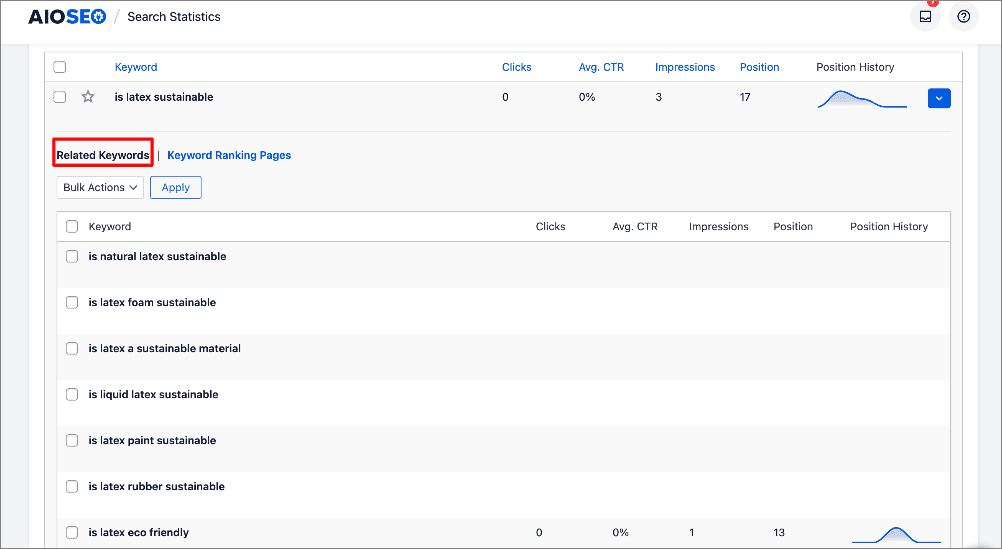
One of the biggest advantages of finding related keywords this way is that you can easily add select keywords to your list of tracked keywords.
To do so, select the keywords you want to add and click Bulk Actions >> Add.
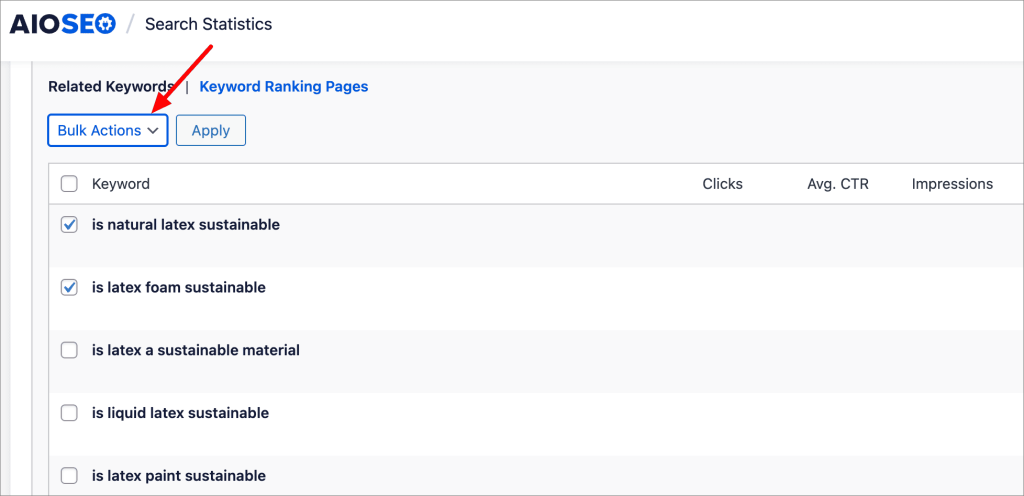
Clicking the Add option opens a window where you can add and edit the keywords you want to track.
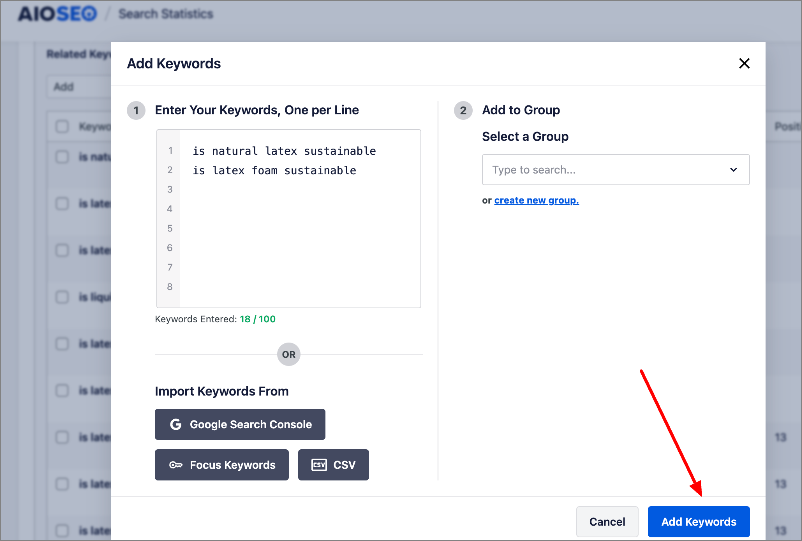
And that’s it!
You’ve found more keywords to target and track, and they’re all related to your niche.
Step 4: Create High-Quality, Valuable Content
Content is still king.
Search engines like Google reward websites that consistently deliver valuable, in-depth information. This became even more important after the helpful content update (HCU).
But writing engaging content is hard.
I used to spend hours writing blog posts that never gained traction. The problem? They were short, superficial, and offered no real value. (This was 6+ years ago; I’ve learned a lot since then.)
The goal is to create a resource people are actually excited to read.
Here’s a breakdown of what works:
Write Long-Form Content
Ever wondered why some articles seem to always rank at the top of search results?
It’s because longer, detailed content is favored by search engines.
Aim to create articles or blog posts that are 1,500 to 3,000 words or more. This allows you to cover a topic comprehensively, giving your readers everything they need in one place.
Long-form content signals depth, expertise, and authority, and it gives you more opportunities to weave in those relevant keywords.
It doesn't just perform better in search rankings—it also keeps users on your page longer, reducing bounce rates and signaling to Google that your content is genuinely valuable.
Pro Tip: Have a comprehensive guide as one of your long-form content pieces? Use it as cornerstone content (a pillar page) and build topic clusters around it. Then, use links to connect your pillar page to the supporting topic cluster pages. This will boost your keyword rankings and internal linking strategy.
Develop Linkable Assets
Beyond length, the type of content you create matters.
Think about resources other people will want to share. What problem can you solve in a unique and valuable way?
Consider resources like:
- Detailed Guides & Tutorials: Offer step-by-step instructions.
- Infographics & Data Visualizations: Make complex information easy to digest.
- Interactive Tools & Calculators: Solve a problem for your audience.
By creating content people would actually want to link to, you’ll attract organic backlinks naturally (aka, no outreach required.)
For example, imagine you have a fitness blog. You could create an interactive calorie calculator that helps users estimate how much energy they burn during different exercises.
This not only attracts backlinks from fitness blogs but also provides a reason for users to visit—and stay on—your site.
Plus, it helps improve your keyword rankings!
Regularly Update Content
Creating content isn’t a one-and-done deal.
The online world is constantly evolving, and fresh content is essential. (We saw this in the recently leaked Google search algorithm document.)
This means that even if you’ve written a fantastic piece, over time, it can lose relevance. Here’s what you can do to combat this phenomenon known as content decay:
- Check for outdated information: Make sure your content reflects recent data.
- Add new resources and links: Include new linking opportunities that you didn’t have when the article was first published.
- Find and fix broken links: Look for pages with 404 (page not found) errors and give users and search engines a better place to go.
- Include LSI keywords: Identify new ranking opportunities by researching and optimizing for LSI keywords.
I know, it sounds like a lot of work. But writing high-quality content is worth the effort, because it helps your website stay relevant.
For example, let’s say you're a real estate agent with a blog post titled “10 Tips for First-Time Home Buyers.” You wrote it 2 years ago, and it performed well initially.
However, with mortgage rates constantly changing, your post might feel outdated to readers.
By updating it with current mortgage trends, new tips on securing financing, and adding fresh internal links to related content on your site, you keep it relevant.
This not only helps maintain your keyword rankings but also shows Google that your site offers up-to-date, valuable information.
Want to learn more about creating content users and search engines love? Check out the following articles:
Step 5: Optimize On-Page Elements
Now, it's time to polish your content for search engines.
On-page SEO is the practice of optimizing individual web pages to rank higher in search engines for relevant keywords. It's a proven way to improve your keyword rankings, especially for your most important pages.
Key on-page SEO elements include:
- Title Tags & Meta Descriptions: Your title tags and meta descriptions should include your primary keyword to improve click-through rates. For example, a compelling title like “10 Best Vegan Cupcake Recipes for a Healthy Treat” is more engaging than “Vegan Cupcake Recipes“.
- URL Structure: Use clean, keyword-rich URLs like /vegan-cupcake-recipes/ instead of /post-123page.php.
- Headings & Subheadings: Organize your content with H1, H2, and H3 header tags that include relevant keywords. This improves readability for both users and search engines.
- Internal Linking: A solid internal linking strategy helps search engines understand your site structure and prioritize your most important pages. This is made easier by internal linking plugins or tools like AIOSEO’s Link Assistant.
- Content Quality & Relevance: Creating high-quality, original, and engaging content that covers the topic well and satisfies searchers.
For more details, check out our on-page SEO checklist. It will help you keep track of all the on-page SEO elements you need to optimize for better keyword rankings.
Step 6: Focus on Link Building
You've created amazing content and optimized it for search engines. Now it's time to spread the word!
Link building is the process of getting other website to link to your content, increasing your visibility online.
Think of backlinks as “votes of confidence” from other websites. The more high-quality votes you get, the more trustworthy you appear to search engines. (That's why backlinks have been one of the most important Google ranking factors in recent years.)
Here's how to do link building the right way:
Focus on Quality
Not all backlinks are created equal.
In fact, some low-quality or irrelevant backlinks can actually hurt your SEO.
To truly improve your keyword rankings, focus on obtaining high-quality backlinks from authoritative websites in your industry. Reach out to these sites and offer them valuable content or unique insights that will benefit their readers.
For example, if you’re a financial consultant, you could offer to write a detailed post about saving for retirement on a finance blog. In return, they’ll include a backlink to your website, which boosts your SEO while providing them with relevant content.
Perform Outreach Campaigns
Building relationships within your industry is another powerful strategy. Collaborating with influencers, bloggers, or experts in your field can lead to backlinks that significantly enhance your authority.
Start by identifying key players in your niche—people who have a solid following and are respected for their expertise.
Then, pitch ideas for guest blogs, expert interviews, or content collaborations that offer mutual value. The key here is to create something that benefits both parties; you gain a valuable backlink, and they receive high-quality content or insights to share with their audience.
Do Guest Posting
Guest posting is one of the most tried-and-true methods for acquiring high-quality backlinks.
Writing for reputable websites not only exposes your content to a broader audience but also provides a golden opportunity to include a backlink to your own website.
Be sure to include a link in your bio or within the article itself.

For instance, a fitness blogger could write an in-depth post on workout routines for a major health site, including a link back to their own post on nutrition tips. This drives organic traffic while enhancing your visibility in the online fitness community.
Run PR Campaigns
Public relations (PR) campaigns are a powerful yet often overlooked strategy for improving keyword rankings and building high-quality backlinks.
When done right, a well-executed PR campaign can generate widespread visibility, brand awareness, and—most importantly—backlinks from reputable news outlets, blogs, and industry publications.
These backlinks carry significant weight in search engine algorithms, boosting your site’s authority and helping you climb the keyword rankings.
To ensure your PR campaigns are effective, write newsworthy articles and reach out to relevant publications.
Ultimately, building backlinks is a long-term strategy that pays off through increased authority, trustworthiness, and improved keyword rankings.
For more details, check out our Ultimate Link Building Guide.
Step 7: Monitor & Adjust Your SEO Strategy
You can’t improve what you don’t measure, and SEO is no exception.
To ensure your efforts are paying off, you need to monitor your performance and adjust your strategy as needed.
Remember that SEO is not a set-it-and-forget-it game. Search engine algorithms, user behavior, and competitive landscapes are constantly evolving, meaning what worked yesterday may not work today.
Here’s how to stay on top of things:
Analyze Rank Tracking Data
First things first, regularly tracking your keywords is essential to understanding how your SEO efforts are performing. We’ve covered how to do this using AIOSEO’s Keyword Rank Tracker, so I won’t go into details here.
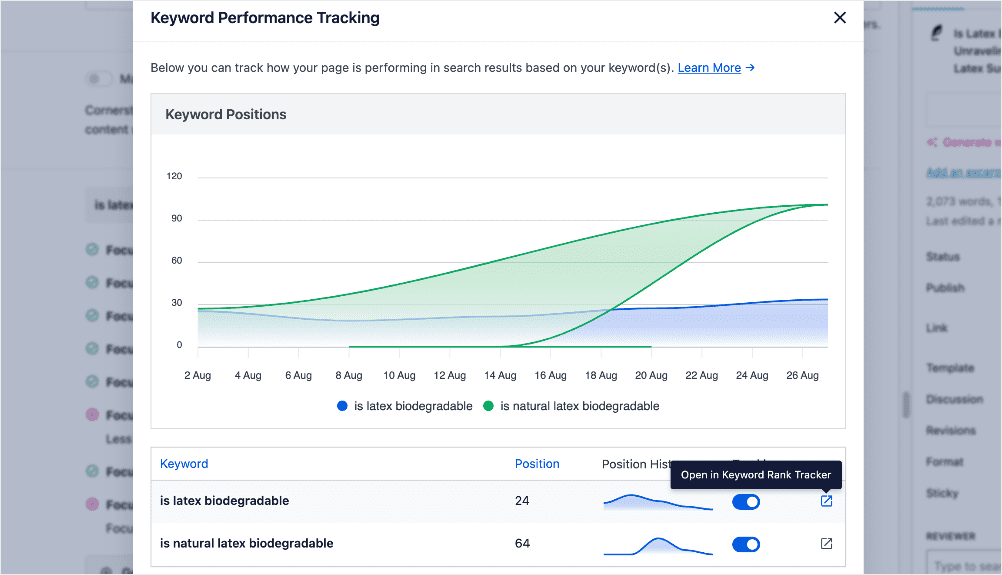
However, keep an eye on any shifts in rankings—whether certain keywords are climbing, stagnating, or dropping. These changes can give you insights into what’s working and where you need to focus more effort.
Identify Areas for Improvement
If certain keywords aren’t performing well, it's time to investigate.
Check the content on the problematic keywords. Is it high-quality? Is the content optimized well?
You’ll need to analyze your content critically to see where you can improve. You might try testing new approachhes like updating the content for those underperforming pages, adding internal links, or tweaking your meta descriptions and title tags to be more compelling.
If your content still isn’t ranking as expected, consider optimizing for long-tail keywords or revamping the page's overall user experience.
These small changes can make a big difference in boosting your rankings over time.
Stay Updated on SEO Trends
Search engine algorithms are constantly being updated, and staying on top of those changes is crucial.
That’s why regularly reviewing SEO industry news, following thought leaders, and staying informed on algorithm updates is essential for your long-term success. (This article shows you how to monitor the impact of Google algorithm updates in WordPress.)
By adapting your strategy in response to these changes, you can stay ahead of your competitors who may not be as proactive.
Pro Tip: Bookmark AIOSEO Trends to see which websites are exploding in organic traffic and the exact strategies they used to improve their visibility. We have over 100 SEO case studies on this page and are constantly updating it with new trending sites and strategies.

Step 8: Optimize for Local SEO
If your business serves a specific geographic area, local SEO is vital to attracting customers.
The majority of searches today are location-based, with people searching for “near me” or specific locations.

Optimizing for local search makes it easier for potential customers to find you when they're actively looking for businesses in your area.
Here’s how to optimize for it:
- Use Local Keywords: Capture local traffic by incorporating location-based keywords into your content. For example, phrases like “vegan bakery in brooklyn” help search engines serve your content to users in that area, ensuring you attract a more targeted, local audience.
- Create a Google Business Profile: A Google Business Profile is essential for local SEO success, helping your business appear in local searches and Google Maps. It showcases key details like your address, hours, and customer reviews, making it easy for local customers to find and choose your business.
- Gather Local Reviews: Positive reviews on platforms like Google and Yelp play a crucial role in local SEO, building trust with potential customers and boosting your ranking in local searches.
Related Reading:
Step 9: Implement Schema Markup
Schema markup is a type of code that provides search engines with specific details about the content on a web page.
In short, schema markup makes it easier for search engines to understand your content.
That’s why it’s important to include it when trying to improve your website’s keyword rankings.
Despite being code, you don’t need coding knowledge to implement it. You can use an SEO plugin that supports it, like All in One SEO.
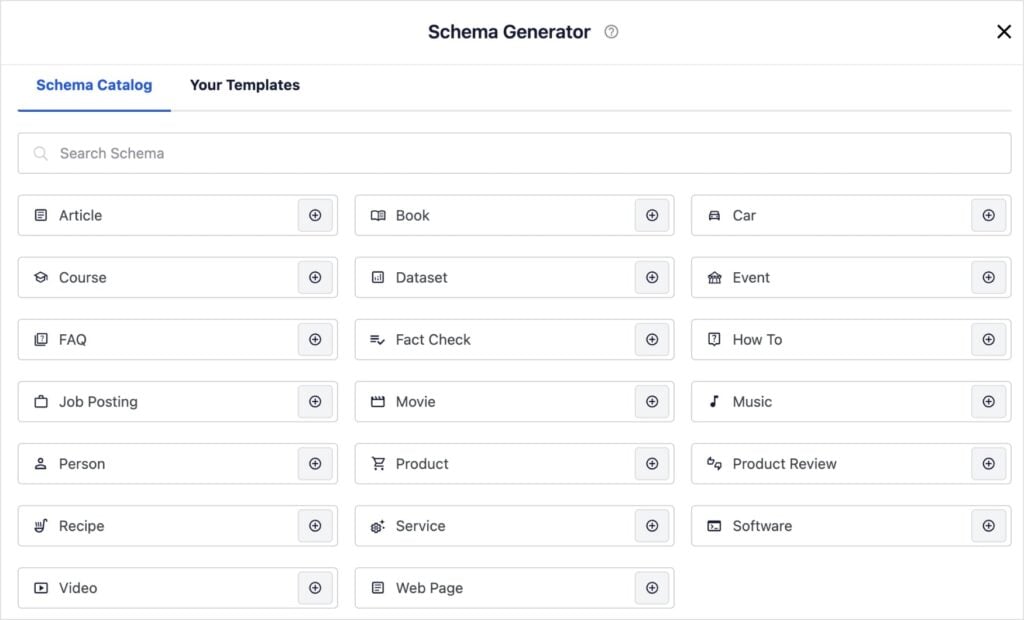
The Schema Generator is a no-code module that makes adding schema markup quick and easy.
All you have to do is choose the schema type you want to implement in the Schema Catalog.
Once you’ve chosen your schema type, simply fill in the relevant information.
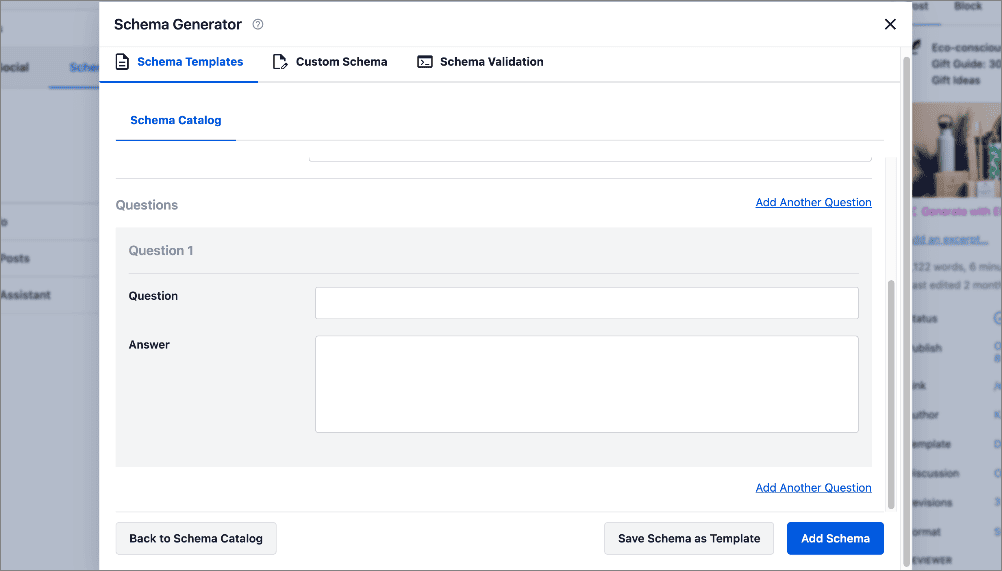
Then, once you’re done, click Add Schema and the plugin will format it properly for search engines.
This will improve your chances of getting rich snippets and featured snippets, which have higher CTRs than regular search listings.
Step 10: Analyze Competitor SEO Strategies
Last but not least, you should check what your competitors are doing.
By studying their strategies, you can uncover gaps in your own approach and capitalize on areas where they’re underperforming.
This analysis can provide a blueprint for enhancing your keyword rankings and taking more online space within your market.
To do this, I recommend using the SEO Analysis tool from AIOSEO. It’s a beginner-friendly method for analyzing your competitors’ websites.
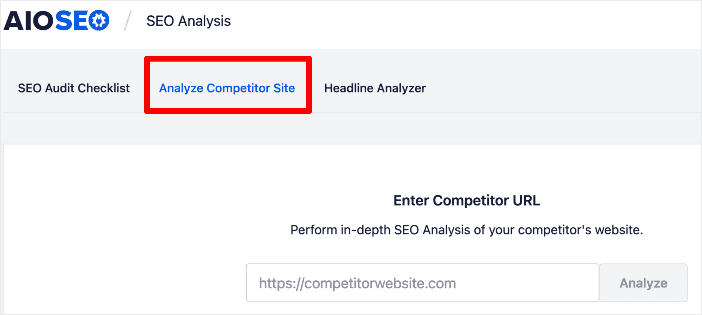
When you put in your competitor’s URL and click Analyze, AIOSEO will crawl the site and give you a report on their SEO.
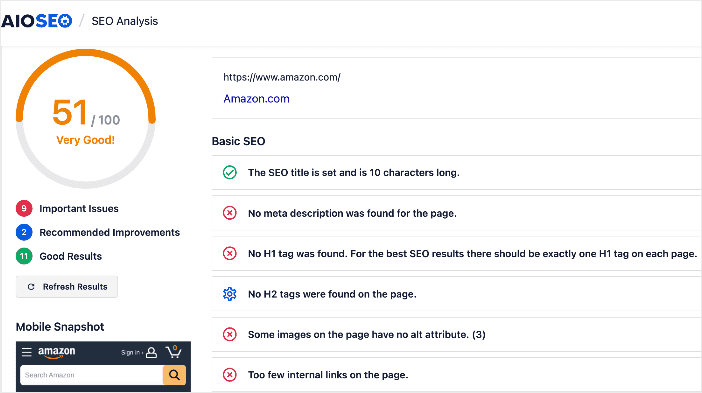
This helps you see what they’re doing well and gaps you can take advantage of.
For detailed steps, check out our guide on performing an SEO analysis in WordPress. This resource will help you understand what to look for on both competitors’ websites and your own.
If you’re not a WordPress user, you can also use the All in One SEO Analyzer Chrome extension.

When you’re a competitor’s web page, you just open the tool and it will show you the following information:
- Overall SEO
- Headings and content structure
- Internal and external links
- Image SEO
- And more
It’s a convenient way to investigate a website and it’s free.
Keyword Rankings Shouldn’t Rely on Guesswork
Improving your keyword rankings takes effort, but it doesn't have to be hard.
By following the 10 steps outline in this article, you'll be well on your way to higher rankings, more visibility in SERPs, and increased conversions.
I also want to highlight that we have a lot of helpful content on the AIOSEO Blog to guide you every step of the way. Some logical next steps include:
- 20+ SEO Best Practices to Improve Your Rankings
- 4 Easy DIY SEO Projects for Beginners
- How to Set SEO Goals That Boost Rankings
- How to Get Automated SEO Reports by Email
If you found this article helpful, feel free to subscribe to our YouTube Channel. You’ll find even more tutorials there. You can also follow us on X (Twitter), LinkedIn, or Facebook to stay in the loop.
FAQs About Keyword Rankings
What is the best WordPress tool for improving keyword rankings?
The best tool for improving WordPress keyword rankings is All in One SEO. This beginner-friendly SEO plugin that has many features to help you rank higher in search engines like Google. Some of its most popular tools include a no-code Schema Generator, an AI Content Generator, and a Keyword Rank Tracker.
How long does it take to improve keyword rankings?
Keyword rankings can improve in weeks or months, depending on the competitiveness of your keywords and how diligently you implement your SEO strategy. Every scenario is unique and the time to see results will vary.
How often should I monitor my keyword rankings?
Regular monitoring—ideally monthly—allows you to stay informed about changes in your rankings and make timely adjustments to your strategy as needed. You can use automated email SEO reports to get these insights straight to your inbox.
We’re bringing the power of AI directly to your fingertips, so you can create, design, and optimize your content faster and smarter than ever before.
And you can do it all right in WordPress.
In This Article
3 Game-Changing Features. 1 Unstoppable You.
1. AI Assistant: Turn Prompts Into Content in Seconds
Ever wished you could wave a magic wand and see your blog post, product page, or FAQs write themselves? With our all-new AI Assistant, that’s exactly what happens.
No more staring at a blank screen or wrestling with writer’s block. Just type a prompt—anything from “Write a blog post about healthy recipes” to “Add a section comparing features”—and watch high-quality content appear right inside WordPress.
Edit, refine, and guide the AI’s suggestions until your unique voice shines through.
It’s the fastest, easiest way to share your story with the world.
Here’s a sneak peek of how it works:
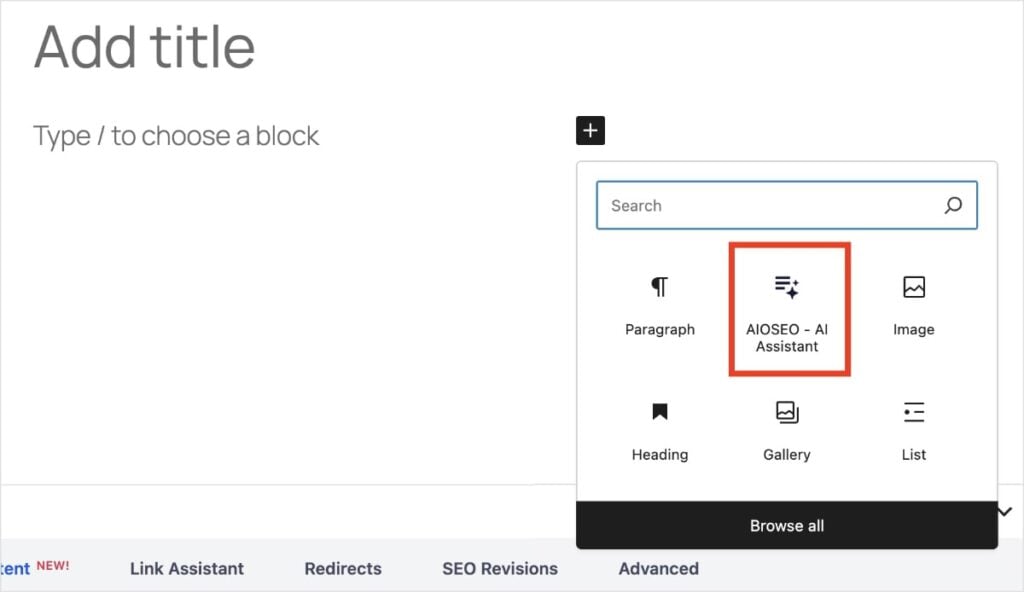
1. Add a new block to your post or page, and select the AIOSEO – AI Assistant. (Don’t see it? You can type into the search bar, too.)
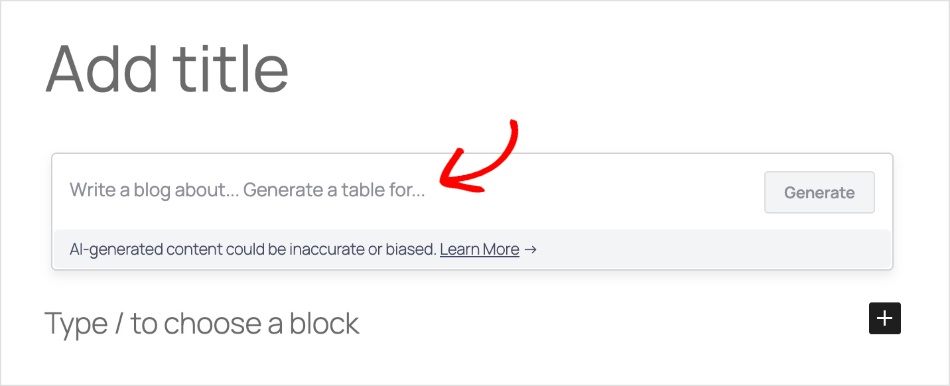
2. Let your imagination run wild and type a prompt for the content you want to create.
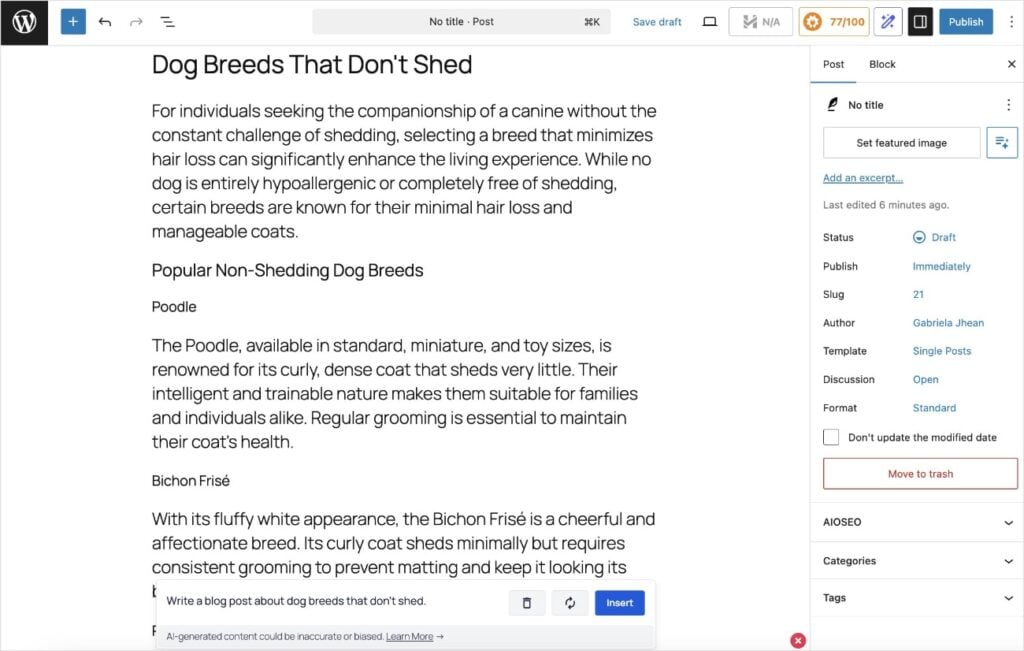
Some examples include “Write a blog post about dog breeds that don’t shed,” “Write a comparison article of the new iPhone models” or “Generate a table comparing the different aspects of SEO.”
3. Click Generate, and let the AI Assistant work its magic. (In my example, I got an entire blog post in just a few seconds.)
You can also:
- Regenerate text
- Add new sections
- Edit AI-generated copy
- Translate to any language
- And so much more!
We wanted a way to put AI content generation right inside the WordPress editor, and AI Assistant does just that.
I can’t wait for you to try it!
2. Image Generator: Bring Your Ideas to Life Instantly
A picture is worth a thousand words. So, why settle for bland stock photos?
Our Image Generator transforms your ideas into gorgeous, original images with a simple prompt. Just describe what you want—“a cat in a superhero costume,” “a minimalist business icon,” or “a vibrant cityscape.”
In seconds, you’ll have a ready-to-use visual saved right to your media library.
Here’s how it works:
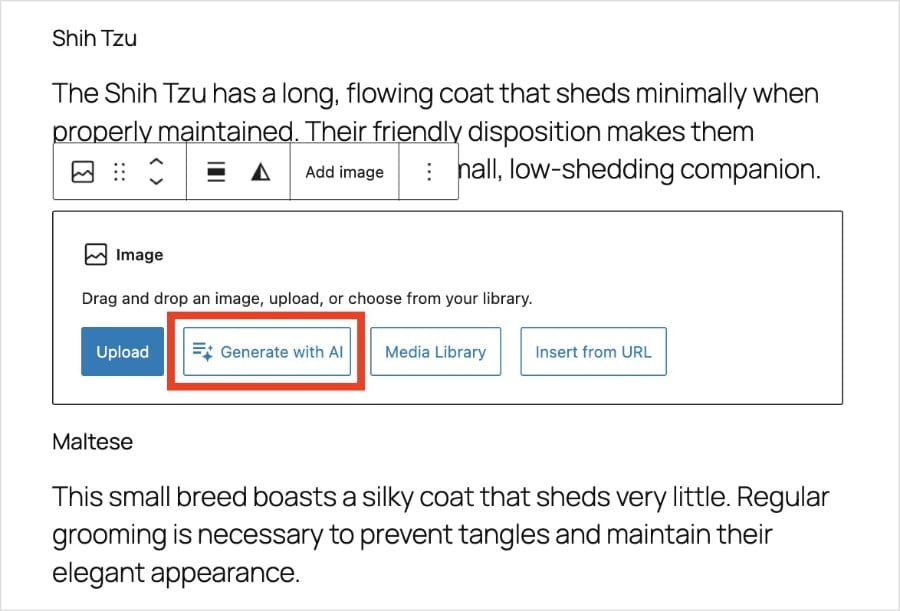
1. Start by adding an Image block (/image) to your post, then click Generate with AI.
2. Type in a prompt describing the image you’d like to create. You can also change any of the default settings for image quality, style, and aspect ratio. (I’m a big fan of the style options. You can choose from cinematic, illustration, minimalist, and more.)
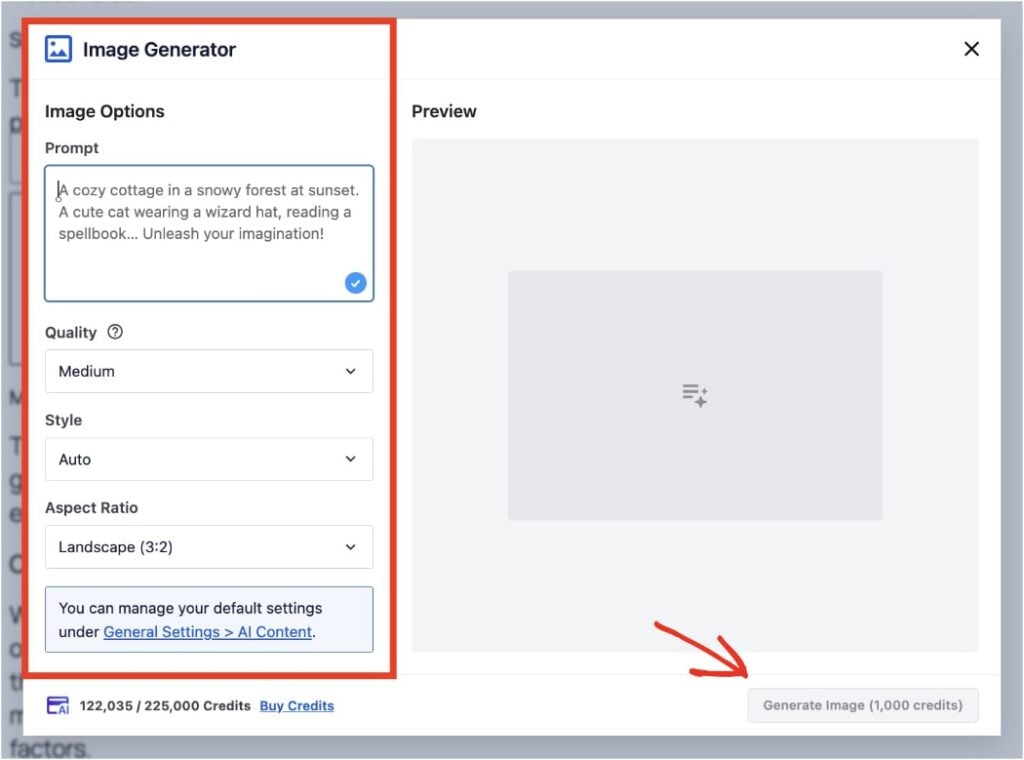
3. Once you’ve made your selections, click the Generate Image button in the bottom right corner. (It will tell you how many AI credits the image costs.)
4. Give the Image Generator 30 seconds to 1 minute to create an image tailored to your prompt and settings. Here’s mine:
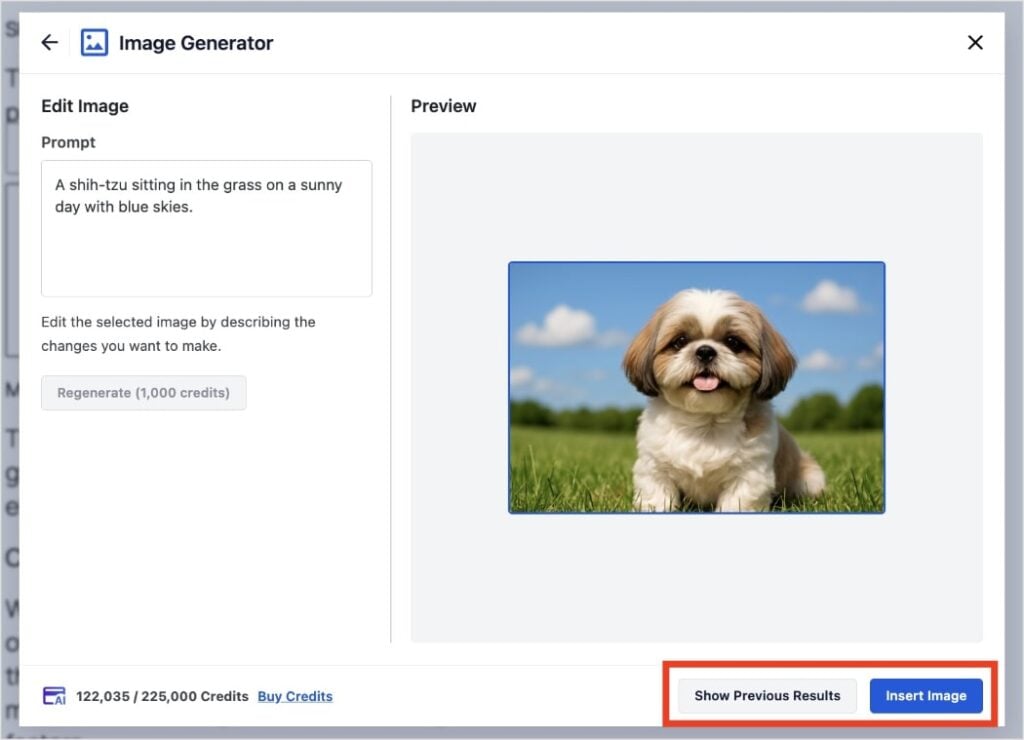
5. When you’re happy with the result, you can click Insert Image, and it will add it to your post.
If you want to make changes, no problem! Just type into the prompt again with your desired edit requests and click Regenerate. You can also access any of the previous version by clicking the Show Previous Results button.
Ultimately, we created the Image Generator to help you create stunning visuals for your site without the need of a designer. It’s super user-friendly and adapts to your requests.
3. LLMs.txt Generator: Take Charge of How AI Sees Your Site
Search and discovery are changing faster than ever.
The LLMs.txt Generator puts you in control of how AI systems discover your site’s content.
Fine-tune exactly what gets indexed, guide the newest AI engines to your best pages, and help your site get found faster—right from your AIOSEO dashboard.
To use this tool:
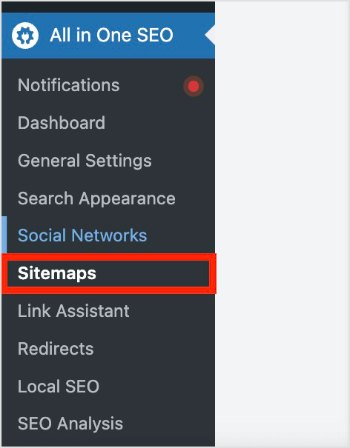
1. Start by navigating to Sitemaps under All in One SEO of your left-hand WordPress menu.
2. Then, select the LLMs.txt tab. Here’s where you’ll see the new customization settings we added in AIOSEO 4.8.8.
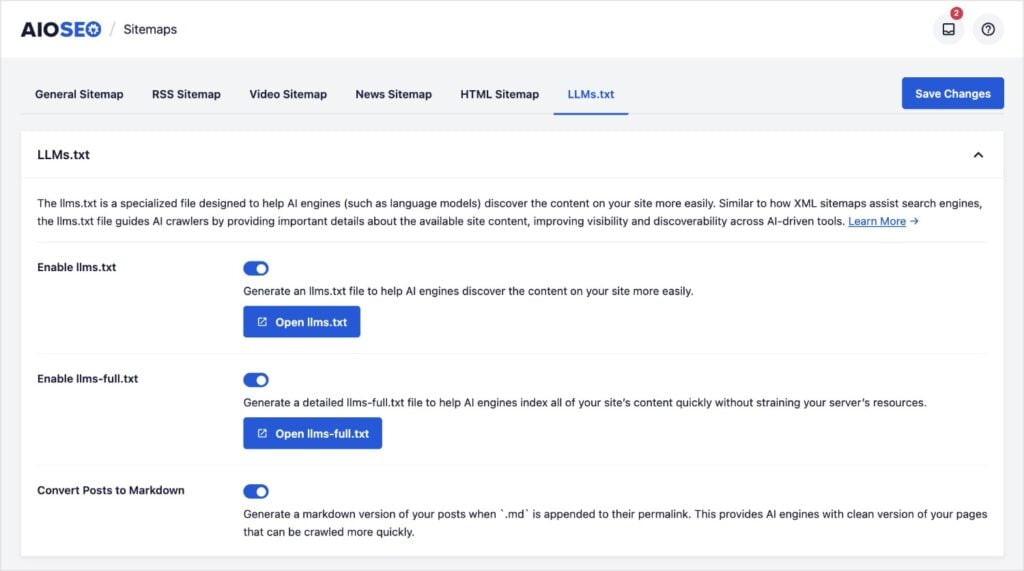
Now, you have more control over your llms.txt and llms-full.txt files.
An llms.txt is a special file for your website that tells AI search engines and large language models (like chatbots) which parts of your content they should find and index. It helps your newest posts get discovered faster.
An llms-full.txt is an extended version containing all your website’s content, not just recent posts.
You can also convert content into a markdown format, making it even easier and faster for AI to read and index everything on your site. And all it takes is a flip of a button.
Whether you’re a blogger, a business owner, or a developer, you can now increase your chances of getting cited in AI systems and grow your digital footprint.
What You Can Achieve With This Update
With these new features, you’re empowered to do more with less:
- Save countless hours on writing and design
- Unleash creativity you didn’t know you had
- Make sure your hard work gets noticed by the world (and AI bots)
- Grow your traffic and audience faster—without technical headaches
AIOSEO 4.8.8 isn’t just about tools. It’s about giving you freedom—freedom to build, launch, and grow without limits.
Ready to Try AIOSEO 4.8.8?
These features are available now to all users! Lite users get 100 free AI credits to explore, and Pro plans unlock even more credits and endless opportunities.
Update your plugin, give these new features a spin, and let us know what you create. I can’t wait to see your site shine!
And if you’re not yet using AIOSEO, make sure to install and activate the plugin today.
Have questions about these features? Comment below or contact our customer support team. We’re here to help.
I’m so grateful for your continued support, feedback, and suggestions for making AIOSEO the easiest and best WordPress SEO plugin. Please keep your ideas and feature requests coming!
I hope you enjoy using these new SEO features as much as we enjoyed creating them. With AIOSEO 4.8.8, the future truly is in your hands.
-Benjamin Rojas (President of AIOSEO)
The post Meet AIOSEO 4.8.8: Unleash the Power of AI for Your Website! first appeared on AIOSEO.]]>Kudos to you. You're already way ahead of where I was when I first started doing SEO.
I remember when I first launched one of my niche sites, I was so focused on publishing content that I completely overlooked the technical side of SEO. My traffic was flat for months, and I couldn't figure out why. After some digging, I found that a simple noindex tag was blocking Google from seeing my entire site!
That’s when I learned that regularly checking your website's SEO status is one of the most important things you can do to grow your traffic. You need to know what's working and, more importantly, what might be broken behind the scenes.
In this guide, I'll share a step-by-step workflow on how you can check a website’s SEO status for free. I’ve used this process myself to find quick wins, spy on competitors, and fix issues before they become major problems.
In This Article
What Is SEO Status?
SEO status refers to the overall health and effectiveness of a website's optimization efforts. It encompasses various aspects, including how well your site ranks in search engines, the quality of its content, and technical configurations that impact visibility.
Why It’s Important to Check the SEO Status of a Site
If you’re like me, an SEO status check was way down my list of to-dos when I was starting out. It sounded intimidating, and I really didn’t have the time.
Unfortunately, this reluctance came for its revenge later in the form of zero traffic.
Let me save you from making the same mistake.
Here are 3 compelling reasons for why you should run SEO checks on your website:
1. Identify Strengths & Weaknesses in Your Current Strategy
First and foremost, an SEO status check allows you to pinpoint what’s working and what isn’t.
You typically get metrics on keyword rankings, organic traffic, and user engagement, which let you know how your content is performing in search.
These insights can help you uncover strengths in your current strategy when you identify high-performing content.
For example, if you notice that a recent blog post quickly made its way onto Google’s page 1, you could dig into the SEO data to see if there’s a pattern. Did you have more backlinks than usual? What about your on-page SEO? Were you more thorough in this particular post?
The opposite is true, too.
If you notice a subset of pages that aren’t performing well, what common factors can you identify? Did you miss optimizing their SEO titles and meta descriptions? Or maybe the topic isn’t resonating with your visitors, meaning you don’t want to pour more effort into the subject.
Asking these questions reveals your site’s strengths and weaknesses.
This approach ensures that you focus your attention on areas with the greatest potential and stop wasting time on areas that don’t contribute to your success.
2. Understand How Changes Affect Your Search Engine Rankings
When you check your SEO status, you can see when changes impact your keyword rankings.
Whether you're updating content, adjusting meta tags, or enhancing site speed, monitoring these changes allows you to see their direct effects on your visibility in search results.
For instance, if you implement new keywords or optimize existing content, tracking your rankings will show whether those adjustments improved performance.
This feedback loop is invaluable; it helps you refine your strategies based on real data rather than guesswork, empowering you to make informed decisions.
3. Stay Ahead of Competitors by Optimizing Continuously
SEO isn't a set-it-and-forget-it task. If you want to stay head in your niche, you have to make it a habit of optimizing your site regularly.
Consistent SEO status checks helps you identify trends and shifts in the market, enabling you to adapt quickly. This proactive approach enables you to spot what your competitors are doing well and adjust your own strategy to stay competitive.
Today, those who remain alert and flexible with their SEO efforts are the ones who grow their rankings and organic traffic.
Understanding SEO Basics
Before diving into how to check your SEO status, let's clarify some key concepts.
We’ll start by defining search engine optimization (SEO).
SEO is a set of practices designed to improve a website's visibility on search engines like Google. It involves optimizing various elements of your site to attract organic traffic, such as:
- On-Page SEO: Optimizing individual pages to rank higher and earn more relevant traffic.
- Off-Page SEO: Building backlinks and improving domain authority through external sources.
- Technical SEO: Enhancing site infrastructure to help search engines crawl and index your site more effectively.
When you check the SEO status of a website, you take all three facets into consideration.
The Must-Have Free Tool for Checking SEO Status
I’ve tried several SEO analysis tools over the years, and the one that’s been my go-to for the past 2+ years has been the All In One SEO Analyzer.
This free Chrome extension was built by the team at All In One SEO, the original WordPress SEO plugin.
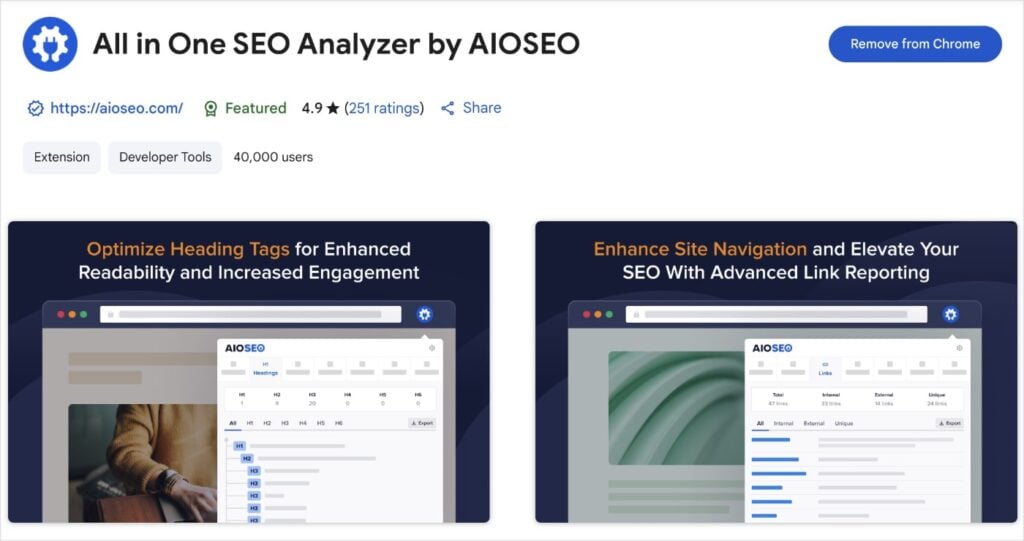
Digital marketers and business owners use AIOSEO to help them boost their rankings and drive qualified traffic to their sites. The plugin has many beginner-friendly features designed to help you properly configure your SEO settings, even if you have zero SEO experience.
As for the Chrome extension, SEO Analyzer is the most beginner-friendly tool I’ve used to date.
Here’s a quick video on how it looks in action:
I use this tool to investigate websites with exploding traffic and learn from their strategies. (I also share these findings in our SEO case studies over at AIOSEO Trends.)
You can use the tool to perform a similar, easy process and peek into any website's on-page and technical SEO to see what they’re doing right.
Now, let’s see what to look for when analyzing a competitor’s site or your own SEO.
How to Check a Website’s SEO Status Step-by-Step
Here’s a step-by-step guide of what you should pay attention when investigating a website’s SEO:
Step 1: Review SEO Titles & Meta Descriptions
First things first, let’s talk about SEO titles and meta descriptions. These meta tags appear search results, which often makes them the first impression your site has users.
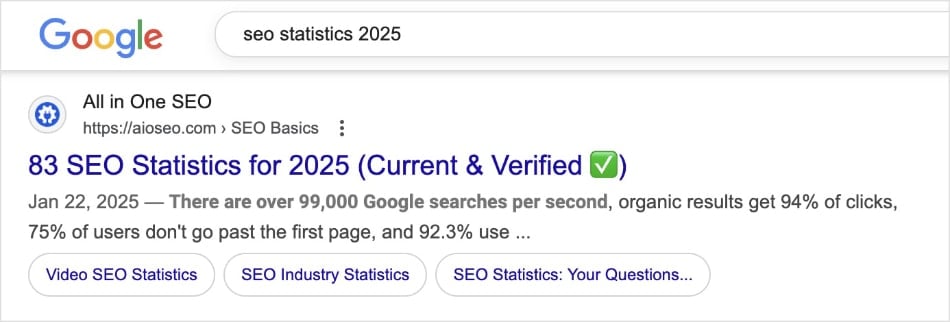
Meta titles and descriptions are like the storefront windows of your website.
If they’re not appealing, potential visitors might just scroll on by (aka, not click).
That’s why it’s critical to get them right.
One easy way to do that is to make sure they’re withing character limits. SERPs have limited space, and if you go over the limit, Google will cut off your text.
Aim for 50-60 characters for titles and 150-160 for descriptions.
Besides length, your metadata should be compelling.
For example, instead of a bland title like “Our Services,” try something more engaging like “Transform Your Business with Our Expert Services.” See how that grabs attention?
So, how do you check your SEO titles and meta descriptions?
Simply open the page you want to conduct an SEO check on and click on the AIOSEO SEO Analyzer Chrome extension. It will open a small window that looks like this:
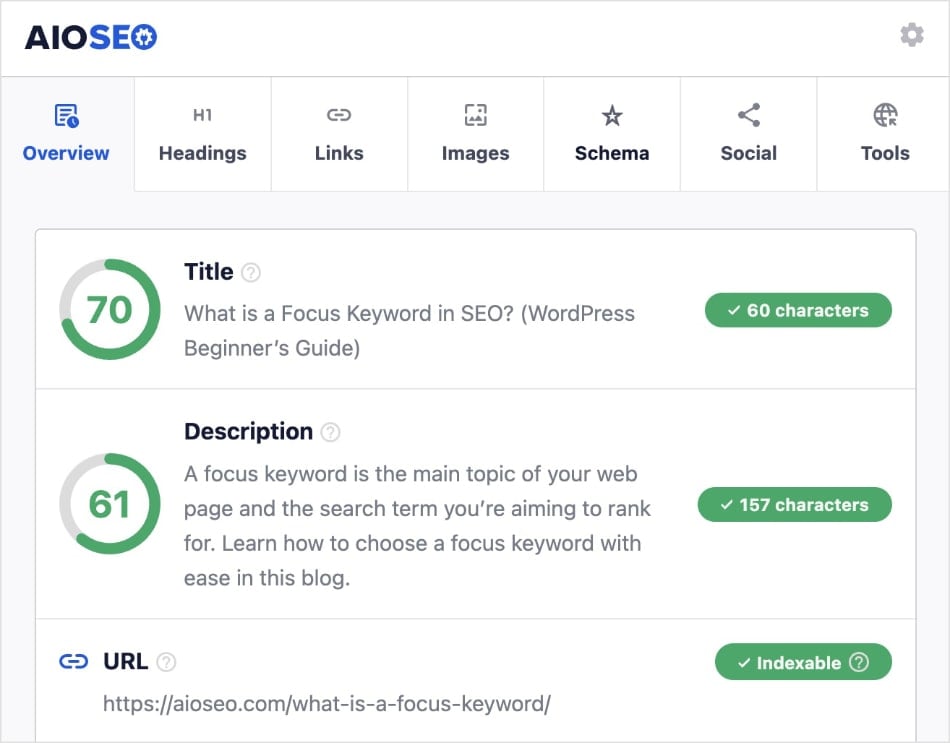
The SEO Analyzer provides the following information about the page’s metadata:
- Text
- Character length
- Score
This data will help you know whether you need to refine and optimize your metadata or not.
Plus, you’ll also be able to check if you’ve used your focus keyword in these crucial areas.
Step 2: Check Content Structure
Next up is the content structure. Think of this as the blueprint of your website.
A well-structured page helps users navigate your site and makes it simpler for search engines to crawl and index your content.
Here’s how to do it:
- Write a descriptive H1 (title) for your page.
- Use proper headings (H1, H2) to organize your content.
- Integrate keywords in the most logical sections.
Let’s look at an example using the SEO Analyzer again. Here we have the content structure and subheadings:
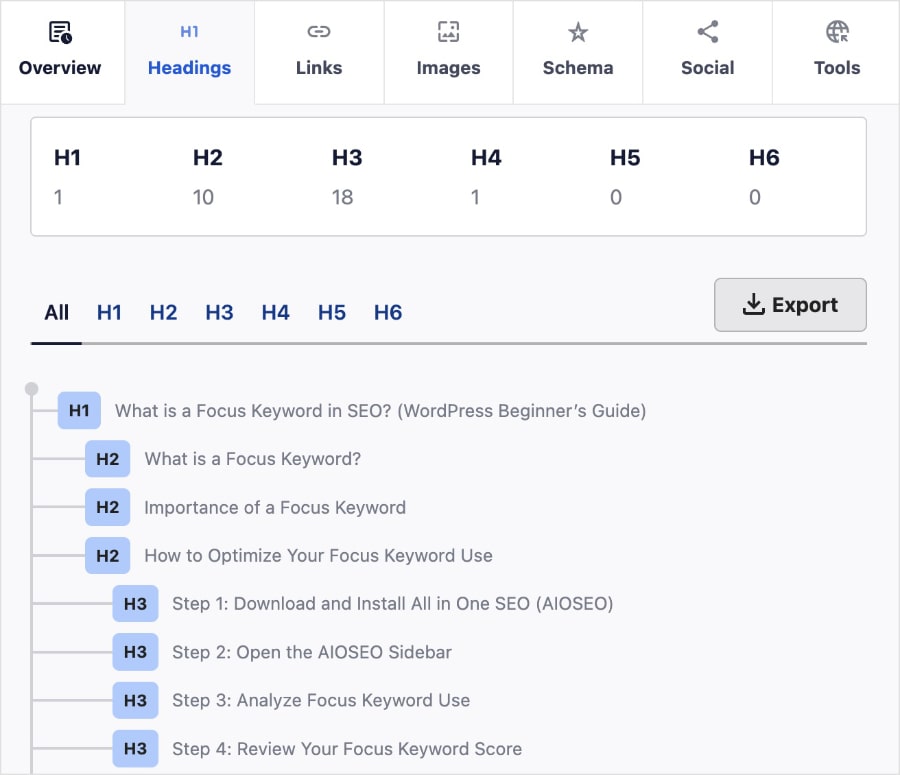
This information is located under the Headings tab, and shows you the hierarchy of the page.
It’s a super simple way to check if your content is structured logically or if it needs some tweaks.
Pro Tip: Subheadings should go in a hierarchical order. For example, H1 >> H2 >> H3, and so on. You can repeat all subheading tags except for the H1, meaning you can have multiple H2s, but only one H1.
Step 3: Assess the Linking Strategy
As you check the SEO of your site (or a competitor’s) evaluate both internal and external links on a web page.
Internal links help Google understand which of your pages are most important. These links point from one page of a website to another page on the same domain.
They keep users engaged and reduce bounce rates.
External links, on the other hand, are links from one website to another domain. They’re important for SEO because it shows Google that you provide sources for your data and claims.
For example, if you mention a statistic in your article, link to a reputable source that backs it up.
You can see a page’s links under the Links tab of the SEO Analyzer:
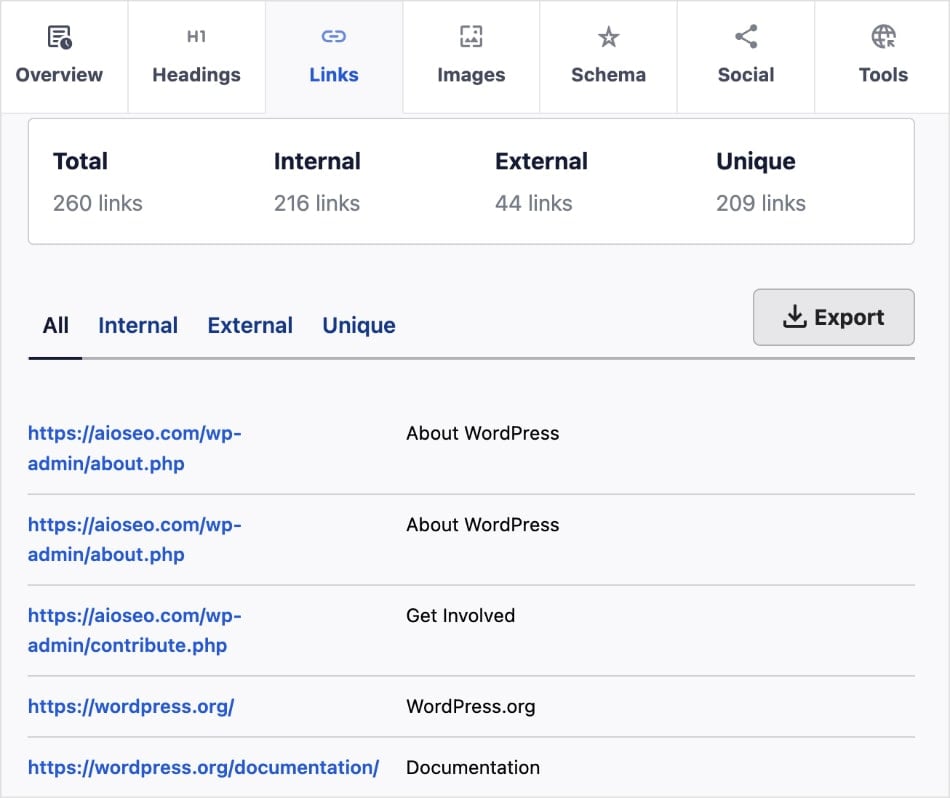
I like how it gives you tha anchor text, too, which is the actual text of the hyperlink.
Pro Tip: When writing anchor text, make it descriptive and concise. It should accurately reflect the linked page. Do not use generic phrases like “click here” or “shop now.”
Step 4: Look at Image SEO
Images can significantly enhance user experience and engagement on your site. However, a common SEO mistake small businesses make is that they don’t optimize them for search engines.
Google can’t “see” images like you and me. That’s why image SEO has to be part of your audit.
When checking the SEO status of a site, verify that all images have appropriate image alt text and file names. These text elements help search engines understand what the image is about, which can improve indexing and accessibility.
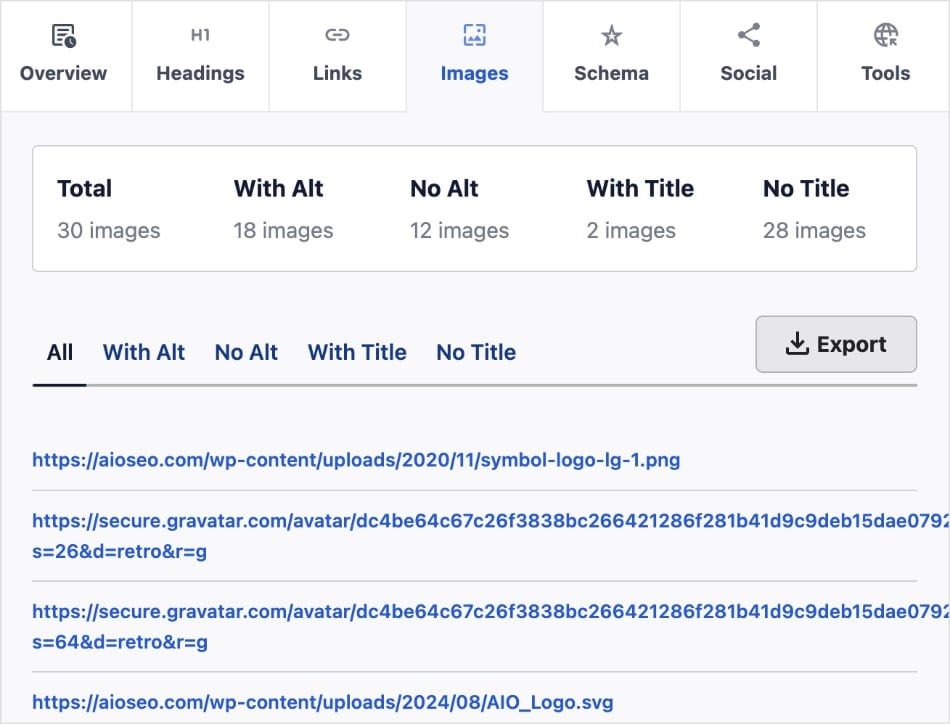
AIOSEO’s SEO Analyzer shows you:
- Images with alt text
- Images without alt text
- Images with a title
- Images without a title
If you have any images in the “without” sections, you know where you need to focus your efforts. Try to add alt text and title tags for every image.
Also, be descriptive! Avoid generic file names like “IMG_1234.jpg” and use something like “seo-best-practices.jpg.”
This way, you’re giving search engines clear information about the image content.
For detailed instructions, check out our comprehensive image SEO guide.
Step 5: Check Open Graph Tags (Social Media)
Lastly, let’s ensure your content is ready for social sharing.
To do that, you’ll want to confirm that Open Graph tags are in place for platforms like Facebook and Twitter. These tags dictate how your content appears when shared. They’re like the face of your content on social media.
You can easily check Open Graph tags by clicking on the Social tab in the SEO Analyzer:
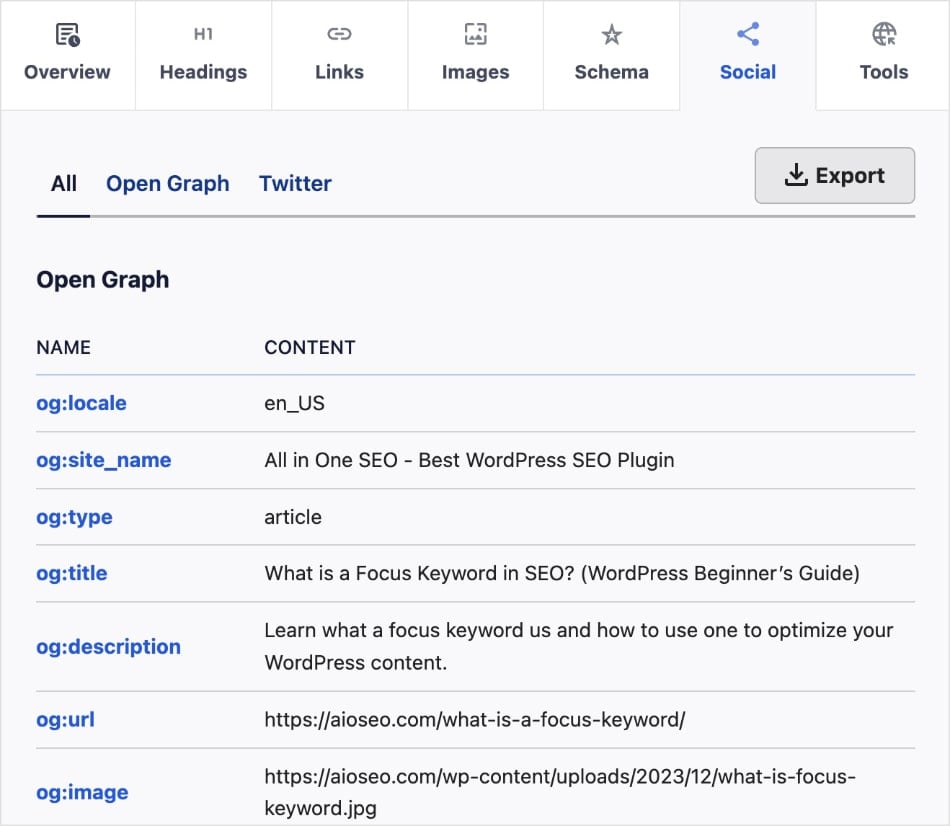
If this data is missing, you’ll want to revisit your Open Graph tags.
For more information, check out our guide on using the Facebook OG debugger.
5 Technical SEO Checks You Need to Perform
When it comes to SEO, technical aspects are just as crucial as the quality of your content.
Technical SEO is the foundation of your website, supporting all your content and site performance.
Here’s what you need to look for when checking the SEO status of your website:
1. Indexable URLs
Indexing in SEO refers to the process in which search engines organize and store information about URLs.
For example, if you have a blog post that you want people to find, but it’s not indexed, search engines won’t be able to list in search results. This makes it invisible to potential readers.
An indexable URL is a web page that can be served in search engine results.
That’s why it’s critical that the key pages on your site are indexable. You can check this by clicking on the Overview tab in the SEO Analyzer:
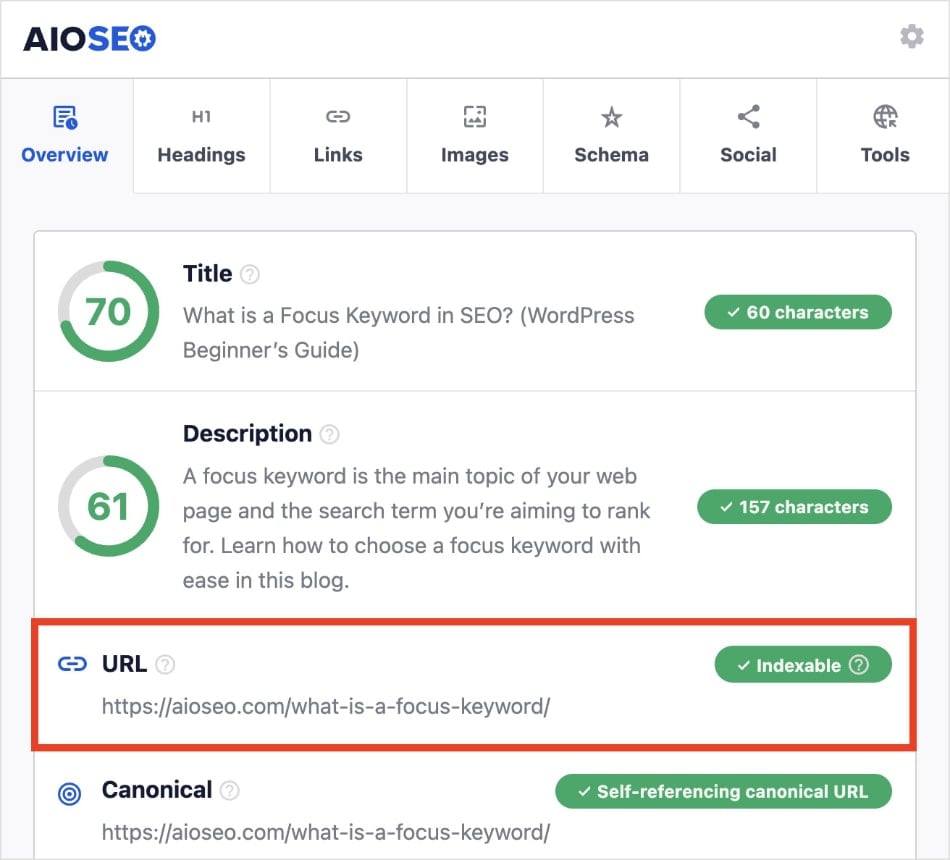
If the URL indicator displays a green “Indexable” sign, then nothing is blocking your page from appearing in search engine results.
For pages that are not indexed, check out our guide on getting indexed on Google.
2. Canonical URL Tags
A canonical URL refers to the master URL that search engines should index and rank for that content. You’ll often see them when you have two similar pages (like product variations) or duplicate content, and you only want 1 URL appearing in search results.
A canonical tag is implemented within the HTML code, meaning users don’t see it but search engines do.
Canonical tags help search engines rank the right version of a page. Because of this, they’re a critical part of your technical SEO.
You can easily check if there’s a canonical URL in place by navigating to the Overview section of SEO Analyzer:
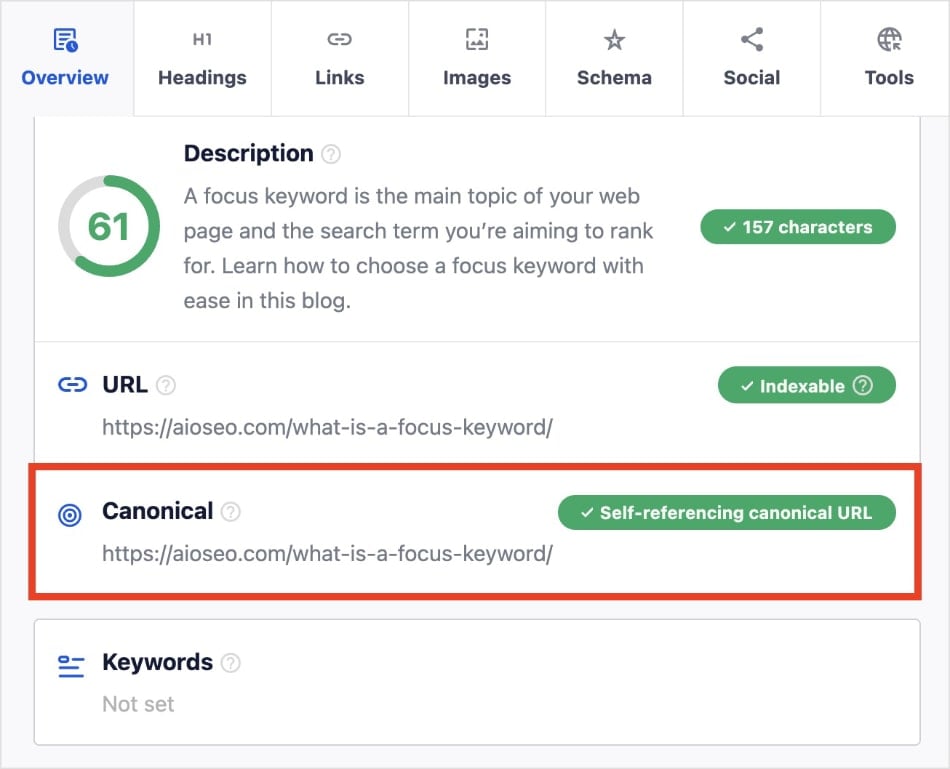
And yes, you can a canonical URL point to itself!
In the example above, this web page uses a self-referencing canonical URL, which is considered an SEO best practice.
For tips on getting the right URL indexed, check out our guide on canonical URLs.
3. Sitemaps
A sitemap lists all the URLs of a website. It’s like a roadmap for search engines, telling them what is where.
The most common type is an XML sitemap, which you can find under the Overview section of the SEO Analyzer.
Next, make sure your sitemap is submitted to search engines to help you get your content indexed quickly.
If you’re an AIOSEO user, you can easily connect your site to Google Search Console (GSC). This automatically syncs your sitemaps to GSC, ensuring Google always has the latest URLs for your site.
For more details, check out our tutorials on submitting sitemaps to Google, Bing, and Yandex.
4. Robots.txt Files
A robots.txt file tells search engine crawlers which pages they can or cannot access.
Review your robots.txt file to ensure it allows search engine crawlers access to important areas of your site. You don’t want to accidentally block search engines from indexing your best content.
Here’s where you you can locate this file under the Overview tab:
Want to know how to use robots.txt files to improve your SEO? Check out our guide to robots.txt files.
5. Schema Markup
Last, but not least, we have schema markup.
Schema markup gives search engines details about your web page. And it does it in a way that’s easy for them to understand.
Search engines can also use schema markup to generate rich snippets, which are enhanced search listings. This could include star ratings, product availability, event details, and more.
When you add schema markup, you should try to pick the best match for the content.
For example, if you’re hosting an event, using event schema markup can help display the date and location directly in search results.
Or, if you have an ecommerce site, you might find yourself frequently using product schema.
You can check your schema markup implementation by clicking on the Schema tab in the SEO Analyzer:
This will show you all the schema added to that page.
I also like using this function to investigate competitors’ use of schema markup. It’s a good way to get ideas about how they optimize their content and what you can do for yours.
And that’s it!
You’ve checked the SEO of a website. And it didn't cost a dime!
Final Thoughts
Checking your website's SEO status is an essential, ongoing practice for long-term success.
By regularly using free tools like the AIOSEO SEO Analyzer, you can proactively identify and fix issues that could be holding your site back.
This approach allows you to stay competitive, adapt to changes in search algorithms, and ensure your site is always performing at its best.
I hope this post helped you know how to check the SEO status of a website. You may also want to check out other articles on our blog, like our Search Statistics power hacks to help boost your rankings or our guide on avoiding SEO scams.
If you found this article helpful, then go ahead and subscribe to our YouTube Channel. You’ll find many more helpful tutorials there. You can also follow us on X (Twitter), LinkedIn, or Facebook to stay in the loop.
FAQs About Checking a Site’s SEO Status
How do I run an SEO check?
You can use SEO audit tools to run an SEO check. The AIOSEO SEO Analyzer is a popular choice because it’s a free Chrome extension. It gives immediate access to critical SEO data, like on-page optimizations, sitemaps, Open Graph meta tags, and links. It also scores SEO titles and meta descriptions.
Why is it important to check the SEO status of a website?
Checking the SEO status of a website is important because it helps identify and address any issues that may be hindering its search engine performance. Regular audits also allow businesses to stay updated with the latest SEO best practices and adapt their strategies to maintain a competitive edge in the digital landscape.
Can I do a website SEO status check for free?
Yes, you can check the SEO status of a website for free by using the AIOSEO SEO Analyzer. This Chrome extension makes it simple to investigate competitors’ websites or your own. You’ll get insights into the linking strategy, on-page SEO, image optimizations, and more of a web page.
Learn from my mistakes.
When I first started blogging, I didn't think twice about changing a URL. I’d update a post's slug, hit save, and move on.
It wasn't until a few weeks later that I noticed how my traffic had tanked, and how old URLs were leading to dead ends. Worse still, I lost valuable backlinks.
That's when I learned about redirects.
Redirects tell search engines and visitors where your content moved, preserving your traffic and SEO.
In this guide, I’ll break down everything you need to know about URL redirects, from the basics to advanced tricks. You’ll learn:
- How redirects impact SEO
- Different types of redirects (and when to use them)
- Step-by-step instructions for setting them up in WordPress
By the end, you’ll know how to avoid costly mistakes and handle redirects like a pro.
In This Article
What Is a URL Redirect?
A URL redirect tells search engines content has moved to a new web page.
It’s like saying, “This content isn’t here anymore, go to this page instead.”
You can think of it like a forwarding address when you move to a new house. Instead of letting important letters (or visitors) go to the mailbox you no longer have access to, you tell the system to forward your mail (traffic) to the new address (URL).
Here are some common scenarios when URL redirection comes in handy:
- Site Migration: When a website changes its domain, setting up redirects ensures that visitors and search engines can find your new pages without running into errors
- HTTP → HTTPS: Redirecting from HTTP to HTTPS protects user data with encryption and signals to search engines that your site is secure.
- Fixing Broken Links: Redirect old URLs to relevant alternatives.
- Merging Duplicate Content: Redirecting duplicates to a single authoritative page consolidates SEO value and strengthens your ranking potential.
- Seasonal Campaigns: Redirect temporary landing pages when the event ends.
Why URL Redirection Matters for SEO & UX
Redirects are essential for a positive user experience (UX) and search engine crawlability. When done properly, they help:
- Preserve link equity: When a high-authority site links to an old URL, a redirect ensures most of the “SEO value,” or link equity, flows to the new page.
- Prevent traffic loss: Without redirects, broken links result in 404 errors, leading to lost traffic. These can drive visitors and potential customers away.
- Enhance user experience (UX): Redirects keep visitors on your site, rather than causing them to bounce (leave your site) in frustration.
Ultimately, URL redirects keep visitors engaged, search engines happy, and your hard-earned rankings intact.
How to Handle URL Redirection in WordPress
Now that you understand what redirects are, let’s see how to set them up in WordPress.
Step 1: Install & Activate All In One SEO
The first step in handling URL redirection is to download and install All In One SEO (AIOSEO).
AIOSEO is a powerful and easy-to-use SEO plugin with over 3 million active installs. Digital marketers and business owners use AIOSEO to boost their search engine rankings and drive qualified traffic to their WordPress sites.
One of its standout tools is the Redirection Manager, which makes it easy to create, manage, and track redirects.
Whether you’re fixing broken links, moving content, or consolidating pages, this feature ensures visitors and search engines always reach the right destination.

Redirection Manager allows you to oversee redirects and eliminate 404 errors, making it easier for search engines to crawl and index your site.
At the same time, it ensures your visitors enjoy a smooth, frustration-free experience by reaching their destination.
For step-by-step instructions on how to install AIOSEO, check out our installation guide.
Step 2: Open the Redirection Manager & Redirect Your Page
Once you’ve installed AIOSEO, the next step is to set up your redirects.
To do this, navigate to AIOSEO » Redirects. You’ll be taken to the Redirection Manager, where you can add your redirect.
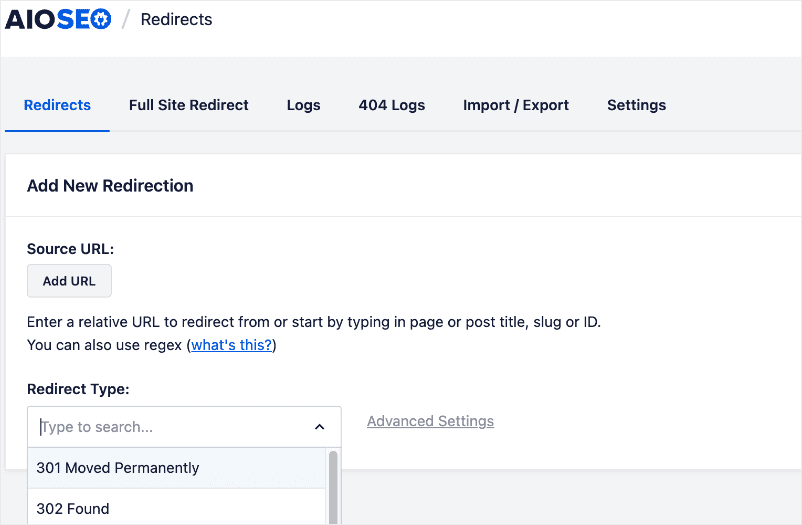
Start by entering the Source URL (the page you want to redirect from).
Then, add the Target URL, which is where you want visitors to land.
You can even start typing the page title, slug, or ID, and AIOSEO will automatically suggest matching pages for you.
For a step-by-step walkthrough, see how to how to redirect a post or page in WordPress.
Common Types of URL Redirects Explained
Not all redirects are created equal. Depending on your situation, you’ll want to use a specific type of redirect to ensure both search engines and users end up in the right place.
Below are the most common types you’ll come across, along with when to use them.
301 Permanent Redirect
A 301 redirect tells browsers and search engines that content has moved permanently. It’s the best choice when you’ve permanently changed a URL.
For example, moving from http:// to https:// or rebranding with a new domain.
The big advantage?
301 redirects pass link equity from the old page to the new one, helping you preserve search rankings and backlinks.
For more information, check out our tutorial on implementing 301 redirects.
302 Temporary Redirect
A 302 redirect is for short-term changes. Use it when you want to temporarily redirect visitors to another page.
For example, imagine you’re promoting a seasonal sale, such as Black Friday. In this scenario, you’d only want users to reach this page for a specific period of time. And the rest of the year, when the sale isn’t active, you’d likely redirect them to your standard pricing page.
A common mistake is using 302 redirects for permanent moves, which can confuse search engines and result in the loss of valuable SEO signals.
So, remember:
- 301 = permanent move
- 302 = temporary move
307 Temporary Redirect
A 307 redirect is the modern upgrade to a 302, with stricter handling of request methods. It’s useful for temporary scenarios where precision is required, such as testing or handling secure connections.
In WordPress, plugins like AIOSEO make it simple to add a 307 redirect with just a few clicks.
Special Redirects
- 404 to Homepage Redirects: Sometimes, site owners redirect all broken pages (404s) to the homepage. While this can reduce bounce rates in the short term, it’s risky if overused. Google may see it as a poor user experience.
- Regex (Pattern-Based) Redirects: For more advanced setups, regex rules let you redirect multiple URLs that follow a pattern. For instance, you could send everything under /blog/* to /articles/* in one step, saving time on large sites.
6 URL Redirection Tips & Tricks You Should Know
1. Redirecting a Single Post or Page in WordPress
Redirecting a single post or page is the most common type of redirect. And with AIOSEO, setting one up is simple.
To get started, navigate to Redirects in the All in One SEO menu in your WordPress dashboard.
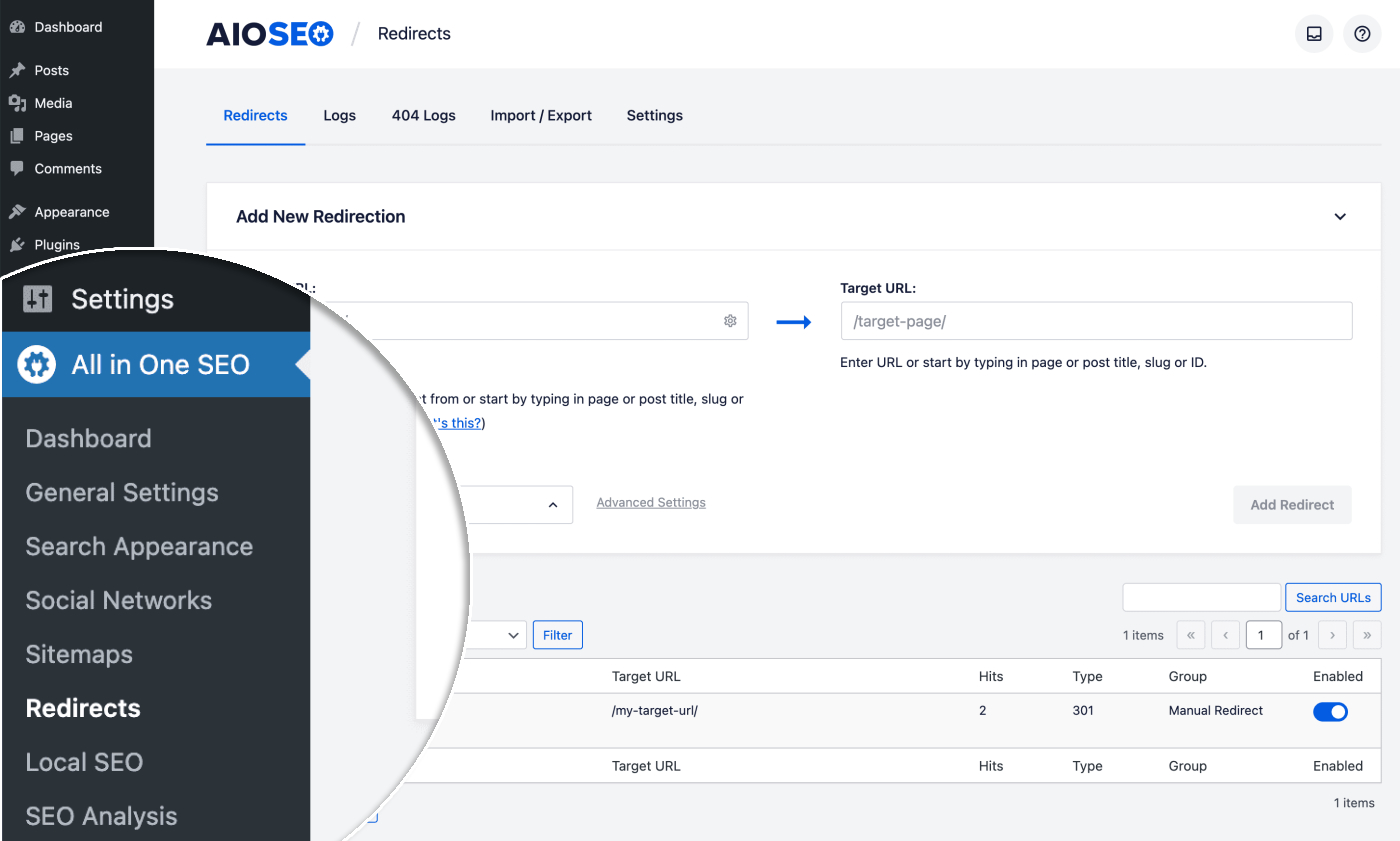
You'll see the Redirects screen, and at the top will be the Add New Redirection form.
In the Source URL field, enter the URL you want to redirect from. Ensure that you use a relative URL. This means you should exclude the https://yourdomain.com part of the URL. For example, use /old-page instead of the full URL (https://yourdomain.com/old-page).
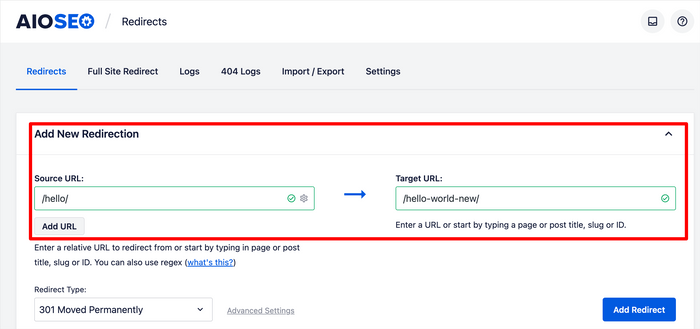
In the Target URL field, enter the URL you want to redirect to. You can use either a relative URL (e.g., /new-page) or an absolute URL (e.g., https://yourdomain.com/new-page).
You can also start typing the title, slug, or ID of any post, page, or other content on your site in the Target URL field. AIOSEO will display matching content automatically. Simply click the post or page you want to set as your target.
And just like that, anyone visiting the old URL will automatically land on the new page.
Pro Tips:
- Check for typos: A small typo in your target URL can break the redirect and hurt your SEO. Always double-check!
- Test with an incognito window: This ensures your browser cache isn’t showing you the old page by mistake.
- Track performance: Some redirects might affect traffic patterns. Keep an eye on analytics to see if users are landing where you expect.
2. Redirecting Links in Bulk Using CSV
If your site has hundreds—or even thousands—of pages, setting up redirects one by one is a nightmare.
The trick?
Use AIOSEO’s CSV import feature to make the process quick and painless. It helps you add bulk redirects using a CSV file.
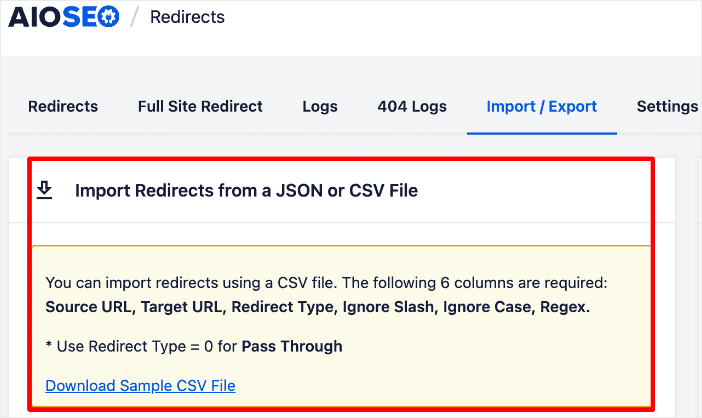
Start by gathering all the information about the links you want to redirect.
Using a spreadsheet is a great way to organize this data. It allows you to track the source URLs, target URLs, and any notes about why the redirect is necessary.
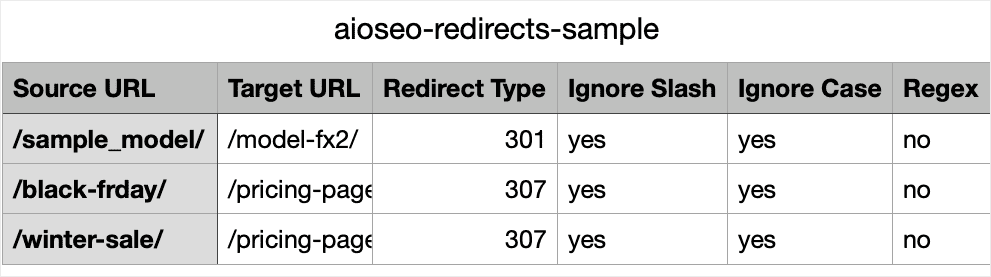
Using a spreadsheet will make the process faster and help you avoid mistakes when setting up multiple redirects. I recommend using the following headers for your columns:
- Source URL
- Target URL
- Redirect Type
- Ignore Slash
- Ignore Case
- Regex
Once you’ve saved your CSV file, return to the AIOSEO Redirection Manager and upload it under the Import/Export tab.
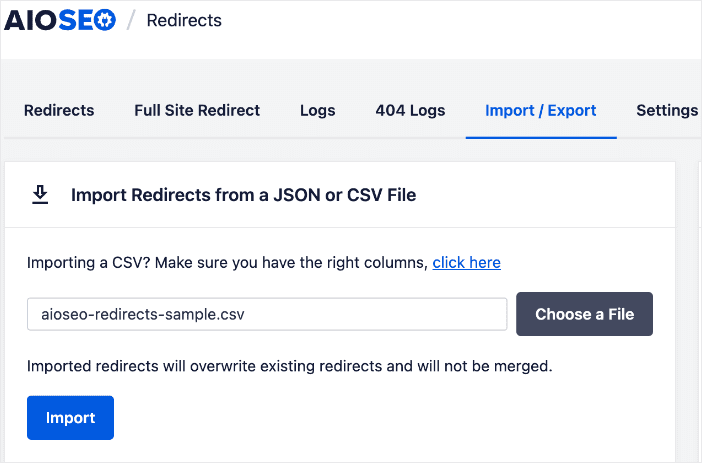
Finally, click Import.
And that’s it.
AIOSEO will set your redirects up in bulk from your CSV file, saving you valuable time and ensuring all your links point to the right place.
Pro Tips:
- Keep a master CSV: Save every CSV you use for redirects. It’s a lifesaver for future audits or site migrations.
- Use status codes wisely: If some URLs are only temporarily moved, mark them as 302 or 307 instead of 301. This keeps search engines from assuming it’s permanent.
- Batch testing: After importing, test a few URLs randomly to confirm everything works before assuming all redirects are live.
- Watch for redirect chains: If URL A redirects to URL B, which then redirects to URL C, it can slow down your site and dilute your SEO value. Try to redirect straight to the final destination (i.e., URL A to URL C).
3. Setting Up Automatic Redirects in WordPress
Ever changed a page or post URL only to find your visitors hitting a dreaded 404 page?
One of my favorite features in AIOSEO is the Automatic Redirects tool. It’s like having a safety net for your URLs. The Redirection Manager automatically detects when a URL changes and instantly creates a redirect for you.
To enable this function, all you have to do is head over to the Redirects menu in AIOSEO. Then, open the Settings tab and make your selection for if you want to apply automatic redirects to all post types or just specific ones.
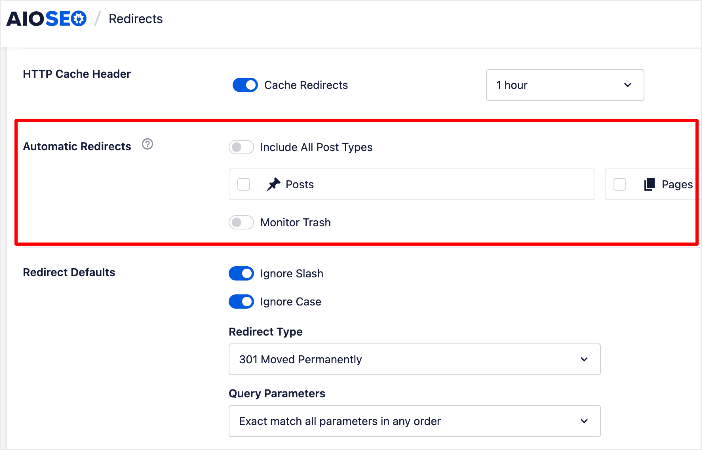
You can even configure default settings so that any time you update or delete content, AIOSEO takes care of the redirect automatically. This is ideal for solo business owners who want help keeping their site and traffic running smoothly.
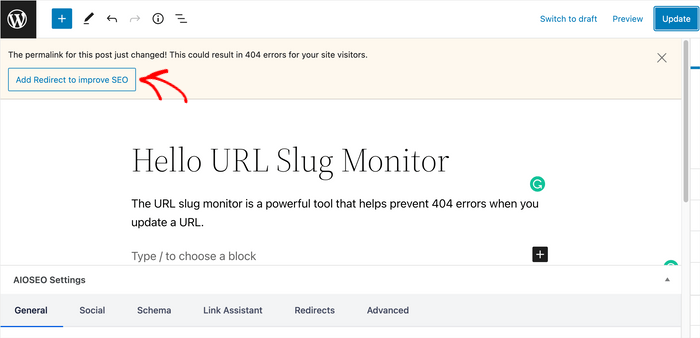
Once you’ve got it set up, I also recommend checking in on your redirects every so often.
AIOSEO keeps an organized log under the Redirects tab, and marks the automatically added ones as Modified Post. This allows you to easily see which automatic redirects it created.
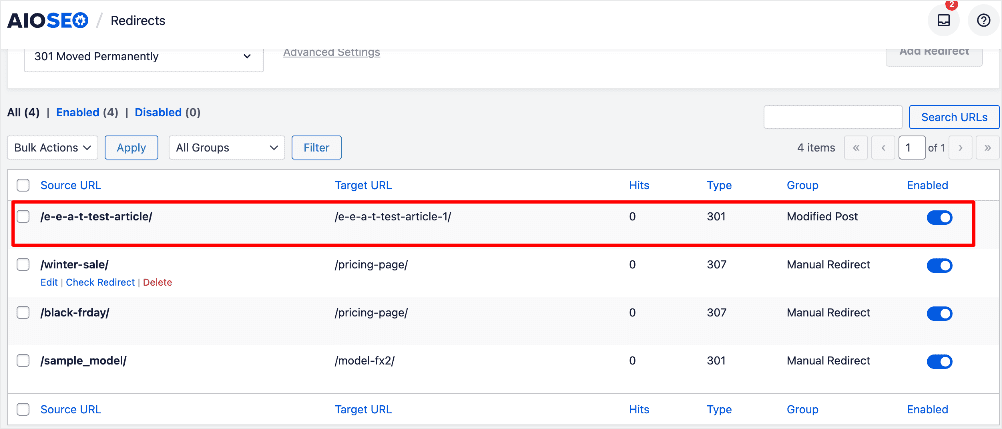
Personally, I like to give them a quick test using the Check Redirects button just to make sure everything’s working as expected.
Pro Tips:
- Double-check old URLs: While AIOSEO handles the redirect, ensure that any high-value pages are mapped correctly.
- Monitor performance: Use Google Search Console to check if the old URLs are still appearing in search results. You may need to nudge search engines with a sitemap update.
- Combine with broken link checks: Automatic redirects won’t fix links on other sites pointing to your old URL. A quick broken-link audit can help you identify and address these issues.
- Use for internal reorganizations: Changing category or post structures? Automatic redirects save you hours of manual work.
4. Scheduling Redirects in WordPress
One tip I wish I knew when I started managing websites is that you can schedule redirects.
Scheduling redirects in AIOSEO is one of those “set it and forget it” features that can save you a ton of time and stress.
Instead of scrambling to fix broken links after the fact, you can plan ahead for URLs you know will change.
This works perfectly whether you’re running a short-term promo, switching from HTTP to HTTPS, or permanently moving a page.
And the good news is that the process is pretty simple.
First, figure out which URLs need redirects and where they should go.
Once you’ve got your list, you can add them using the Add New Redirection tool we saw earlier.
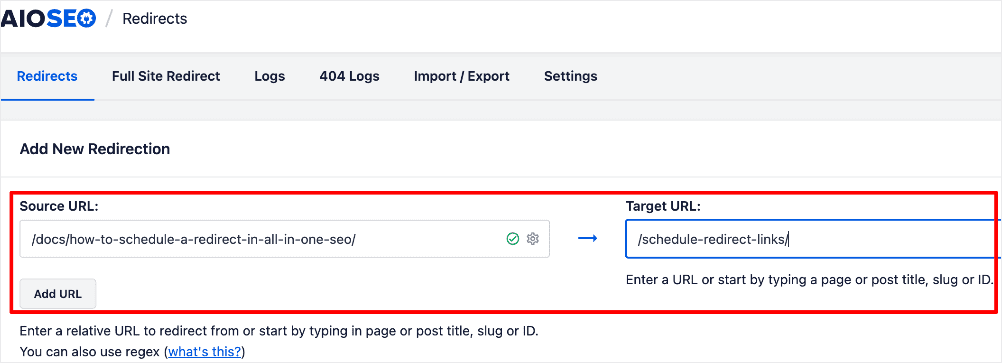
If you’re dealing with multiple links (like I was when cleaning up old blog posts), you can even upload them all at once using a CSV file.
This bulk option is a lifesaver compared to adding them one by one. It’s like upgrading from washing dishes by hand to running a dishwasher.
After you’ve added the redirects, you’re ready to schedule.
You can set redirects to go live at a specific time. And if it’s a temporary redirect, you can also set an expiration date.
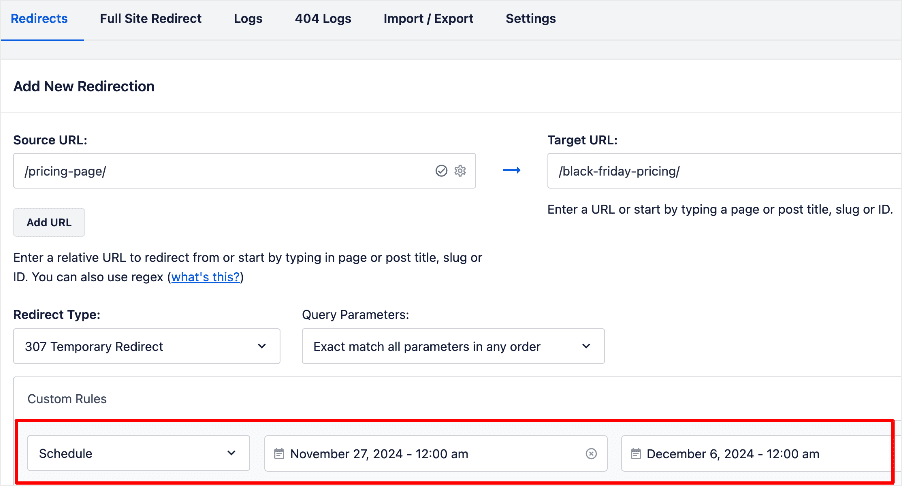
This way, your site automatically reverts back when the promo or event is over. No more late-night logins to fix expired links. (Trust me, I’ve been there, and it’s no fun.)
With scheduling, you get peace of mind knowing your redirects will run on autopilot, keeping your visitors (and Google) happy.
Pro Scheduling Tips:
- Plan ahead: Make a calendar of your campaigns with start and end dates. This prevents expired promotions from confusing visitors.
- Use descriptive redirect names: Label scheduled redirects clearly so you (or your team) know their purpose at a glance.
- Combine with analytics: Track traffic to the redirected pages to see which campaigns perform best.
- Test timing: Schedule a test redirect for a low-traffic page first. This ensures everything triggers correctly before high-stakes campaigns.
5. Using Regex-Based Redirects (Catch-All Rules)
Another trick I wish I’d learned earlier is how powerful regex (regular expressions) can be for redirects.
Regex is a sequence of characters that defines a search pattern. It's a way to find and match specific text strings, and in this case, it helps you match entire groups of URLs at once.
Instead of setting up dozens (or even hundreds) of individual redirects, you can create a single rule that handles them all at once.
This is perfect for large sites, category cleanups, or URL structure changes.
For example, let’s say you moved everything from /blog/ to /articles/. Instead of adding redirects one by one, you can use a regex rule to catch every URL under /blog/ and send it to /articles/ in a single step.
It’s a massive time saver and makes site management way easier.
So, how to do it?
In AIOSEO, setting up a regex redirect is simple. Just check the Regex box when creating your redirect rule, then enter your pattern.
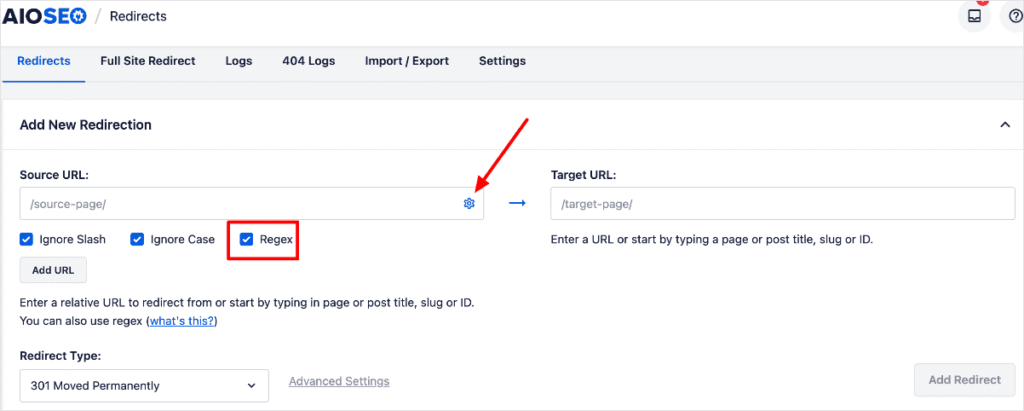
Don’t worry. You don’t need to be a coding pro to use this. With a few basics, you can unlock a powerful way to keep your site organized and error-free.
Want help? See this tutorial to learn how to use regex in Redirection Manager.
Pro Tips:
- Start small: Test your pattern on one or two URLs first to make sure it’s not too broad. A bad pattern can accidentally redirect half your site.
- Use anchors wisely: Adding ^ (start) and $ (end) helps you match URLs instead of catching extra characters you didn’t mean to.
- Document your rules: Regex can get tricky fast. Keep notes on what each rule does so you don’t have to play detective later.
- Pair with analytics: After creating a regex redirect, check your logs to see which URLs are being caught. This helps you confirm the rule is working as intended.
6. Monitoring & Tracking URL Redirects
One of the biggest lessons I learned after setting up redirects is this: your job doesn’t end once the redirect is live. (Disappointing, I know…sorry.)
The reality is that redirects can break, stack up in chains, or even stop working the way you expected.
That’s why continuous monitoring is just as important as creating them in the first place.
Think of it like checking the oil in your car. You wouldn’t just fill it once and never look at it again.
The same goes for redirects. Regular check-ins help you catch problems before they drain your SEO or frustrate visitors.
The good news? You don’t need to guess. There are plenty of tools that make monitoring easy.
For example, AIOSEO’s Redirect Log let you see exactly which redirects are being used and how often.
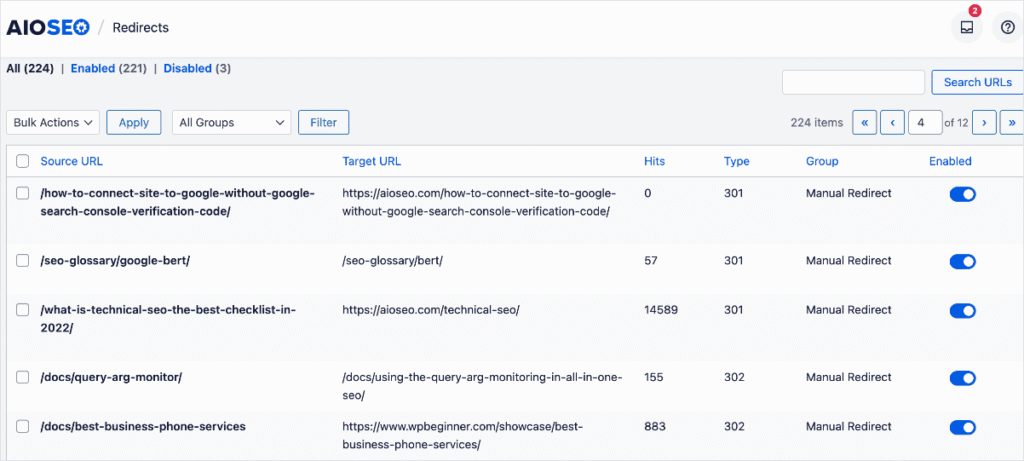
Google Search Console (GSC) also alerts you to crawl errors, broken links, and redirect issues.
And for an even deeper dive, Screaming Frog acts like a site-wide X-ray, finding redirect chains, loops, and other hidden problems.
Pro Tips:
- Track redirect hits: See which redirects get the most traffic so you can prioritize and protect them.
- Watch for broken links: Even with redirects in place, some URLs may still slip through the cracks. A quick audit helps you fix them fast.
- Check regularly: Make monitoring part of your monthly SEO routine so small issues never turn into big headaches.
Common Redirect Mistakes to Avoid
Even seasoned site owners make mistakes with redirects. The problem is, a small misstep can quietly chip away at your SEO, and, before you know it, you’ve lost your traffic.
Let’s review the most redirect mistakes so you can avoid this unfortunate scenario.
Using 302 Instead of 301
This is one of the biggest mistakes I see.
A 302 tells search engines that the move is only temporary, so they won’t pass link equity to the new page.
If your page has permanently moved, always use a 301.
That way, you keep your rankings and backlinks intact.
Creating Redirect Chains
A redirect chain happens when URL A points to URL B, which then points to URL C.
This slows down your site and can confuse search engines. Visitors also notice the lag.
The fix is simple: redirect straight to the final destination and cut out the middle steps.
Redirecting Everything to the Homepage
It’s tempting to dump all broken links onto your homepage, but this creates a poor user experience.
Imagine clicking on an article about “SEO tips” and landing on the homepage with no clue where to go.
Google sees this as unhelpful too, which can hurt your SEO.
Instead, redirect users to the most relevant page. (For example, that “SEO tips” link is probably better redirecting to an SEO best practices blog or something similar.)
Then, in cases where you do need to redirect to the homepage, you can automatically set them up in AIOSEO.
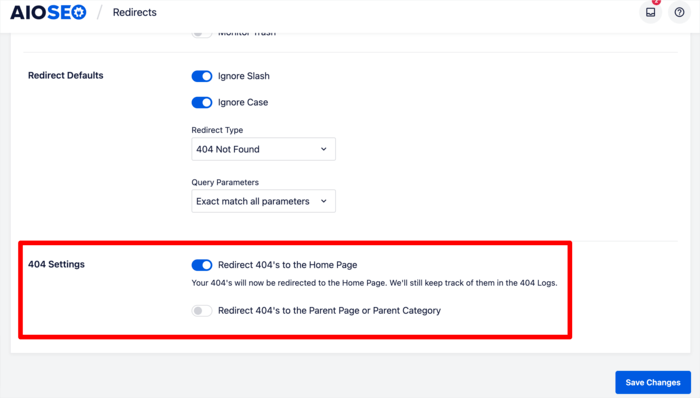
Check out our tutorial on how to automatically redirect pages to your homepage for more on this.
Overusing Redirects
Redirects are helpful, but too many of them can slow your site down and eat up crawl budget.
Search engines only have so much time to crawl your site—wasting it on unnecessary redirects can hurt indexing.
Use redirects only when truly needed, and clean up old ones regularly.
Mastering URL Redirection for Long-Term Success
URL redirection is a behind-the-scenes task that has a front-facing affect on user experience and how search engines crawl your site. When done right, it:
- Preserves your hard-earned rankings
- Safeguards your organic traffic
- Keeps visitors engaged
- Prevents broken links and 404 errors
Plus, when you have tools like AIOSEO, redirect management is relatively simple.
Whether you’re setting up a quick 301, scheduling redirects for a promo, or handling complex regex patterns, you can do it all in just a few clicks.
Combine that with regular monitoring and smart redirect habits, and you’ll avoid costly mistakes while keeping your site running smoothly.
I hope this post helped you know how the top ticks and tricks for managing redirects. You may also want to check out other articles like our ultimate guide to WordPress SEO or our list of the best redirect plugins for WordPress.
If you found this article helpful, then subscribe to our YouTube Channel. You’ll find many more helpful tutorials there. You can also follow us on X (Twitter), LinkedIn, or Facebook to stay in the loop.
FAQs About URL Redirection
What is a redirect?
A redirect is a way to send visitors and search engines from one URL to another automatically. It’s often used when a page has moved, been deleted, or replaced. This ensures users don’t hit dead ends and helps preserve your site’s SEO value.
Do redirects affect SEO?
Yes. When set up correctly, redirects help protect your SEO. A 301 redirect passes most of the link equity from the old page to the new one, so your hard-earned rankings and backlinks stay intact while giving users a smooth experience.
How do I avoid redirect chains and loops?
Redirect chains happen when a URL points to another, then another, and so on. Loops circle endlessly. To fix them, always redirect straight to the final destination URL. Tools like AIOSEO’s Redirect Logs or Screaming Frog help you spot and clean them up.
Can I bulk redirect multiple pages at once?
Yes. AIOSEO’s CSV import feature makes bulk actions easy. You can upload a spreadsheet with your source URLs, target URLs, and redirect types, and AIOSEO sets them all up at once. This is a lifesaver for site migrations or when cleaning up old blog posts.
How can I check if my redirects are working?
Start by testing your URLs in an incognito window to bypass caching. Then, use AIOSEO’s Redirect Logs to track hits and errors. Google Search Console can also flag issues, and tools like Screaming Frog let you crawl your site for broken links or chains.
When I first started working on WordPress sites, I thought I was doing everything right. I wrote blog posts, shared them on social media, and even installed a few SEO plugins.
Unfortunately, my traffic graph looked like a flat line, and I started second-guessing my efforts altogether.
Then, I had an “ah-ha!” moment. I realized I wasn’t struggling because of my content; I was struggling because my website wasn’t optimized. It was slow, messy, and hard for both users (and Google) to navigate.
So, I started learning about website optimization, testing changes, and running audits. To my surprise, every slight improvement I made had an impact. Within a few months, my traffic graph had begun to climb—fast.
In this post, I’ll share the website optimization tips that skyrocketed my traffic during one of my hardest times as a beginner SEO. These aren’t complicated hacks or expensive strategies (I didn’t have the experience or budget back then.)
Instead, they’re practical, step-by-step actions you can take today to improve your site’s performance.
In This Article
- What Is Website Optimization?
- 12 Website Optimization Tips for Better Rankings & Traffic
- 1. Use the Right Website Optimization Tool
- 2. Analyze & Optimize Your Homepage
- 3. Audit Your Entire Website
- 4. Identify & Fix Issues
- 5. Improve Your Site Speed & Performance
- 6. Fix Your Site Structure & Navigation
- 7. Use Keyword-Optimized Content
- 8. Link Internally for Better Website Optimization
- 9. Optimize Images for Search Engines
- 10. Use XML Sitemaps for Faster Crawling
- 11. Optimize Your Site for AI Search With LLMs.txt
- 12. Add Structured Data (Schema Markup)
- Final Thoughts: Website Optimization Tips That Actually Work
- FAQs About Website Optimization Tips
What Is Website Optimization?
Website optimization is the process of enhancing different parts of your website to improve its performance for both visitors and search engines.
That includes things like:
- Making your site faster so pages load in seconds
- Improving SEO to help search engines better understand and rank your content
- Creating a better user experience (UX) so people stay longer and take action
- Ensuring your site is mobile-friendly and secure
Think of it like tuning up a car. When everything works efficiently, the car performs well, uses less fuel, and gets you to your destination faster. But if you skip maintenance, the ride becomes bumpy, slower, and more costly. Eventually, it may even break down.
With your website, neglecting optimization will result in poor rankings, less traffic, and high bounce rates.
Why Website Optimization Tips Matter
Here are some of the most compelling benefits of focusing on website optimization:
- Higher rankings → Google rewards websites that are optimized.
- More traffic → Better rankings + happier users = more visitors.
- More conversions → A smooth experience makes people trust you and take action.
Here’s the good news: You don’t need to be a developer to optimize your site. Most improvements are simple yet have significant payoffs.
Let me walk you through the tips that worked for me.
12 Website Optimization Tips for Better Rankings & Traffic
1. Use the Right Website Optimization Tool
One of the first website optimization tips I’ll give you is to invest in the right tools. For WordPress users, it doesn’t get any better than All In One SEO (AIOSEO).
AIOSEO is a powerful yet easy-to-use WordPress plugin designed to help you optimize your site without needing to hire an expert. The plugin is trusted by over 3 million active users and regularly releases new features.
Regarding website optimization, AIOSEO has several beginner-friendly tools that can help you optimize for:
- On-Page SEO: Optimizing individual web pages (like titles, headings, and content) to rank higher and attract relevant traffic.
- Technical SEO: Improving site structure, speed, and crawlability so search engines can easily index your website.
- Off-Page SEO: Building authority and trust through backlinks, social proof, and brand mentions outside your website.
- Local SEO: Optimizing your online presence to appear in local searches and attract nearby customers.
One of my favorite features is Site Audit. It scans your website and highlights where you’ve done well and where you've missed opportunities. The Site Overview dashboard gives you a bird’s-eye view of these findings.
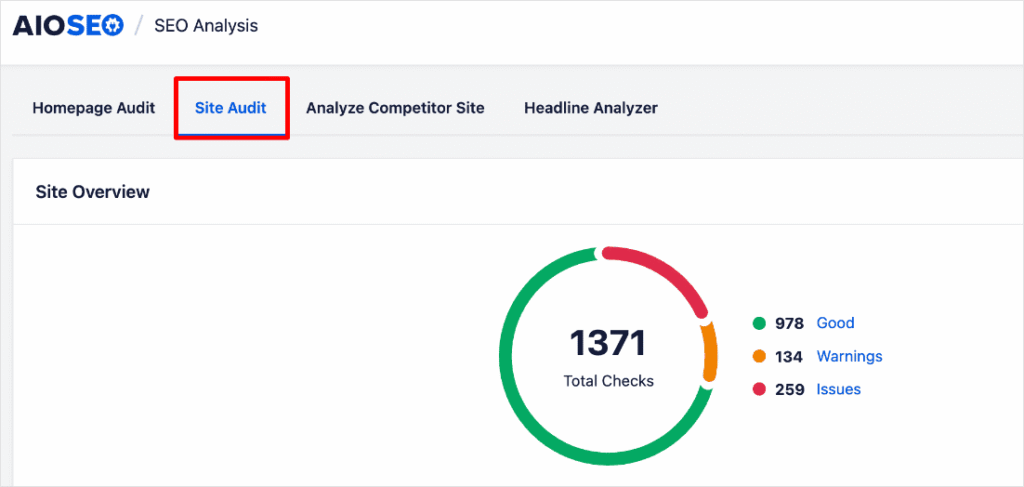
Instead of wasting time guessing what’s hurting your site, you get a clear checklist with actionable insights.
This is a life-saver for DIY SEOs and small business owners. It makes finding issues easy, saving you valuable time from having to scour your site for any problems.
Plus, the convenience of having this data in WordPress is a game-changer. The less tools I have to open and visit, the better.
For step-by-step instructions on how to install AIOSEO, check our detailed installation guide.
2. Analyze & Optimize Your Homepage
Your homepage is the first impression for users and search engines, making homepage optimization a core component of good SEO.
Fortunately, AIOSEO’s Site Audit makes this process easy via the Homepage Audit.
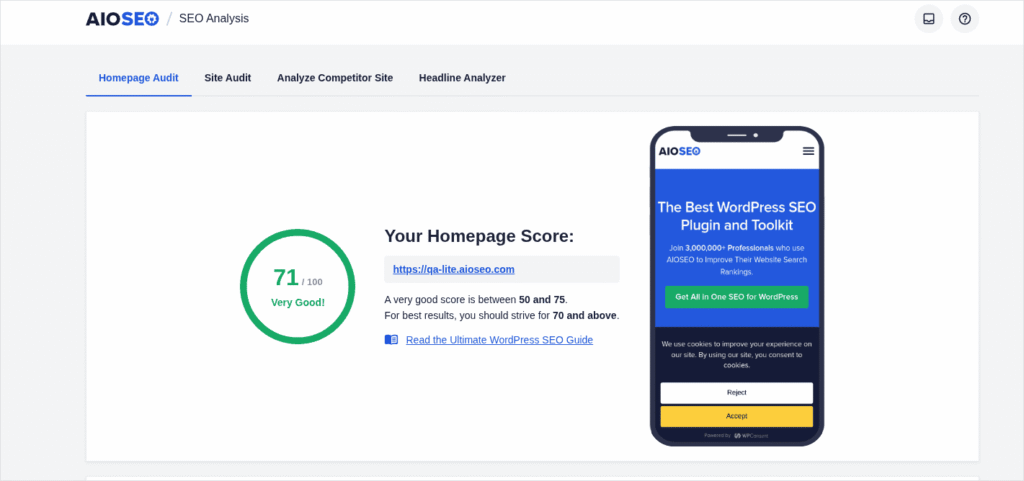
The audit helps you spot SEO issues and fine-tune your homepage for maximum performance. Once done, it groups the results into the following categories:
- Basic SEO: Checks core elements like titles, meta descriptions, headings, keywords, internal links, and overall content optimization.
- Performance SEO: Analyzes site speed, mobile-friendliness, Core Web Vitals, and other factors that affect user experience and rankings.
- Advanced SEO: Evaluates structured data, schema markup, canonical tags, redirects, and other technical elements that help search engines better understand and rank your site.
- Security SEO: Identifies issues such as SSL certificates, HTTPS usage, and other vulnerabilities that could compromise trust and negatively impact search visibility.
This audit helps ensure you have a faster, more secure site, keeping visitors engaged and building trust with search engines.
For more information, check out our homepage SEO tips.
3. Audit Your Entire Website
Once you’ve optimized your homepage, the next step is to review your entire website. (Don’t worry; it’s not hard.)
To do this, head over to the Site Audit tab and run a full site scan.
This scan examines every post, page, and taxonomy to identify performance, security, and optimization issues. It’s like a complete health check that keeps your website running smoothly.
One of the biggest advantages of running a full site audit is that it uncovers problems you might never catch on your own. Things like missing focus keywords or meta descriptions may seem minor, but together they can quietly drag down your search rankings.
By spotting and fixing them early, you keep your site in top shape and signal to Google that your website is trustworthy.
Another huge benefit is speed.
Instead of manually clicking through every page trying to track down issues, a site audit does the heavy lifting in just minutes.
Even better, it organizes everything for you in a clear, color-coded report. Critical problems are highlighted in red, so you instantly know what needs your attention first. No guesswork.
4. Identify & Fix Issues
AIOSEO’s Site Audit makes it effortless to spot the SEO issues that could be dragging your site down. What I really like is that it gives you 2 powerful ways to do this, depending on how you prefer to work:
1. The All URLs View: Page-by-Page SEO Analysis
The All URLs view provides a page-by-page SEO analysis, giving you a detailed breakdown of your entire site’s optimization.
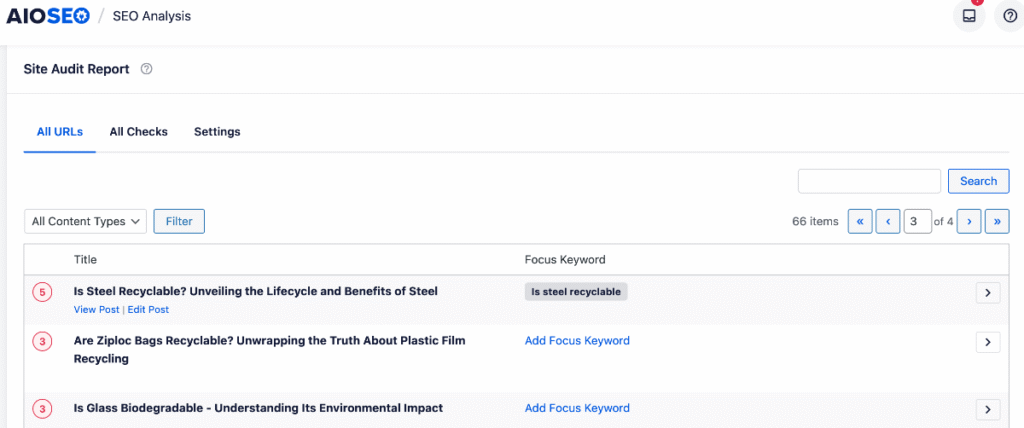
At a glance, you can see how many issues each page has and whether you have assigned a focus keyword. If a keyword is missing, you can add it directly from the Site Audit Report—no need to open the page in editor mode.
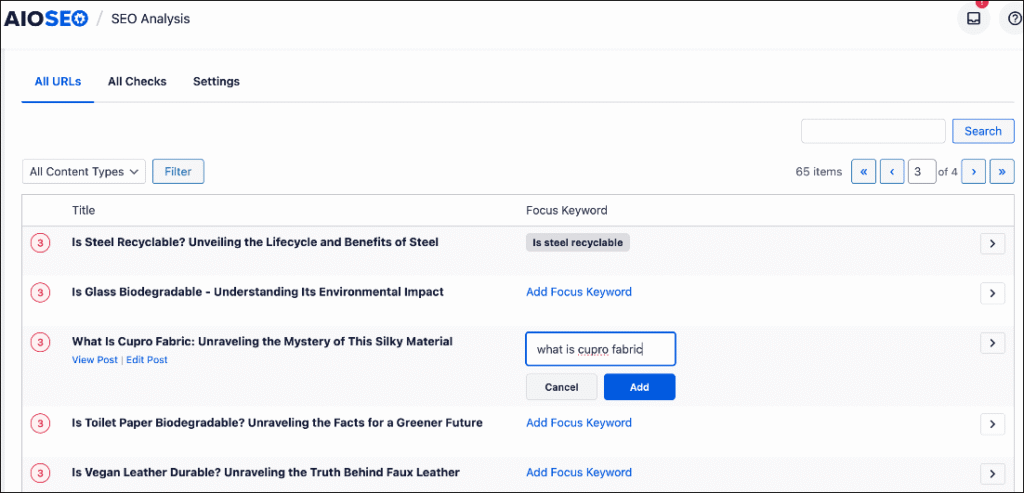
As for the results of the analysis, you can click the expand button on the far right of the page you want to inspect. The expanded view breaks down every issue and ranks them by severity: issues (red), warnings (orange), and good (green).
Some issues in the audit include:
- SEO title tag and meta description length
- Open Graph meta tags
- Keyword usage in important sections (H1 tag, introduction, URL, SEO title, and other areas)
- URL length
- And more
Next to each issue, you’ll see the following buttons: Fix and Ignore.
Clicking Fix takes you straight into editor mode, right to the spot that needs attention. This makes it easy to resolve the problem instantly and boost your site’s SEO.
If you click Ignore, it will dismiss the alert.
Ultimately, Site Audit performs a thorough SEO analysis in just seconds, giving you actionable insights to boost your site’s rankings on search engine results pages (SERPs).
I also appreciate how the report includes tooltips that explain each issue, making this one of the most user-friendly SEO audit tools I’ve used to date.
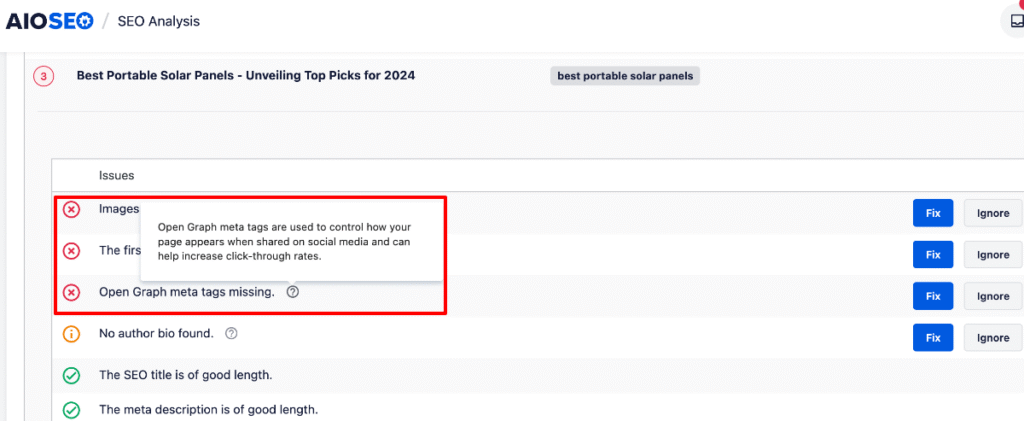
2. The All Checks View: Systematic Issue Resolution
For a more structured approach to addressing SEO problems, you can use the All Checks view.
It organizes your pages by specific SEO issues, helping you prioritize fixes and monitor your progress.
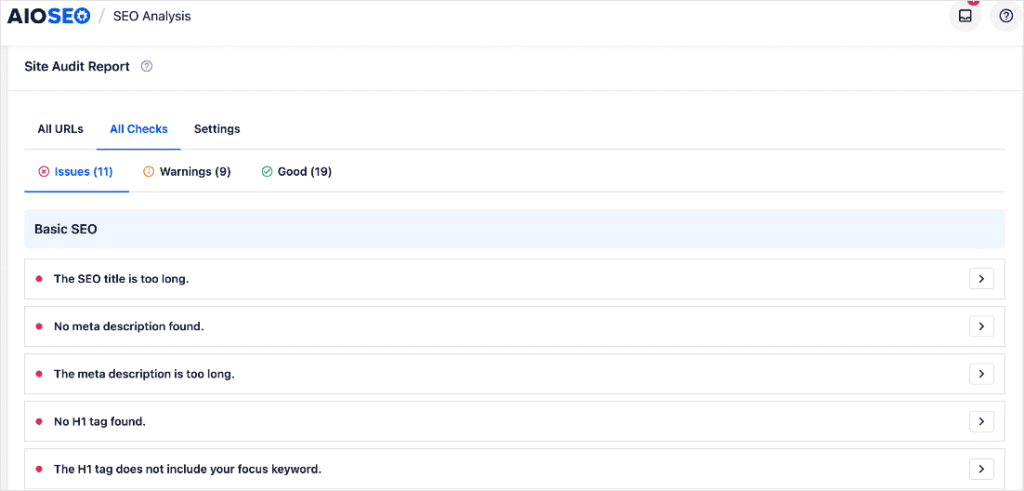
Findings are also grouped by Issues, Warnings, and Good, helping you identify what needs to be addressed first.
To use this view, simply click on any item. A modal will open and display all affected URLs along with detailed insights about the issue.
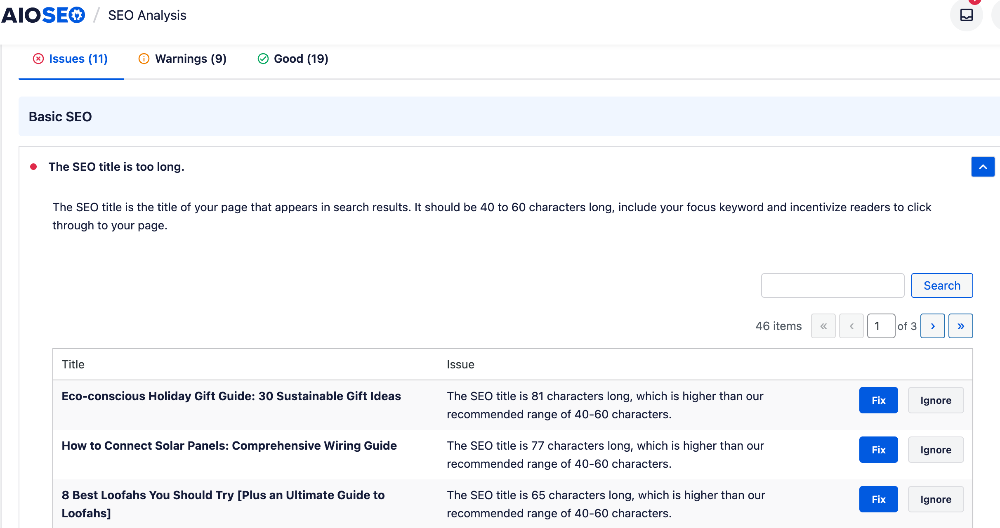
This comprehensive overview helps you understand the scope and impact of each problem, enabling you to make informed decisions and prioritize your fixes.
Like the All URLs view, this view features the Fix and Ignore buttons, making it easier to resolve issues.
Now, let’s dive deep into each of the checks and how you can fix them.
5. Improve Your Site Speed & Performance
Website performance directly impacts the user experience and your SEO. If your pages take too long to load, visitors are likely to leave before exploring your content.
Google also considers site speed, measured through Core Web Vitals, as a ranking factor. That means a slow site can hurt your visibility in search results and reduce conversions.
The challenge is that websites often contain heavy images, third-party scripts, and complex layouts that slow them down.
The good news? Even minor optimizations can make a significant impact.
To check your site speed, you can use popular site speed test tools. If you’re an AIOSEO user, you’ll find detailed performance insights in the Performance SEO section of the Site Audit.
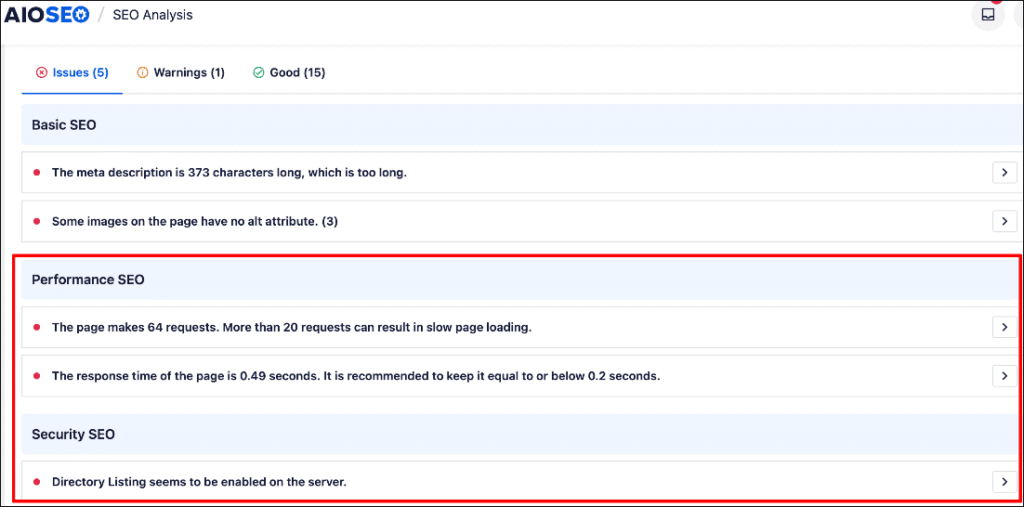
It highlights performance bottlenecks across your entire site, not just your homepage.
Here are some ways to improve your site’s load time:
- Compress large images: Reduce file sizes without losing quality.
- Enable caching: Store a static version of your site so repeat visitors load it faster.
- Clean up CSS and JavaScript: Remove unnecessary characters and whitespace.
- Use a reliable hosting provider: Pick one that prioritizes speed and uptime.
Even shaving just 1 second off your load time can boost rankings, traffic, and conversions. Don’t let the fear of it being “too technical” stop you from working to improve it!
For step-by-step instructions, check out our tutorial on improving site speed.
6. Fix Your Site Structure & Navigation
An optimized website structure is the backbone of strong performance. It doesn’t just make your site easier for search engines to crawl. It also improves speed, navigation, and overall user experience.
I learned this the hard way back when I built a cluttered site with confusing URLs, slow-loading pages, and scattered links. It frustrated visitors (like my friend who couldn’t find the web page) and made it harder for Google to understand my content.
When I optimized the structure, I focused on:
- Clear categories and subcategories: Grouping related content logically makes your site easier to navigate and reduces unnecessary clicks.
- Simple, descriptive URLs: A clean URL structure is easier to index and keeps links short and user-friendly. For example, use sitename.com/blog/seo-tips instead of sitename.com/post?id=12345.
- Strategic internal linking: Smart linking not only passes SEO value but also improves site navigation, helping users and crawlers reach deeper pages more efficiently.
- A clear hierarchy: From the homepage to categories and subpages, an organized flow improves both usability and site performance.
This is where AIOSEO’s Link Assistant comes in handy.
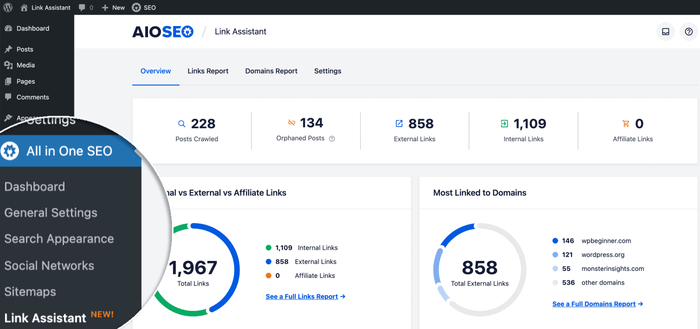
Link Assistant automatically scans your site, generates a detailed link report, and identifies orphan pages. Instead of manually editing posts, you can add or update links straight from the dashboard.
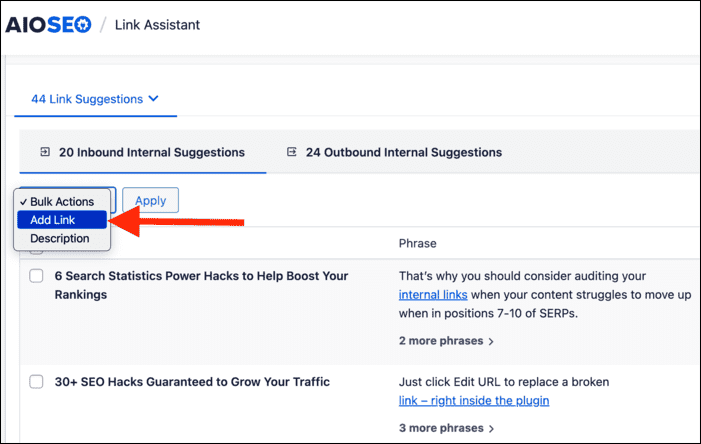
Another feature I found powerful is the Breadcrumbs module. Breadcrumbs give users a secondary navigation path, reducing bounce rates by guiding them through your site’s hierarchy.
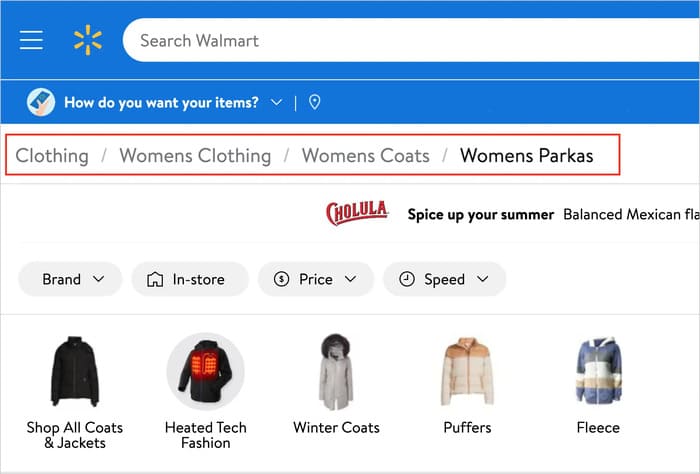
Adding breadcrumb navigation is easy with a tool like AIOSEO. You just navigate to the Breadcrumbs tab from the General Settings and choose how you want to display it. No coding required.

AIOSEO also automatically adds breadcrumb schema, allowing search engines to better understand your site's structure.
For step-by-step guidance, check out our tutorial on adding breadcrumb navigation in WordPress.
7. Use Keyword-Optimized Content
Keyword research isn’t just about chasing popular search terms. It’s about optimizing your website to align with what people are actually searching for on Google.
When you understand search intent, you can structure your site in a way that attracts the right visitors and supports your overall SEO strategy.
Especially for new websites, the smartest move is to start with low-competition keywords. These are search terms that your competitors overlook, but are highly relevant to your audience. Targeting them helps you:
- Bring in qualified traffic that’s more likely to engage and convert
- Achieve faster rankings since you’re not battling big, established sites
- Build early SEO momentum that strengthens your domain for future growth
- Uncover valuable insights into your audience’s needs, which you can use to optimize your content
So, how do you find these opportunities?
I used to struggle with keyword research until I discovered LowFruits. This long-tail keyword research tool helps you to uncover low-competition terms that directly fuel website optimization.
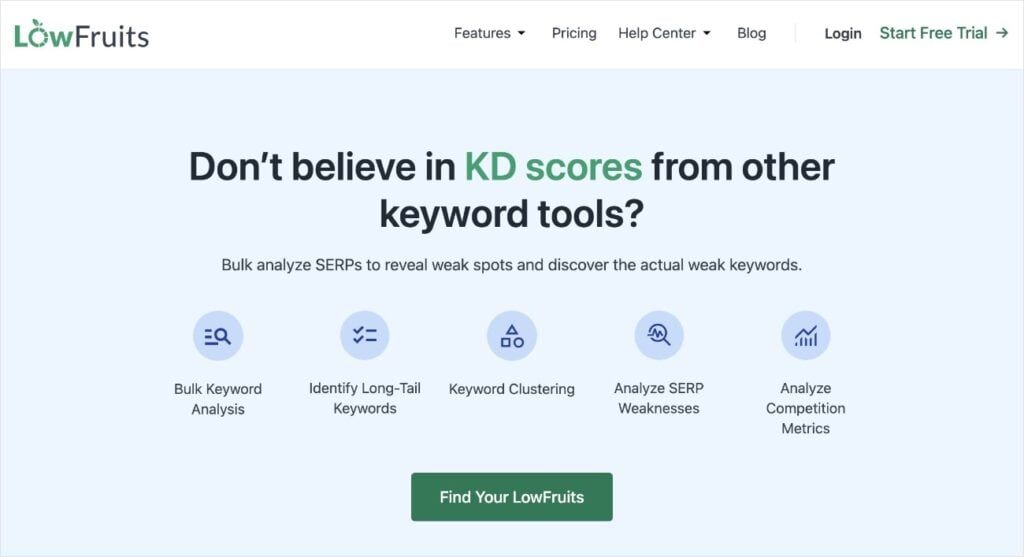
What makes LowFruits stand out is its ability to highlight Weak Spots in SERPs, showing you exactly where you have the best chance to rank.
Weak Spots are low-authority domains ranking in the top search positions.
With insights into search volume, keyword difficulty, and related terms, you can structure content that boosts both SEO performance and user experience.
When choosing keywords, always tie them back to your site’s goals.
Think about the problems you solve and the phrases your customers would type into Google.
For instance, if you run a project management SaaS for small teams, a keyword like “project management tool for lean teams” is far more valuable than a broad term like “project management.”
Ultimately, the aim isn’t just to drive traffic; it’s to optimize your site around keywords that bring real results. This can include sign-ups, demos, purchases, and more.
Want more product recommendations? Check out our list of the best keyword research tools for other options.
8. Link Internally for Better Website Optimization
Internal linking is the practice of connecting one page on your site to another. These links are called “internal” because they stay within your website.
When used strategically, they’re a powerful website optimization tool.
Wondering why internal links matter for SEO and website optimization?
Here are a few key examples:
1. Keeps Visitors Engaged
When someone reads one of your blog posts, an internal link can guide them to another relevant article. For example, if you’ve written a guide on plant health, you can link to related posts about houseplants, outdoor plants, or tree care.
This keeps readers exploring your site instead of bouncing away, signaling to Google that your content is valuable and comprehensive.
2. Improves Navigation for Users and Google
Internal links make it easier for readers to discover your content, and they help search engines understand your site’s structure. This results in improved indexing, enhanced authority, and higher rankings over time.
3. Improves Crawlability
Search engines use crawlers to move through your website and discover new content. Internal links act like road signs, guiding these crawlers to important pages that might otherwise get overlooked.
The better your crawlability, the more likely your content will be indexed and show up in search results.
4. Distributes Page Authority
Not every page on your site will attract the same level of traffic or backlinks.
Internal links allow you to pass authority (link juice) from high-performing pages to others that need a boost.
This helps balance your site’s SEO strength and gives valuable pages a better chance to rank.
How to Add Internal Links in WordPress
Adding internal links is simple:
- Highlight the text you want to link.
- Click the link icon.
- Search for and select the post you want to connect.
While this processs is easy for small websites, it becomes more challenging as your website grows. That’s where AIOSEO’s Link Assistant takes your website optimization to the next level.

Link Assistant:
- Suggests relevant internal links automatically
- Highlights orphan pages (pages without links) that may be hurting your SEO
- Recommends anchor text for better contextual linking
- Lets you add links in bulk or review them individually
To use it, simply scroll to the AIOSEO Settings at the bottom of your blog post and click on the Link Assistant tab. From there, you’ll see internal link suggestions and anchor text tailored to your content.
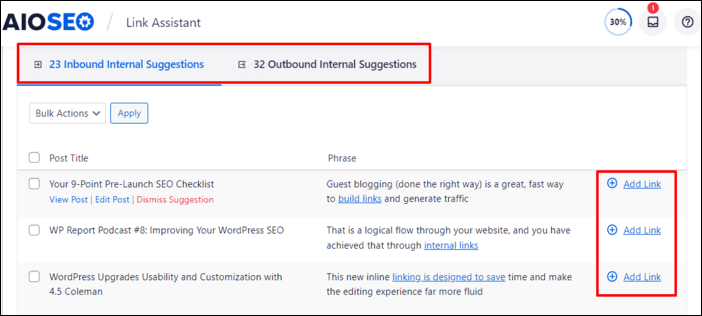
With one click, you can add internal links and instantly optimize your website.
👉 Action step: Link to at least 3–4 other posts every time you publish something new.
9. Optimize Images for Search Engines
Images make your content more engaging. However, if they’re not optimized, they can slow down your site and negatively impact performance.
Since site speed is a critical part of website optimization, handling images correctly is key. Here are a few ways you can improve your images:
Compress Images Without Losing Quality
Large image files are one of the most common causes of slow-loading pages.
By compressing your photos before uploading them to WordPress, you reduce file size while maintaining high quality.
This keeps your site fast, improves Core Web Vitals, and creates a smoother browsing experience for visitors.
Add Alt Text & Titles for SEO & Accessibility
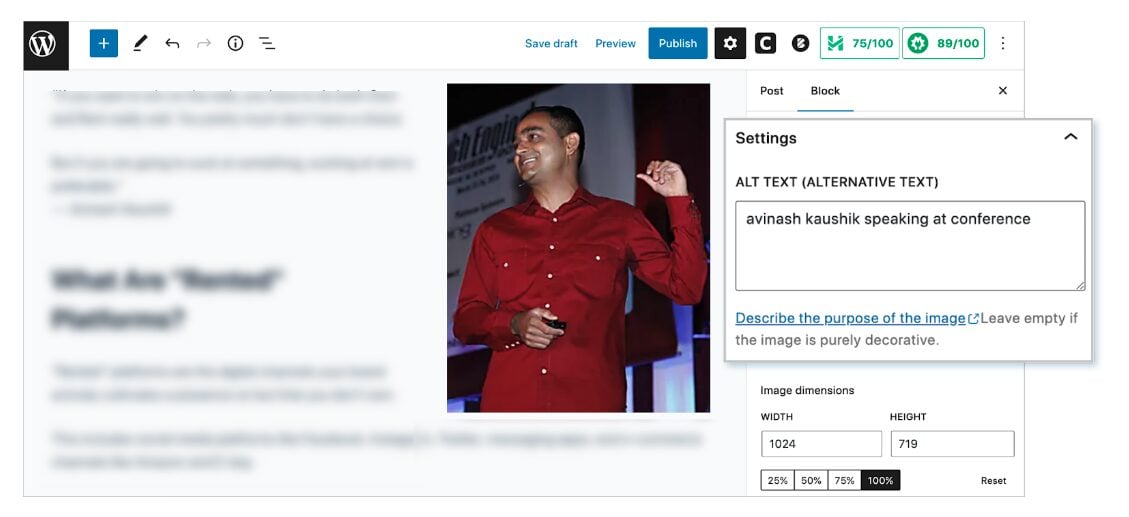
Beyond compression, every image you upload should include:
- Alt text (alternative text): Describes what the image shows. It helps Google understand the content of your image and makes your site more accessible for users with vision impairments.
- Title text: Provides additional context for both users and search engines.
Adding relevant keywords naturally to your alt text and titles can also boost your image SEO, giving your site more opportunities to rank in Google Images and drive traffic back to your content.
Use the Right Image Format
Choosing the right image format can make a big difference in both quality and speed.
JPEGs are best suited for photographs, while PNGs are well-suited for graphics with transparency.
For the best balance of compression and quality, consider using next-gen formats like WebP or AVIF, which load much faster without sacrificing detail.
Enable Lazy Loading
Lazy loading ensures images only load when a visitor scrolls down to them, rather than all at once.
Doing so reduces initial load time, saves bandwidth, and improves the browsing experience, especially on mobile devices.
Create an Image Sitemap
If your site relies heavily on visuals—like product images, infographics, or portfolio pieces—an image sitemap helps Google find and index them more efficiently.
This boosts your chances of showing up in Google Image Search, opening another traffic channel to your website.
10. Use XML Sitemaps for Faster Crawling
An XML sitemap lists every important URL you want search engines to find. Here’s an example of what ours looks like at AIOSEO:
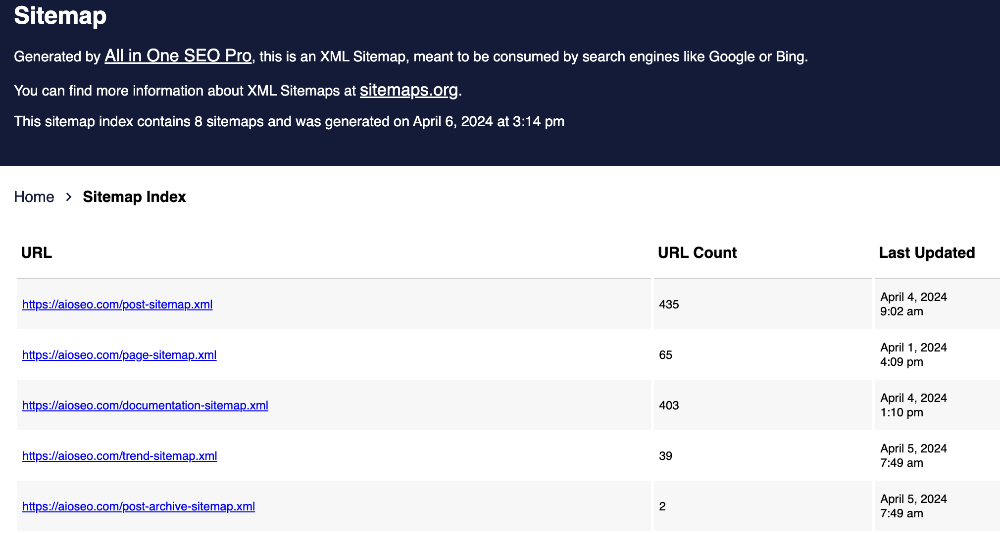
Optimizing your sitemap is easy with AIOSEO’s Sitemap Generator. All you have to do is choose your settings and options, and AIOSEO will do the rest.
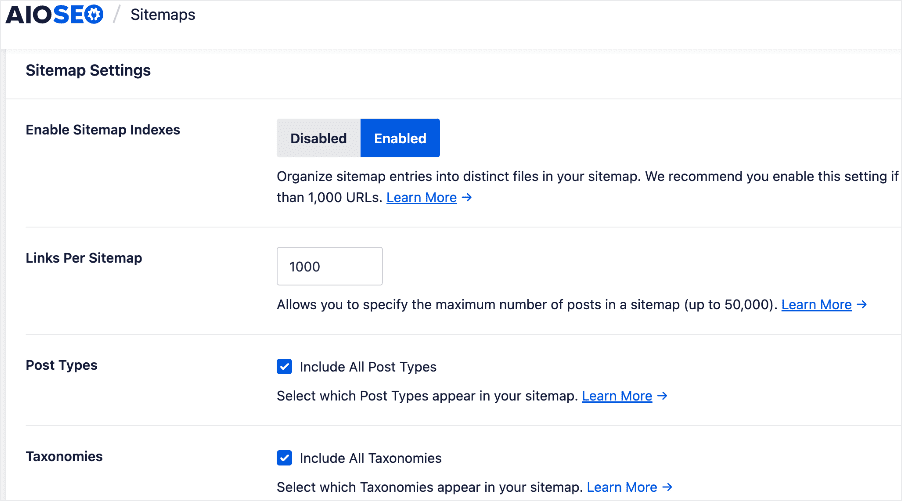
In addition to optimizing your sitemap, you should also submit it to search engines. This makes it easier for Google to crawl, understand, and index your content.
Adding an XML sitemap is one of the most crucial website optimization tips I share with anyone who asks. Without it, search engines may struggle to identify all your web pages, which can limit your visibility in search results.
Check out our article on sitemap best practices for more information.
11. Optimize Your Site for AI Search With LLMs.txt
LLMs.txt is a proposed standard for a text file placed in the root directory of your website (for example, https://example.com/llms.txt).
Similar to a robots.txt file, it sets rules and guidelines for how large language models (LLMs), like AI chatbots and search assistants, can access and use your content.
Why LLMs.txt Matters for Website Optimization
Search is changing, and AI-powered results like Google AI Overviews are becoming a major way people discover content.

By adding an llms.txt file, you:
- Help AI bots understand which parts of your site are most important
- Control what content they can and cannot use
- Improve your chances of showing up in AI-driven search results
Think of it as future-proofing your website optimization strategy.
How to Add an LLMS.txt File to Your Site
If you’re using AIOSEO, you don’t need technical skills to create or manage an llms.txt file. The plugin includes a simple LLMS.txt Generator that lets you:
- Create a fully optimized llms.txt file with one click
- Automatically place it in your site’s root folder
- Fine-tune what content AI models can prioritize or ignore
Doing so ensures your site is optimized for traditional search engines and for the next generation of AI-powered discovery.
By leveraging this feature, you enhance your website’s visibility, accessibility, and long-term SEO performance.
12. Add Structured Data (Schema Markup)
Structured data is code you can add to your website that helps search engines understand your content. It relies on a standardized format known as schema markup to specify important details about your pages.
For example, it can help search engines understand if a web page is a product, service, event, blog post, or another type of content.
Visitors don’t see this code, but search engines do. With schema in place, your site can display rich snippets in the search results, such as star ratings, FAQs, pricing, or event details.
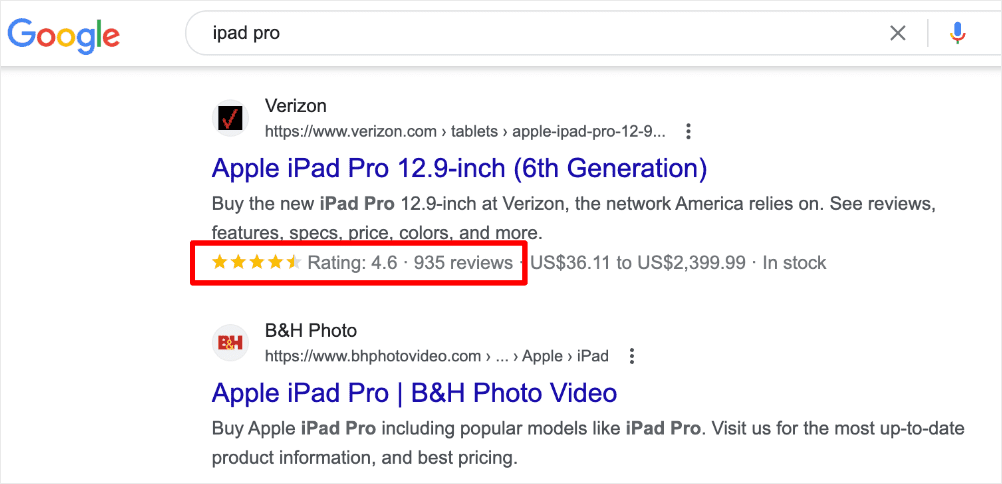
These enhanced listings improve click-through rates and give your site a polished, professional presence.
Schema markup is a low-effort, high-impact optimization tactic. By giving search engines extra context, you can:
- Stand out, even against bigger competitors
- Build instant credibility with features like ratings and reviews
- Capture more real estate on SERP with interactive snippets
Best of all, with AIOSEO’s next-gen Schema Generator you can add schema to your site without touching a single line of code.
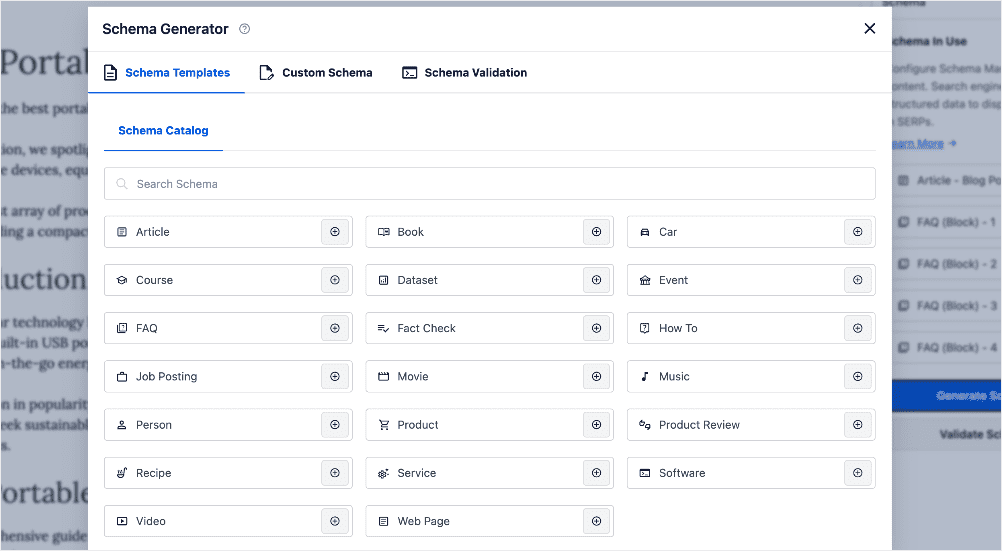
Examples of the types of schema you can generate include:
- Local Business: Optimize visibility in your target city or region.
- Product: Highlight pricing, features, and availability right in Google.
- Review: Showcase customer testimonials and ratings.
- FAQ: Answer common questions directly in the SERPs.
- Service: Present the services your startup offers.
- How-To: Break down step-by-step solutions your product provides.
Adding schema markup is one of those quick wins that can make your site’s search results look more professional, credible, and clickable from day one.
For step-by-step instructions on this, check out our tutorial on implementing structured data on your site.
Final Thoughts: Website Optimization Tips That Actually Work
When I look back at where I started, I can confidently say that website optimization changed everything. My content didn’t suddenly get better overnight. What made the difference was creating a site that was fast, user-friendly, and easily understood by search engines.
The best part? You don’t need to be a developer or spend thousands of dollars to see results. Minor, consistent improvements stack up over time and lead to massive growth.
If you take just a few of these website optimization tips and put them into practice today, you’ll be ahead of most site owners who are still stuck guessing.
And if you stick with it, you’ll start to see what I did—a traffic graph that climbs higher every month, instead of staying flat.
FAQs About Website Optimization Tips
Can I do website optimization myself?
Yes, you can do website optimization yourself. Most changes are simple, such as compressing images, fixing titles, and adding links. There are many resources and tools available online (like this guide) to help you get started. And by learning the basics, you can have a significant impact on your site's performance.
How long before I see results from these website optimization tips?
Small fixes (like speeding up your site) can show results in weeks. Bigger changes (like building backlinks) may take months. The timeline for seeing results can vary greatly depending on the changes you make, your industry, and the competitiveness of your keywords. Patience and consistency are key to long-term success.
What’s the difference between SEO and website optimization?
SEO is part of website optimization. SEO focuses on search rankings, while optimization also includes speed, design, and user experience. Think of website optimization as a comprehensive approach to improving your website's overall performance for both users and search engines, with SEO being a crucial component of that effort.
Which SEO tools help implement these website optimization tips?
If you're a WordPress user, the best SEO tool to help you implement these tips is AIOSEO. It’s an SEO plugin that helps you configure your site’s SEO without overwhelming you with technical details. Tools like AIOSEO simplify complex tasks, making it easier for beginners to implement best practices and monitor their progress.
Fixing those problems not only improved my rankings but also made my site faster and more enjoyable for visitors. That’s the power of SEO reports: they reveal hidden issues before they snowball into bigger problems, helping you keep both Google and your audience happy.
In this article, I’ll show you how to get a free SEO report in WordPress so you can improve your site’s performance and search rankings.
In This Article
What Is an SEO Report?
An SEO report is like a health check-up for your website. It scans your site’s pages and tells you what’s working well, what’s broken, and what’s holding back your rankings.
Instead of guessing why your site isn’t showing up in Google, you’ll see a clear list of issues with recommendations for fixing them.
A good SEO report usually covers things like:
- Missing or duplicate meta titles and descriptions
- Broken links that frustrate users and search engines
- Slow page speed or performance issues
- Incorrect use of headings (H1, H2, etc.)
- Problems with indexing and crawlability
- Missing schema markup for rich snippets
Think of it as a report card for your SEO. Even if your content is great, small technical issues can quietly hinder your site's performance.
Importance of Running SEO Reports on Your WordPress Site
Why should you bother with SEO reports in the first place?
For starters, they help you spot hidden problems early. Many SEO issues aren’t obvious until you scan your site, and regular reports give you the chance to fix them before they hurt your rankings.
SEO reports also improve user experience (UX) by highlighting broken links, slow load times, and security issues that frustrate visitors. A smoother site keeps people happy and encourages them to stay longer and explore more pages.
Additionally, SEO reports help you boost rankings by ensuring that your site and content follow SEO best practices.
The result?
Better visibility, more clicks, and increased organic traffic.
Personally, SEO reports save me time and offer clarity on issues impacting my site’s rankings. Instead of guessing what to do, I get an exact checklist of action steps. This makes it easy to focus on what truly matters and avoid wasting effort.
Furthermore, I primarily use free SEO reports. And I’ll show you how you can too.
4 Steps to a Free SEO Report in WordPress
Now that you know what an SEO report is and why it matters, let’s look at how to get one directly inside WordPress, without spending a dime.
Step 1: Install All In One SEO (AIOSEO)
One of the easiest ways to get automated SEO reports for your WordPress site is to use a powerful SEO plugin like All In One SEO (AIOSEO).

AIOSEO is the leading WordPress SEO plugin, trusted by over 3 million active users. Smart business owners, bloggers, and marketers rely on it to boost search rankings and drive qualified traffic straight to their WordPress sites. With features built specifically for WordPress SEO, AIOSEO makes it easy to optimize your posts and pages for maximum visibility in search results.
When it comes to free SEO reports, AIOSEO’s Site Audit feature scans your entire site and gives you a detailed audit of how well it’s optimized for search engines.
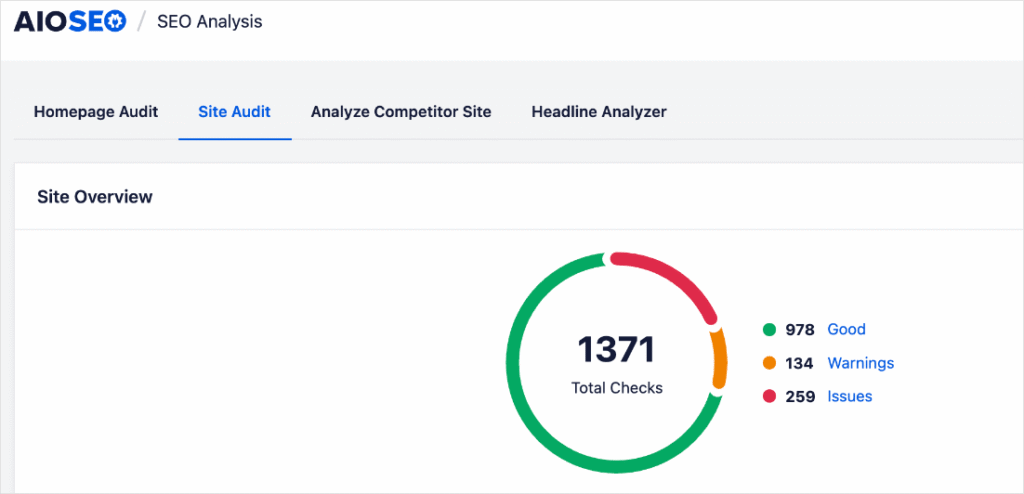
It gives you an overview of your optimization efforts and breaks them down into color-coded categories:
- Good (green)
- Warnings (orange)
- Issues (red)
This mini SEO report provides a quick overview of your site’s health.
Step 2: Run a Homepage Audit
Your homepage is one of the most important pages on your site. That’s why getting an SEO report on it is crucial. To do this, go to your AIOSEO menu » SEO Analysis » Homepage Audit.
This feature conducts an in-depth scan of your homepage and highlights:
Basic SEO Issues
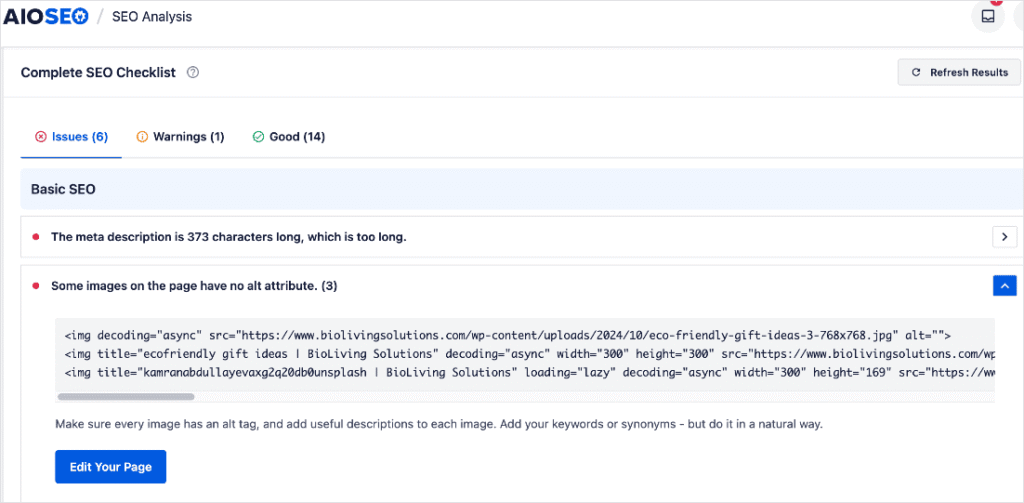
SEO works like building a house. If the foundation is weak, everything else you add on top eventually cracks. By optimizing basic elements like meta tags, headings, and content structure right from the start, you prevent small issues from compounding into:
- Major ranking drops
- Wasted content efforts
- Poor user experience later
In short, early fixes save you time, protect your SEO investment, and set your site up for long-term growth.
Performance and Security Issues
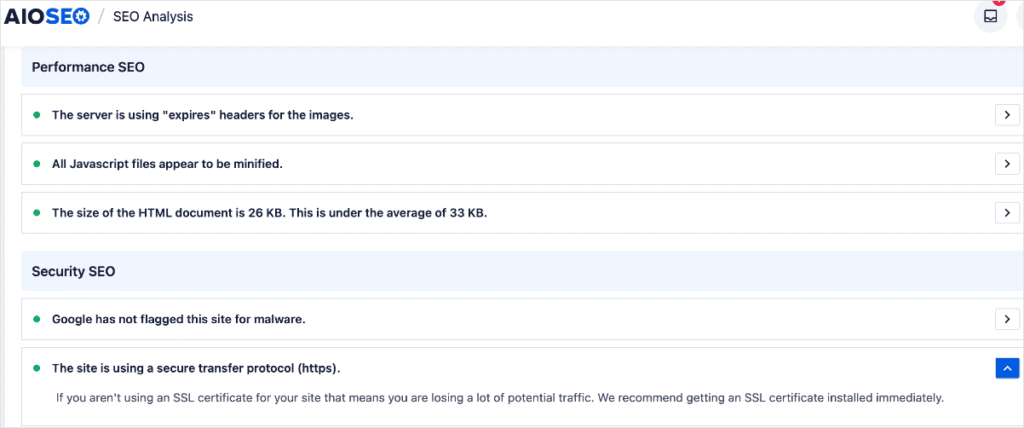
Performance and security are critical to SEO. A slow or unsafe site drives visitors away and signals search engines to rank you lower, while fast and secure websites earn higher visibility and trust.
Site Audit highlights common performance and security issues you may have overlooked, ensuring your site follows technical SEO best practices.
For more information on the impact of security, check out our guide to HTTPS and SEO.
Step 3: Run a Complete Site Audit
Another crucial element of an SEO report is understanding your site’s health. To do this, run a full site audit.
AIOSEO’s Site Audit tool makes this easy as it checks every post, page, and taxonomy for SEO problems.
One significant advantage of a site audit is that it identifies issues you might not notice on your own. For example, it can flag missing focus keywords or meta descriptions. These may seem small, but collectively they can significantly impact your rankings. Fixing them right away keeps your site healthy and signals to Google that your content is reliable.
Another huge benefit? Speed. Instead of wasting hours clicking through each page to hunt for problems, the Site Audit does all the heavy lifting in minutes. It also provides a clear, color-coded list of issues, sorted by priority. Critical issues are highlighted in red, allowing you to instantly identify what to address first for the greatest SEO impact.
Step 4: Identify and Fix Issues
An SEO report is meaningless if it doesn’t show you what to fix to improve your search rankings. This is one of the reasons I appreciate AIOSEO’s Site Audit feature more than other SEO audit tools. Not only does it reveal issues affecting my site’s SEO, but it also provides guidance on how to resolve them.
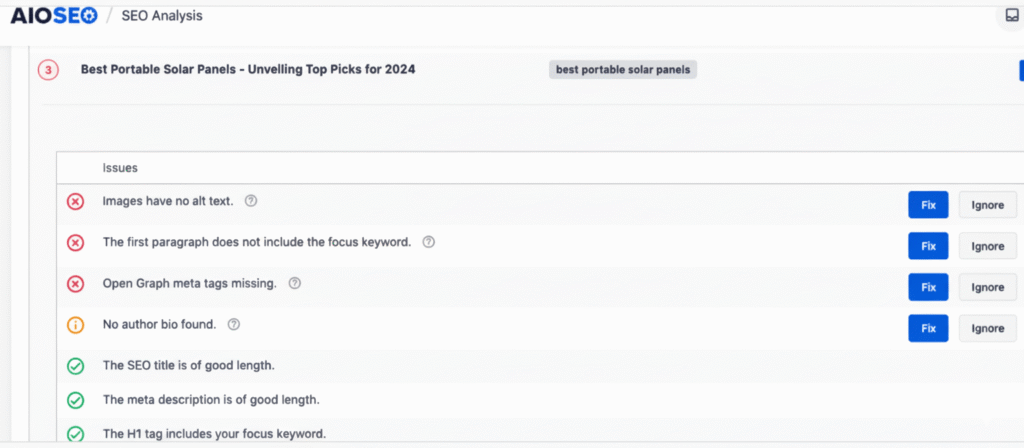
Some issues in the audit include:
- SEO title tag and meta description length
- Open Graph meta tags
- Keyword usage in important sections (H1 tag, introduction, URL, SEO title, and other areas)
- URL length
- And more
Next to each issue, you’ll see 2 buttons—Fix and Ignore. Clicking Fix takes you straight into editor mode, right to the spot that needs attention. This helps resolve the problem instantly and strengthens your site’s SEO. On the other hand, clicking Ignore removes the issue from the list.
I also like how the report includes tooltips that explain each issue.
This makes resolving issues faster and helps you know exactly what you’re dealing with.
And that’s it!
You’ve got a free SEO report in WordPress.
Start Growing With Your Free SEO Report
Getting a free SEO report in WordPress isn’t just about spotting errors. It’s also about unlocking your site’s full potential. With tools like AIOSEO, you can quickly uncover hidden issues, fix them with confidence, and set your website up for higher rankings and better user experience.
Plus, you don’t need to be a tech expert. In just a few clicks, you’ll have a clear action plan to improve your site’s SEO and start driving more organic traffic.
So if you’ve been guessing what’s holding your site back, it’s time to stop guessing and start growing. Run your SEO report today and take the first step toward stronger search visibility and long-term success.
I hope this post helped you know how to get a free SEO report in WordPress. You may also want to check out other articles like our complete WordPress SEO tutorial or our list of the best SEO plugins.
If you found this article helpful, then subscribe to our YouTube Channel. You’ll find many more helpful tutorials there. You can also follow us on X (Twitter), LinkedIn, or Facebook to stay in the loop.
Getting a Free SEO Report in WordPress: Your FAQs Answered
What is an SEO report?
An SEO report is like a health check for your website. It shows what’s working, what’s broken, and what’s holding your site back from ranking higher in search engines.
Why should I run SEO reports on my WordPress site?
SEO reports help you catch hidden issues before they hurt your rankings. They also improve user experience by highlighting slow pages, security problems, and broken links, which keeps visitors engaged and boosts traffic.
How do I get a free SEO report in WordPress?
You can use plugins like AIOSEO to run a free SEO audit. It scans your entire site—including posts, pages, and taxonomies—and gives you actionable recommendations.
Creating high-quality content that ranks well in search engines is essential for online success. I’ve found that AI writing assistant tools are pivotal in streamlining this process, helping content creators optimize their work for better visibility and engagement.
In this article, I want to show you some of the best AI writing assistants I’ve found to be the most effective in creating content that ranks.
In This Article
What Is an AI Writing Assistant?
An AI writing assistant is a software application powered by artificial intelligence (AI), primarily using large language models (LLMs). They help you create, refine, and optimize written content.
These tools are designed to understand context, generate human-like text, and provide intelligent suggestions that go beyond simple corrections. They assist in various aspects of content creation, including:
- Keyword research: Identifying relevant keywords to target in your content.
- Content optimization: Improving content for better search engine rankings and user engagement.
- Content structure and readability: Ensuring the content is well-organized and easy to read.
- On-page SEO: Keyword placement and usage, and optimizing elements such as meta descriptions, headers, and internal linking.
These tools significantly benefit bloggers, content marketers, and SEO professionals by improving the quality of their content and increasing organic traffic. One thing I love about them is how they’ve helped speed up my content writing workflow.
11 Best AI Writing Assistant Tools for 10X Content Creation
1. All In One SEO (AIOSEO)
AIOSEO is the best AI writing assistant for WordPress sites. It’s a powerful yet easy-to-use SEO plugin that boasts over 3 million active users.
Savvy business owners trust AIOSEO to boost their search engine rankings and drive qualified traffic to their WordPress sites. The plugin has features designed specifically for WordPress SEO, enabling you to optimize your posts and pages for greater visibility on search engines.
For step-by-step instructions on how to install AIOSEO, check out our installation guide.
Regarding AI writing assistants, AIOSEO has 2 AI-powered features to help you create SEO-friendly content fast: AI Writing Assistant and AI Content.
1. AI Writing Assistant
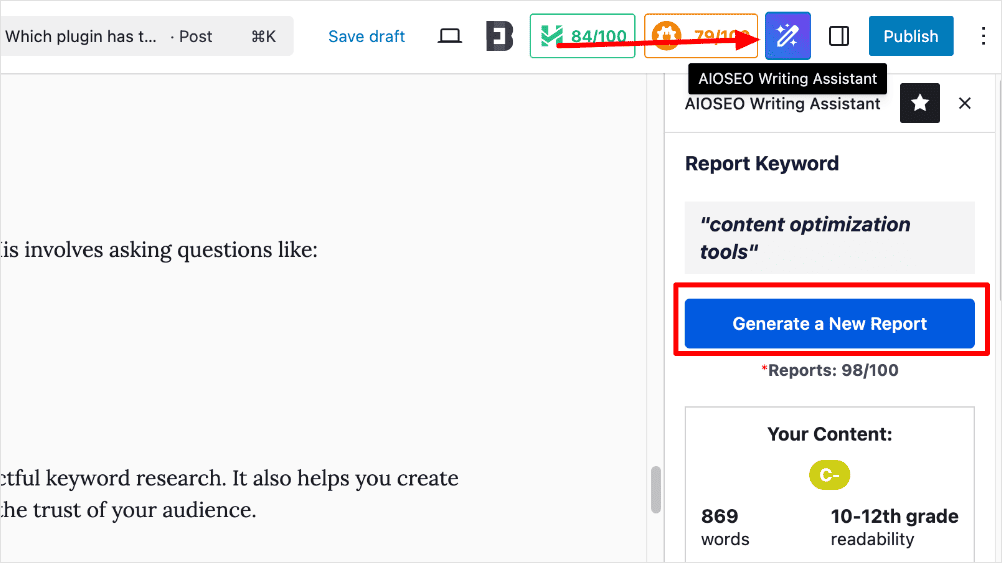
The AI Writing Assistant is a tool that helps you create SEO-optimized content effortlessly in WordPress. It’s powered by SEOBoost, AIOSEO’s full-suite content management platform.
You’ll need an SEOBoost license for AI Writing Assistant, which starts at $30/month.
When it comes to helping you create SEO content, AI Writing Assistant stands out with:
- Detailed Reports: Get detailed data about your keyword, your competitors’ content, and more.
- Optimization Wizard: This guides you on the best possible way to optimize your content. One way it does this is by giving you LSI keywords and synonyms you can add to your content (and how to use them).
- Competitor Analysis: Gives you insights into top-ranking content and its main on-page factors.
For instance, a feature within the Optimization Wizard that I find particularly useful is the “See Examples” link, found beneath each keyword suggestion. Clicking this link reveals a window displaying how other publishers incorporate that specific keyword into their content.
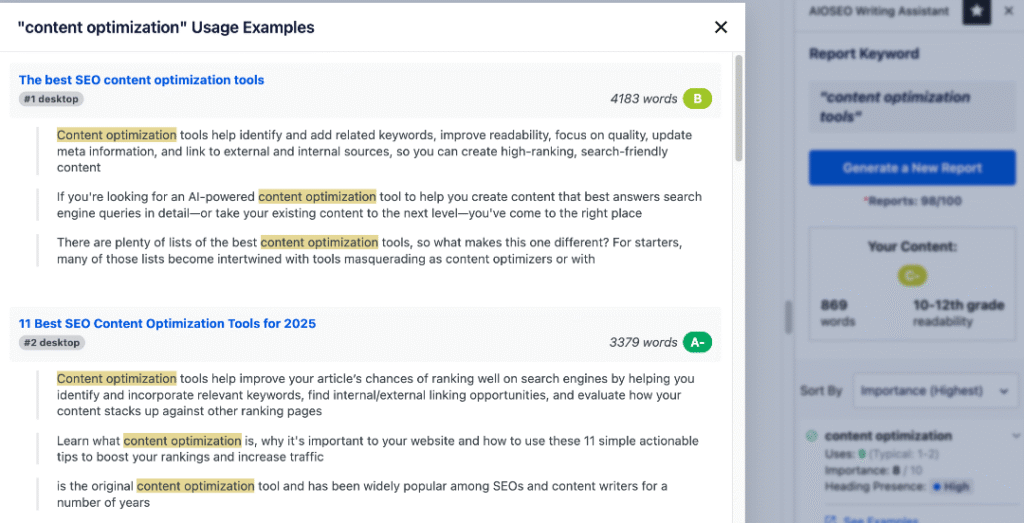
This productivity booster makes it easier to see how you can use that term in your content, speeding up the content optimization process.
Another benefit of AIOSEO's AI Writing Assistant is its capability to help you optimize existing content. By simply generating a report for the article's primary keyword, you'll receive all the necessary insights to effectively improve that particular piece of content.
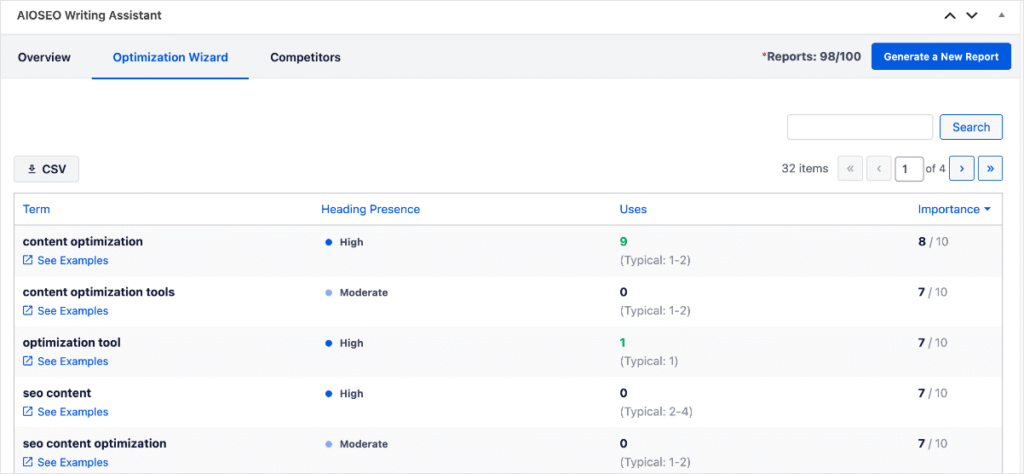
As a result, you can quickly create optimized content without sacrificing content quality.
2. AI Content Generator
The AI Content Generator is a powerful tool that helps you automatically repurpose your blog post into various formats.
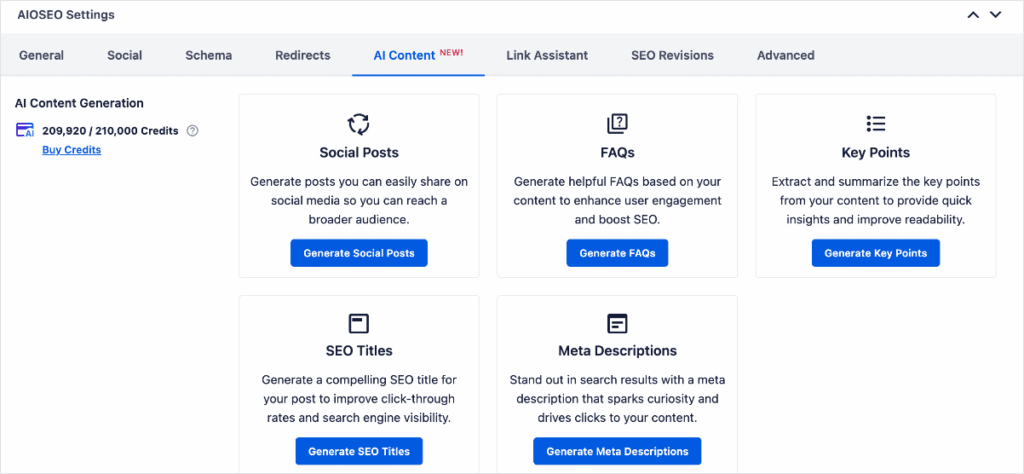
The biggest advantage is its direct integration into your WordPress dashboard, enabling immediate content generation. This enables seamless integration of the generated material into your WordPress content with a single click.
No more endless toggling between tabs or getting stuck transferring content between platforms.
AI Content is available to both paid and free users. For free users, you’ll have to buy credits (you have 100 free credits to try it out).
Examples of the content types you can create with AI Content include:
FAQ Blocks
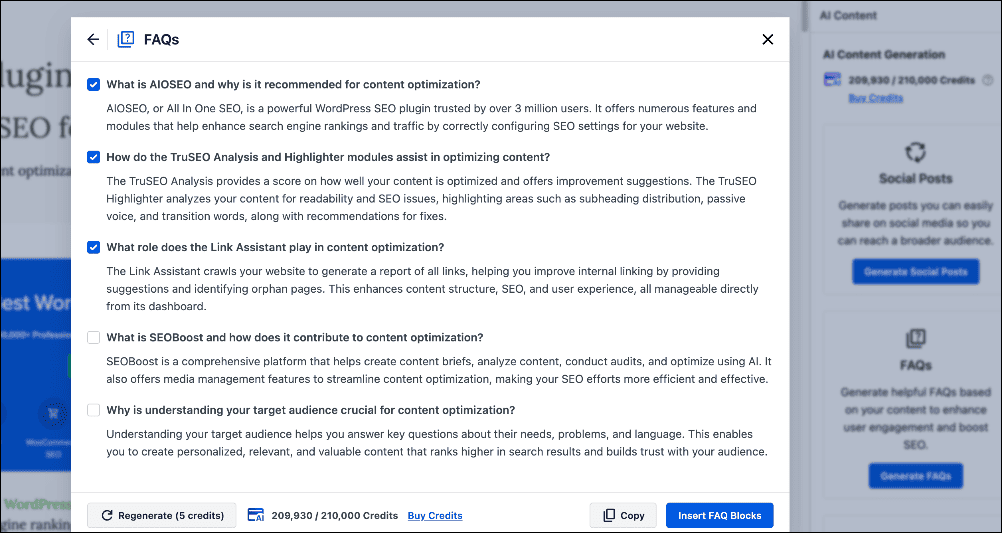
You can instantly generate relevant FAQs and their answers, complete with FAQ schema, to boost your SEO and improve user engagement—all without any manual effort.
Once generated, simply select the FAQs you want and click Insert FAQ Blocks to add them to your post.
Alternatively, you can copy them for use elsewhere.
Check out our article on using FAQ blocks to boost SEO for more information.
Key Points
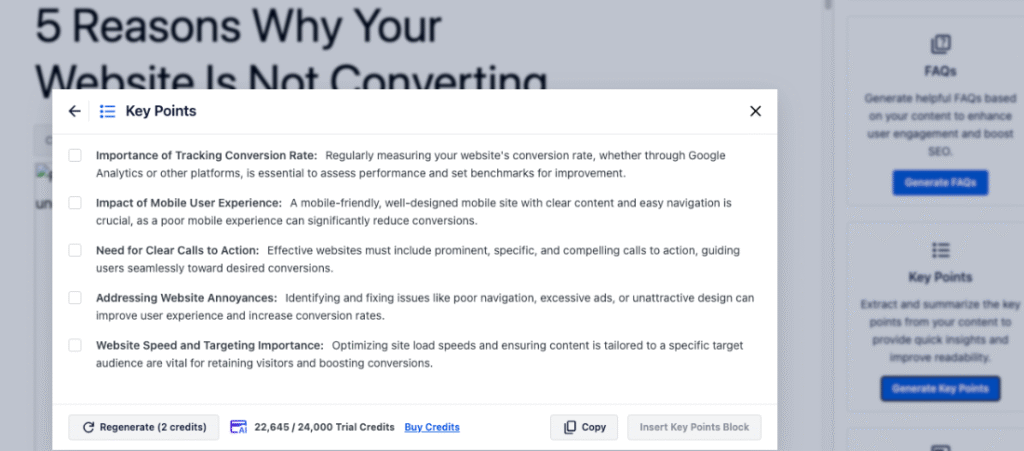
Key points help emphasize the main concepts or crucial takeaways of your article.
You have the flexibility to integrate them as a “Too Long; Didn't Read” (TL;DR) summary at the beginning of your content, or as a concluding summary at the end.
These snippets are highly effective for offering rapid insights and improving readability.
Both FAQs and key points are excellent strategies for optimizing your content to appear in featured snippets, voice search results, and AI Overviews.
Social Media Posts
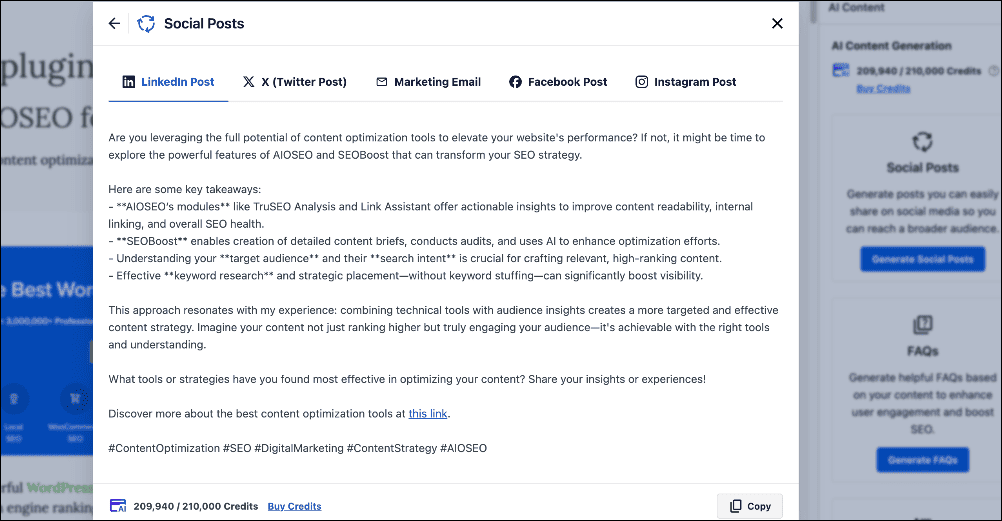
Social media is a crucial digital marketing channel that every brand should actively utilize.
AI Content simplifies the process of crafting customized social media posts for all major platforms. With just a few clicks, you can generate engaging content for LinkedIn, Facebook, X (formerly Twitter), Instagram, and even email campaigns.
Check out our list of the best AI social media post generators for more options.
SEO Titles and Meta Descriptions
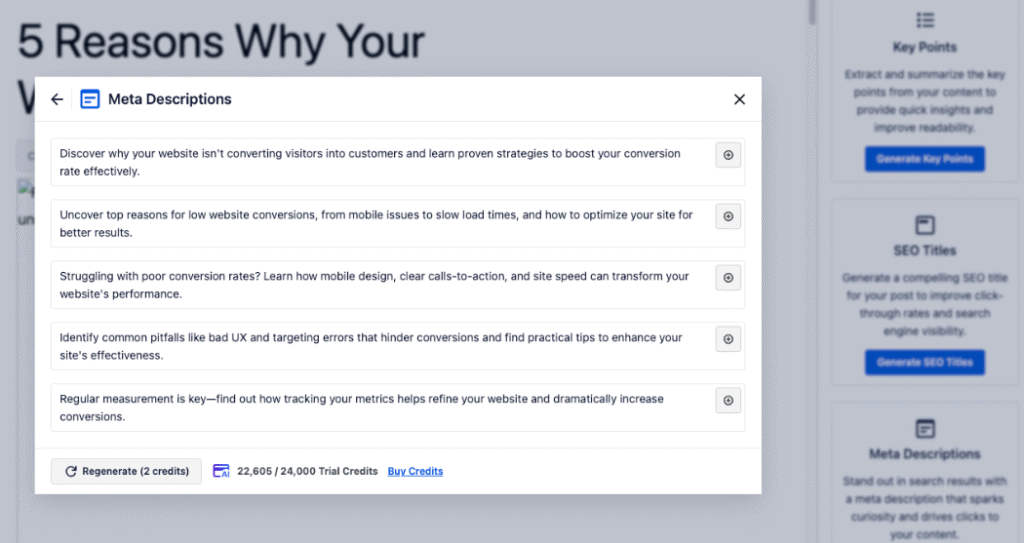
Effortlessly generate concise and compelling SEO titles and meta descriptions that accurately summarize your content. These elements are crucial for boosting your click-through rates and improving overall search performance, as they encourage users to click on search results.
Overall, AIOSEO is the best writing assistant for lean marketing teams, bloggers, solopreneurs, and more. It enables you to conduct most of your content creation and optimization tasks on a single platform, WordPress.
Best for: WordPress users, especially bloggers, solopreneurs, and lean marketing teams, who want an all-in-one SEO and AI content tool.
Pros & Cons: Packed with powerful SEO and AI features inside WordPress; some advanced tools require paid licenses.
Pricing: AIOSEO Lite is free and comes with 100 AI Credits. Paid plans start at $49.60 and include 10,000 AI Credits.
2. SEOBoost

SEOBoost is another highly-rated AI writing assistant on the market. You can use it for most tasks in the content lifecycle, from scheduling, planning, managing, and optimizing. This makes it a one-stop shop for your SEO content creation workflow.
Regarding writing assistant tools, the core features of SEOBoost include:
- Content brief creation: Define content goals, outline structure, optimize for keywords, and more.
- Topic reports: Get a detailed on-page SEO analysis for your keyword.
- Keyword performance: See how your content is optimized for that particular keyword.
- Competitor analysis: Get insights into the on-page optimization of the top ranking articles.
The tool also features a content audit function that scans existing URLs and provides recommendations for optimization.
Best for: Content marketers looking for a simple yet effective AI content optimization tool.
Pros & Cons: Easy to use; limited features compared to competitors.
Pricing: SEOBoost offers a free demo and a 14-day free trial. Paid plans start at $30/month.
3. Semrush Content Toolkit
Semrush is a popular all-in-one digital marketing tool used by millions of marketers. While it’s mainly known for keyword research and competitor analysis, the tool also has a powerful AI-powered Content Toolkit. This includes an article generator that can write entire blog posts.
This tool works as a Google Docs extension and in WordPress. Some of its features include:
- Content grief creator
- A plagiarism checker
- Readability and engagement tool
- Word count target counter
- And more
The tool also recommends semantic keywords and alerts you when you are keyword stuffing.
What makes Semrush’s AI writing assistant stand out is its deep integration of artificial intelligence to enhance content optimization. By leveraging natural language processing (NLP), the assistant analyzes your draft in real-time and suggests improvements
Best for: Agencies needing an all-in-one solution.
Pros & Cons: Extensive feature set; may be too complex for individual bloggers. High pricing may be a barrier to small businesses.
Pricing: Semrush’s paid plans start at $119.95. However, to use the AI writing assistant, you must be on the higher plans starting at $229.95.
4. Surfer SEO

Surfer SEO is a popular AI writing assistant among SEO content creators. It’s an on-page content optimization tool designed to help users create content primed for better ranking on search engine results pages (SERPs).
The tool accomplishes this by using AI to analyze and compare top-ranking content on SERPs. It then provides a comprehensive report of the essential keywords and terms that should be incorporated into their own content.
Beyond content optimization, Surfer SEO also plays a crucial role in the content planning phase by generating outlines and content briefs that are specifically tailored for SEO. This ensures that the content is not only optimized at the word and phrase level but also structured effectively to meet search engine requirements.
Best for: Content teams needing comprehensive analysis.
Pros & Cons: Excellent for long-form content; can be overwhelming for beginners.
Pricing: Free. Paid plans start at $49/month.
5. Grammarly
Grammarly is another writing assistant you should consider adding to your content marketing toolbox. It helps ensure your content is free of grammatical and spelling errors.
Besides grammar checks, Grammarly also helps:
- Improve your sentence structure and readability
- Reduce passive voice in your writing
- Enhance conciseness
All this makes your content easier to read, resulting in greater engagement, more return visitors, and higher dwell times. (FYI: Google uses these metrics as a ranking factor, meaning the higher they are, the better your chances of ranking high in SERPs.)
Grammarly's core power comes from its advanced AI, which uses machine learning and natural language processing to go beyond simple grammar checks. This AI analyzes the intent and tone of your writing, offering suggestions to help you achieve your communication goals and continuously refining its advice through ongoing learning.
Best for: Writers focused on grammar and style improvements.
Pros & Cons: Thorough grammar checks; lacks dedicated SEO features.
Pricing: Free. Paid plans start at $12/month.
6. Clearscope

Clearscope is a popular content optimization tool designed to help you create content that ranks. The tool crawls top-ranking content on SERPs to find common threads in structure and keywords. It then creates a report that includes outlines, common terms and questions, and more. You can use these to reverse-engineer high-performing content on SERPs.
Apart from furnishing you with the keywords and phrases to include in your content, Clearscope also has a keyword discovery tool that grades your content against top-performing articles.
Clearscope harnesses the power of AI to analyze not just keywords, but also contextual relevance and search intent. Its machine learning algorithms evaluate your content’s comprehensiveness, readability, and topical depth by comparing it with competing pages on search engines.
The AI also identifies content gaps and suggests high-impact keywords and questions to address, ensuring your articles meet the nuanced needs of searchers.
Clearscope’s smart approach helps you craft data-driven content that ranks higher and keeps users engaged.
Best for: Professional writers aiming for high-quality output.
Pros & Cons: Effective insights; higher price point.
Pricing: Paid plans start at $170/month.
Need the power of Clearscope but with a lighter price tag?
Consider SEOBoost, one of the best Clearscope alternatives on the market.
7. Jasper AI
Jasper is one of the oldest AI assistants on the market. It’s well-known for generating a wide range of content, from long-form blog posts to social media posts and everything in between.
Jasper also has a massive library of 90+ AI apps designed to help users with any marketing-related task imaginable.
On the writing side, using Jasper for content creation is super easy. Plus, you can train the AI engine to match your brand voice, further bolstering your on-page SEO.
The only drawback with AI writing tools like Jasper is that you'll need to use them with other SEO plugins like AIOSEO to ensure you've properly implemented your on-page, off-page, and technical SEO.
However, Jasper goes beyond simply generating content. It positions itself as a comprehensive marketing copilot, integrating features like “Company Knowledge.” This is where you can upload internal documents, brand guidelines, and competitive analyses. Doing so helps ensure that all AI-generated content is accurate, on-brand, and strategically aligned with your organization's goals.
This allows for personalized outputs, reduces factual inaccuracies, and streamlines the content workflow by leveraging your existing institutional knowledge.
Best for: Marketers and businesses needing a full-featured AI writing and marketing assistant.
Pros & Cons: Huge library of 90+ AI apps, customizable brand voice, and “Company Knowledge” for on-brand accuracy; requires pairing with SEO tools like AIOSEO.
Pricing: Paid plans start at $39/month/seat.
8. WriterZen
If you’re looking for a tool that combines keyword research with writing assistance, WriterZen is a fantastic choice. It’s designed to help you not only find the right keywords but also create engaging content around them.
Think of it as your writing buddy who’s always ready to lend a hand!
One of the standout features I like in WriterZen is its topic discovery capability. It helps you brainstorm ideas based on trending keywords, ensuring that your content is relevant and timely.
Plus, it generates outlines based on those keywords, which can save you a ton of time and effort when structuring your articles. No more staring at a blank page, wondering where to start!
What makes WriterZen even more powerful is its integration of AI-driven features that take the grunt work out of content creation. The tool uses artificial intelligence to analyze keyword clusters and search intent, automatically suggesting topics that are most likely to perform well in search engines.
Its AI-powered content scoring system also evaluates your draft for SEO readiness, readability, and topical coverage. It also provides actionable suggestions to improve your content before publishing.
Additionally, WriterZen’s AI-powered writing assistant can help rephrase sentences. It does this by recommending semantic keywords and ensuring your content flows smoothly. This makes it easier to create high-ranking content faster.
Best for: Bloggers looking to streamline their writing process.
Pros & Cons: User-friendly; may lack depth in advanced features.
Pricing: Starts at $39/month, making it accessible for many.
9. Outranking
Outranking is all about leveraging AI-driven content optimization strategies to enhance your online presence. The tool focuses on helping you create high-quality content that ranks well in search engines while saving you time.
One of the coolest features of Outranking is its SERP analysis. This allows you to see how your content stacks up against competitors and what you can do to improve your rankings.
It also automates outline creation based on the analysis, so you can jump straight into writing without getting bogged down in planning.
Another advantage lies in its AI-powered writing and optimization engine. It uses artificial intelligence to conduct deep SERP research, identifying ranking factors, keyword opportunities, and content gaps with precision.
Beyond outlines, its AI can automatically draft sections of your content based on SERP data. This significantly speeds up the writing process. It also provides real-time optimization suggestions for SEO titles, meta descriptions, and on-page keywords. This ensures every piece you write aligns with Google’s ranking algorithms.
Best for: Teams requiring fast content production capabilities.
Pros & Cons: Quick setup; may not be as detailed as other tools.
Pricing: Paid plans start at $19/month.
10. PageOptimizer Pro

If on-page SEO is your focus, then PageOptimizer Pro might just be your new best friend.
This writing assistant is specifically designed for optimizing existing pages and ensuring they perform well against competitors. It’s like having a personal SEO consultant right at your fingertips.
PageOptimizer Pro’s power lies in its AI-powered SEO intelligence. The tool uses advanced algorithms and machine learning models to analyze over 400 on-page SEO factors, including keyword density, word count, and semantic relevance.
Its AI suggests highly specific recommendations, such as where to add keywords, how to adjust headings, and what structural changes could boost your rankings.
PageOptimizer Pro also features an AI-assisted content brief generator that helps you plan new content optimized from the start.
By continuously learning from SERP patterns, the AI ensures you’re always working with the most up-to-date optimization tactics, making your SEO efforts smarter and more effective.
Best for: Bloggers, small businesses, and SEOs focused on page rankings.
Pros & Cons: Highly specialized; limited features outside of on-page SEO.
Pricing: Paid plans start at $34/month.
11. RankMath Content AI
Content AI by RankMath is an AI-powered writing assistant that takes WordPress SEO capabilities up a notch.
One of the standout features of RankMath Content AI is its ability to provide automated suggestions for keyword usage and optimizations as you write. This means you'll get real-time feedback on how well your content aligns with SEO best practices.
The tool uses AI to analyze your entire post and recommend keyword variations, questions to answer, and optimal word counts. All suggestions are tailored to your specific topic and target audience. It even suggests internal linking opportunities and ideal meta descriptions, ensuring your content is fully optimized from every angle.
By combining real-time AI insights with WordPress native SEO tools, RankMath Content AI allows you to publish content that’s not only search-engine friendly but also highly engaging and authoritative.
Not sure which WordPress SEO plugin suits your needs best?
Check out our detailed comparison of AIOSEO, Yoast, and RankMath.
Best for: WordPress users wanting seamless integration with their site’s SEO efforts.
Pros & Cons: Powerful features. AI feature can be glitchy and pricing can be complex for new users.
Pricing: Paid plans start at $3.25/month (credit-based pricing).
The Best AI Writing Assistant: My Top Picks
AIOSEO is my top pick for the best AI writing assistant for WordPress users. One reason is that it’s a powerful plugin that’s super easy to use, making it an indispensable tool for all things SEO. Coupled with the powerful Writing Assistant, you can create SEO-friendly content faster and easier.
Our other top picks for the best AI writing assistant include SEOBoost and Surfer SEO. These tools pack a punch when it comes to helping writers plan and create content that drives traffic.
We hope this post helped you find the best AI writing assistant for your site. You may also want to check out other articles on our blog, like our guide to content repurposing, or our list of the best AI paraphrasing tools.
If you found this article helpful, then please subscribe to our YouTube Channel. You’ll find many more helpful tutorials there. You can also follow us on X (Twitter), LinkedIn, or Facebook to stay in the loop.
The Best AI Writing Assistant: Your FAQs Answered
What is an AI writing assistant?
An AI writing assistant is a tool that uses artificial intelligence to help improve your writing. It can assist with various tasks, such as generating content, providing grammar and spelling corrections, and suggesting enhancements to make your writing clearer and more engaging.
Can an AI writing assistant replace a human writer?
While AI writing assistants can significantly enhance your writing process, they are not designed to fully replace human writers. They excel at providing suggestions, rough drafts, and corrections, but lack the creativity and nuanced understanding that a human writer brings to the table.
How do I choose the right AI writing assistant for my needs?
When selecting an AI writing assistant, consider what features are most important to you and whether you need a free or premium option. Additionally, ensure that the tool integrates well with other platforms you use, such as WordPress, for a smoother workflow.
I remember the first time it happened to me. A single negative review was sitting right on the first page of results, and even though I had dozens of happy customers, that one comment dominated the narrative. It didn’t take long for me to realize that SEO reputation management isn’t just a “nice-to-have”—it’s essential for protecting your brand and driving growth.
Running a successful business today isn’t only about delivering great products or services. It’s about ensuring your online reputation accurately reflects the value you bring. In a world where most people check Google before making a decision, your search results can make or break a sale.
That’s why in this guide, I’ll walk you through exactly how to use SEO reputation management to not only protect your brand but also build credibility, attract more traffic, and generate more revenue.
In This Article
- What Is SEO Reputation Management?
- 9 Easy Tips for Impactful SEO Reputation Management
- 1. Use the Right SEO Tool
- 2. Monitor Your Search Rankings
- 3. Dominate the SERPs for Your Main Keywords
- 4. Optimize for AI Overviews
- 5. Use Reviews to Bolster Your Credibility
- 6. Use FAQs to Address Customer Concerns
- 7. Beef Up Your Image SEO
- 8. Create and Optimize Video Content
- 9. Use Social Media to Reach a Wider Audience
- SEO Reputation Management: An Essential for Growing a Thriving Business
- SEO Reputation Management: Your FAQs Answered
What Is SEO Reputation Management?
SEO reputation management is a digital marketing strategy that uses search engine optimization (SEO) and other techniques to improve how your prospects perceive your brand online.
Let’s back up a bit, so we make this clearer.
Online reputation management (ORM) is the practice of managing how people perceive your brand on search engines and other digital platforms. This involves monitoring online mentions of your brand, products, and services to ensure your business is perceived positively.
However, you won’t always get positive feedback from customers. Sometimes, you may receive negative reviews and comments from people who have interacted with your brand. In other instances, unscrupulous marketers may use negative SEO to tarnish your brand's reputation.
This is where online reputation management comes in.
You can use it to steer the narrative people see in your favor. Doing so helps you protect your brand reputation. It also results in you building brand credibility and authority, leading to more people trusting your brand.
9 Easy Tips for Impactful SEO Reputation Management
Ready to manage your online reputation?
1. Use the Right SEO Tool
SEO reputation management hinges on successful SEO campaigns. This is why you must invest in the best SEO tools. If you’re a WordPress user, it doesn’t get any better than All In One SEO (AIOSEO).
AIOSEO is the best WordPress SEO plugin on the market, trusted by over 3 million savvy website owners and marketers to help them dominate search engine results pages (SERPs) and drive relevant traffic to their sites. This is because the plugin has many powerful SEO features to help you optimize your website for search engines and users, such as:
- Search Statistics: Track your keyword rankings, content performance, and see important SEO metrics with 1-click, and more.
- AI Writing Assistant: Use the power of artificial intelligence (AI) to optimize your content for better search rankings.
- Author SEO: Boost your Google E-E-A-T signals right in WordPress, giving you an edge over competitors.
- AI Content Generator: Automatically repurpose blog posts into FAQs, email copy, key points, social media posts, and more from your blog posts.
- Advanced Robots.txt Generator: Easily generate and customize your robots.txt file for better crawling and indexing.
- Next-gen Schema Generator: Generate and output any schema markup on your site without having to code.
- Link Assistant: Automate internal linking between your pages and audit your outbound links.
- SEO Preview: Get an overview of your search and social snippets and general SEO so you can improve your optimization.
- And more
For step-by-step instructions on how to install AIOSEO, check out our installation guide.
2. Monitor Your Search Rankings
Another important aspect of SEO reputation management is monitoring your rankings for the important keywords for your brand. This helps you understand how much work is required to get your content to the top of SERPs.
Monitoring rankings is easy with AIOSEO, as you can do it right from your WordPress dashboard using the Search Statistics module.

For example, you can use the Keyword Rank Tracker to monitor your SEO performance by keyword:
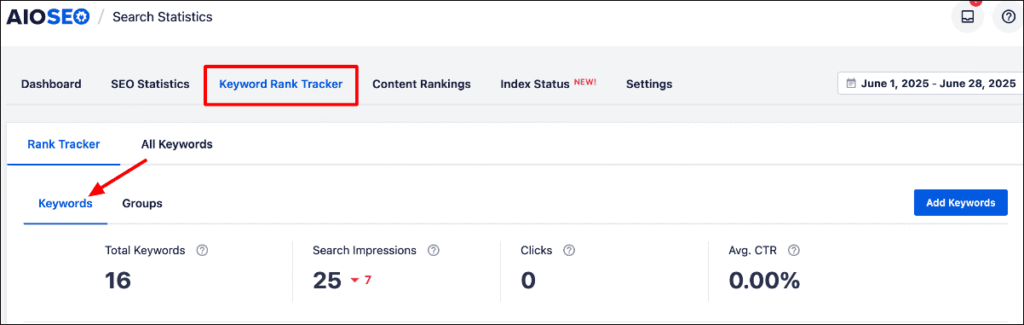
For more information, check out our tutorial on tracking your keyword rankings.
Or you can monitor your search rankings using the Content Performance report:
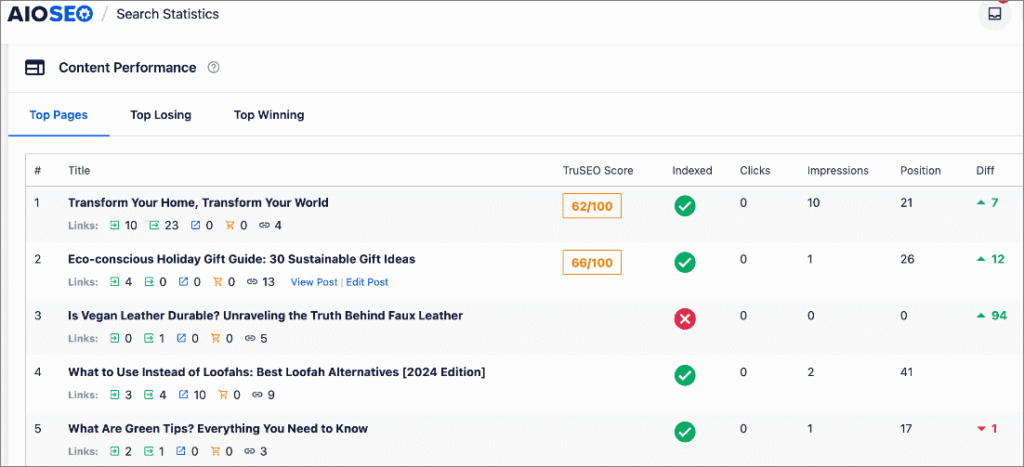
Monitoring your rankings helps you know what people see when they search for content related to your brand or business.
If you’re ranking low for your target keywords, then check out our guide on boosting your rankings using Search Statistics.
3. Dominate the SERPs for Your Main Keywords
To effectively drive the narrative around your brand, you need to dominate the SERPs for your target keywords. Perhaps even aim for the featured snippet!
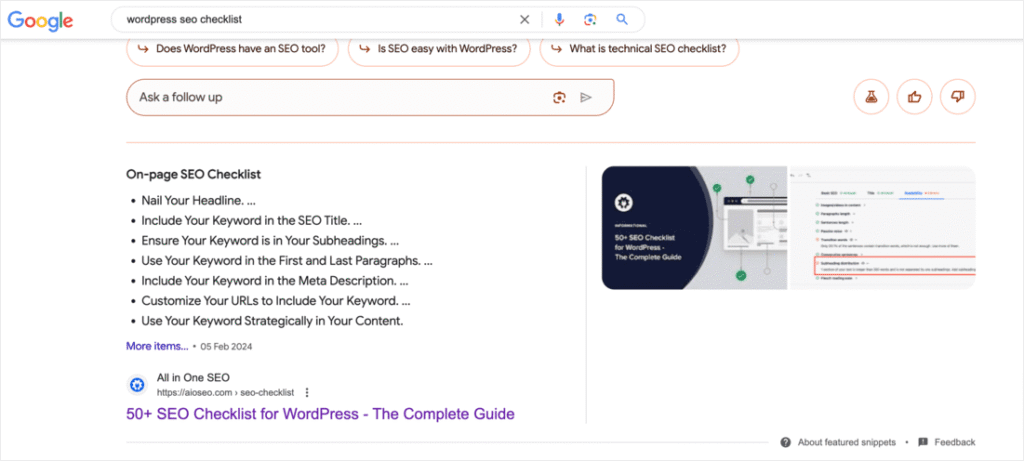
Therefore, if possible, your brand should be among the top 5 spots on the first page. One reason for this is that 75% of users never go past the first page of SERPs. Plus, if you snag position #1, you drive over 27.6% of all the traffic for that keyword.
Ranking on the top page of search engines is no walk in the park. However, if you put in the work, dominating the SERPs will definitely be within your grasp. For tips on doing so, check out our guide to WordPress SEO.
If you want to win at SEO reputation management, then your brand should be the first thing people see on SERPs.
If you are a local business, you can also enhance your chances of ranking by adding Local Business schema.
4. Optimize for AI Overviews
Search is changing fast. Google AI overviews are becoming a key part of how people find information online. AI Overviews summarize answers directly on the search results page, often pulling from multiple trusted sources.
If you optimize your content for these overviews, you can capture attention before users even click (zero-click searches). This makes AI Overviews a powerful tool for building authority and managing your brand reputation.
Here’s how to get your content ready for AI Overviews:
- Answer questions directly: Write short, clear answers (2–4 sentences) for common industry questions, then expand with more detail below.
- Structure your content for scanning: Use subheadings, bullet points, and numbered lists to help AI systems extract key insights.
- Target conversational, long-tail keywords: People often phrase searches as questions or natural statements (e.g., “how to fix a bad business reputation online”).
- Cite authoritative sources: Link to credible references, studies, or trusted sites—AI systems prefer well-supported content.
- Add schema markup: Structured data gives context and improves your chances of being featured.
- Leverage llms.txt: This emerging file format helps AI platforms better understand and cite your content.
The best part? Even if your domain isn’t as established as competitors, a well-structured, well-optimized page can still be surfaced in AI-generated summaries. That means you can punch above your weight, get your brand in front of more potential customers, and strengthen your online reputation.
For more strategies, check out our full guide on ranking in AI Overviews.
5. Use Reviews to Bolster Your Credibility
Word of mouth is one of the most significant contributors to a brand's reputation, both online and offline. It refers to what people say about your brand to others. Granted, you really can’t control the negative things people say about your brand or product. However, you can rally the customers who love your brand and content to write positive reviews.
Once you collect the reviews, you can add review schema to your site so they can be displayed in your search snippets.

Displaying reviews and votes on SERPs is a fantastic way to bolster your credibility and build trust.
Most importantly, it will help you manage your online reputation.
6. Use FAQs to Address Customer Concerns
Another excellent SEO reputation management strategy is to use frequently asked questions (FAQs) to address customer concerns. It’s a great way to manage what people are saying about your brand.

The best way to use FAQs to manage your online reputation is to identify common negative reports about your brand or product. Then, create FAQ sections on your website and relevant content to address these concerns.
To get the most out of your FAQ sections, you should add FAQ schema. This can be easily done using AIOSEO’s Schema Generator.
Adding FAQ schema will help search engines better understand your content. It also helps boost your search engine rankings.
Plus, FAQs give you the advantage of helping you rank in the People Also Ask section (PAA) of SERPs. This increases your visibility and results in more traffic to your site.
7. Beef Up Your Image SEO
Visual search is fast becoming a popular way for people to search the web. Additionally, search engines allocate dedicated real estate on SERPs for images.

Images optimized for search rank high in these search results and result in more traffic for the sites they’re published on.
A big advantage of including images in your SEO reputation management is that most negative reports about your brand won’t contain images. People usually prefer to leave reviews in text form. The chances of you controlling the narrative using images become much higher.
For detailed instructions, check out our guide to image SEO.
8. Create and Optimize Video Content
Video is another content format people love and can thus be used for SEO reputation management. You can leverage this popularity to create engaging videos that educate your audience about your brand and products.
Besides using videos for product education, you can also use this as a channel to build credibility and authority. Ensure that you create video content centered around your target keywords. You can then start a YouTube channel where you publish all your videos. You can also embed them in your articles and other written content.
When creating your videos, ensure you follow video SEO best practices to rank high for your target keywords.
Take a look at our step-by-step tutorial on adding a video sitemap in WordPress. It’s a simple way to help search engines discover and crawl your video content more effectively.
9. Use Social Media to Reach a Wider Audience
Social media plays a huge role in helping you manage your online reputation. One reason for this is that many people use social media platforms to share their experiences with brands. This is why you should create social media profiles for your brand, encouraging customers to interact and share their experiences.
Another reason to include social media in your SEO reputation management is that social media websites have a high domain authority (DA). As a result, it’s common to see a brand’s social media profile ranking high for branded searches. That’s one of the reasons social media drives a whopping 31.24% of all website traffic.
Due to the reasons mentioned above, social media can be a powerful tool for suppressing negative search results on SERPs.
To enhance the effectiveness of your social media profiles in SEO reputation management, you can use our social media integration for WordPress.

This module gives you more control over how your content and images look when you share content on social media. Plus, you can also add different social profiles to your schema. This will help boost your search rankings, giving you more control of the narrative about your brand on search engines.
SEO Reputation Management: An Essential for Growing a Thriving Business
SEO reputation management is an important ingredient in growing a thriving online business. After all, if your reputation is tarnished, people won’t be confident in doing business with you. However, generating leads and driving sales becomes more effortless if you have a positive reputation.
We hope this post helped you learn what SEO reputation management is and how to do it. You may also want to check out other articles on our blog, like our guide on starting a small business blog or our list of the best blogging tools to help you grow your WordPress blog.
If you found this article helpful, then please subscribe to our YouTube Channel. You’ll find many more helpful tutorials there. You can also follow us on X (Twitter), LinkedIn, or Facebook to stay in the loop.
SEO Reputation Management: Your FAQs Answered
What is SEO reputation management?
SEO reputation management is the practice of using SEO strategies to control and improve how your brand appears in search engines. It helps push down negative content, highlight positive mentions, and build credibility so customers trust your business.
Why is SEO reputation management important for small businesses?
Your online reputation directly impacts whether customers choose your business or a competitor. Positive search results drive traffic, leads, and sales—while negative reviews or content can hurt your credibility and revenue.
What role do reviews play in SEO reputation management?
Customer reviews are powerful trust signals. Encouraging satisfied customers to leave positive reviews—and adding review schema to your site—helps boost credibility, improve search visibility, and balance out any negative feedback.
It was exhausting.
One day, I realized that I didn’t need to keep reinventing the wheel. I had tons of blog posts sitting on my site that could be reused more effectively. That’s when I started repurposing my content, and everything changed. I reached more people, got better search rankings, and saved a lot of time.
In this post, I’ll explain what content repurposing is, how to do it right, and the best tools to help you along the way. You’ll also get a step-by-step breakdown of the exact process I use to repurpose my own content.
In This Article
What Is Content Repurposing?
Content repurposing is the process of taking an existing piece of content (like a blog post, video, or podcast) and turning it into other formats or using it in new ways. For example, a blog post could become a video script, an infographic, or a series of social media posts. This helps you reach more people, improve your SEO, and get more value from the content you've already created. It’s a smart way to work more efficiently without starting from scratch.
Why Content Repurposing Matters for SEO
Repurposing your content does more than just save time. It helps improve your SEO by making your content more visible, versatile, and valuable across different formats and platforms.
Here’s how:
Extends the Lifespan of Your Best Content
Not every piece of content needs to be brand new. Some blog posts stay useful for years. When you repurpose a high-performing article, you give it new life. For example, you can update an old blog post and turn it into a YouTube video or a social media series. That means your content keeps working for you, long after you first published it.
Improves Your Topical Authority
Search engines like to see that you know your topic well. Repurposing lets you cover the same topic in different ways. Let’s say you have a blog post about “repurposing blog content.” You could also create a checklist, social media posts, an infographic, and a video on the same topic. This helps you build authority and show Google that you’re an expert in that subject.
Reaches More People on Different Platforms
Not everyone likes to read long blog posts. Some prefer videos, others scroll Instagram, and some stick to podcasts. When you repurpose content into different formats, you reach people where they are. For example, a blog post can become a Twitter thread, a LinkedIn carousel, and an email newsletter.
Helps You Rank for More Keywords
Each piece of content can focus on different keywords. One blog post might rank for “content repurposing for SEO,” while a repurposed video could rank for “how to repurpose blog content.” More formats mean more chances to show up in search results.
Boosts Your Linking Strategy and SEO Structure
Repurposed content can link back to your original posts or other related content. This helps search engines crawl your site better and improves your site's overall SEO structure.
The Content Repurposing Strategies I Use to Improve My SEO
These strategies help me squeeze more value from the content I already have. Whether I’m turning a blog post into a video or breaking up a long article into social media posts, each repurposing idea helps me reach more people and boost my SEO.
1. Repurpose Long Posts Into Short Content
Long-form content is a goldmine for shorter content. For example, a 2,000-word guide can become:
- Several quick tips for Twitter/X
- Bite-sized advice for email newsletters
- Inspirational quotes for LinkedIn
- FAQs to better clarify your content
One of the tools that I use and recommend for repurposing your blog posts is All In One SEO (AIOSEO).
Trusted by over 3 million websites, AIOSEO simplifies essential SEO tasks to help you boost your rankings with ease. That’s because it has so many features that make SEO accessible to everyone, even if you don’t have any technical knowledge.
It’s also one of the most powerful AI content repurposing tools for WordPress.
At the heart of AIOSEO’s content repurposing capabilities is the AI Content Generator.
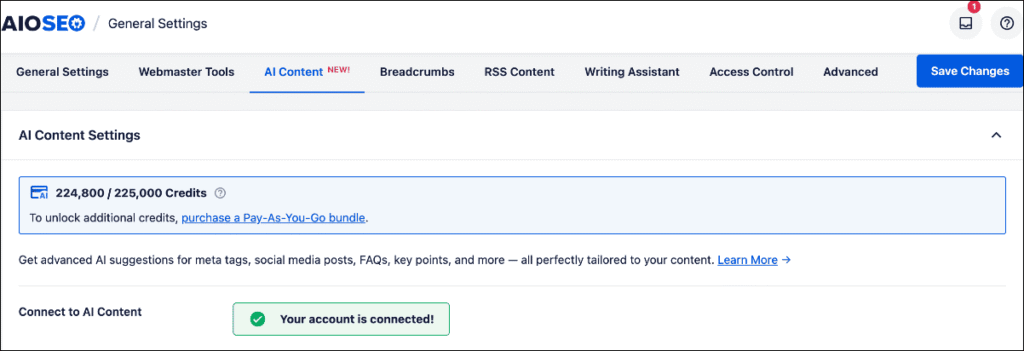
This AI-powered tool transforms your blog posts into multiple formats, saving you hours of manual rewriting and boosting your reach across platforms. Examples of the content types you can create with AI Content include:
FAQ Blocks
You can instantly generate relevant FAQs and their answers, complete with FAQ schema, to boost your SEO and improve user engagement—all without any manual effort.
Once generated, simply select the FAQs you want and click Insert FAQ Blocks to add them to your post.
Alternatively, you can copy them for use elsewhere.
Check out our article on using FAQ blocks to boost SEO for more information.
Key Points
Key points highlight the most important takeaways from your article. You can use them as a quick TL;DR summary at the start or as a concise recap at the end. Either way, they make your content easier to scan and digest, thereby improving readability.
Plus, both FAQs and key points are smart strategies to boost your chances of showing up in featured snippets, voice search results, and even AI Overviews.
Social Media Posts
Social media is one of the most powerful digital marketing channels, and every brand should be leveraging it.
With AI Content, repurposing blog posts into tailored social posts for all major platforms is effortless. In just a few clicks, you can generate engaging content for LinkedIn, Facebook, X (formerly Twitter), and Instagram.
Email Copy
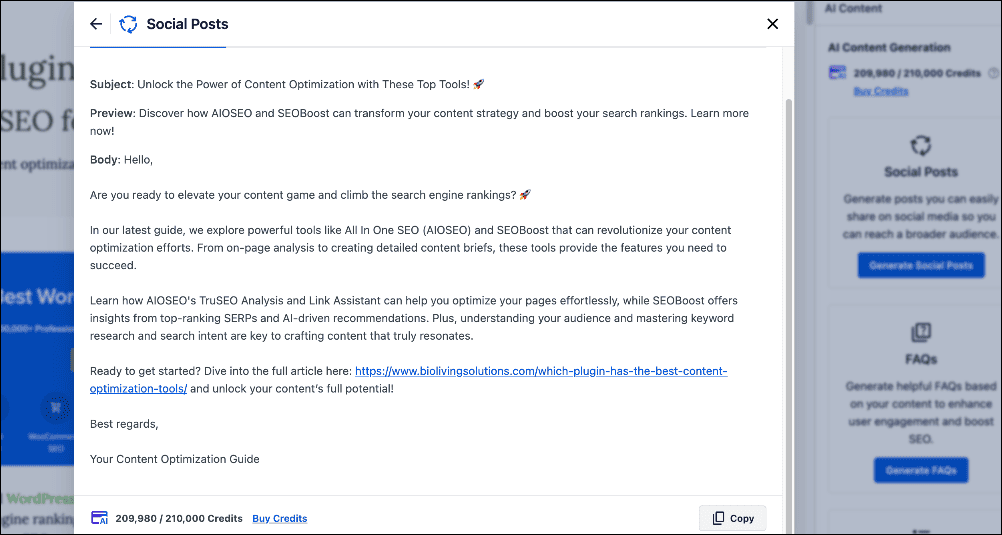
Need to launch an email campaign fast?
With AIOSEO, you can instantly turn your blog posts into high-converting email copy—no starting from scratch or hiring a copywriter required. It’s a massive time-saver for busy marketers.
Check out my list of the best AI email generators for more options.
SEO Titles and Meta Descriptions
Effortlessly generate concise, compelling SEO titles and meta descriptions that capture your content’s essence. These on-page elements play a critical role in boosting click-through rates and improving search performance. The more engaging they are, the more users click.
Did you know that with AIOSEO, you can also add emojis to your SEO titles and meta descriptions to make them stand out on SERPs?
AIOSEO is the best content repurposing tool for lean marketing teams, bloggers, and solopreneurs alike. It streamlines content creation and optimization, letting you handle it all from a single platform.
2. Turn Blog Posts Into Visuals
Visual content is more engaging and often gets better results on platforms like Instagram, LinkedIn, and Pinterest. Let’s say you have a blog post titled “7 Ways to Repurpose Content.” You could turn each point into a slide and create a LinkedIn carousel or Instagram story.
Infographics are another great option. I use them to turn statistics or step-by-step guides into shareable visuals. Tools like Canva make this easy by offering pre-made templates and drag-and-drop design features.
3. Create Videos From Written Content
Video content is one of the best ways to connect with a broader audience.
Use your blog post as a script and record a video explaining the same points. You can post a full version to YouTube or create bite-sized clips for TikTok, Instagram Reels, or YouTube Shorts.
For example, I recently created a long-form blog post about SEO tips. Our team then repurposed it into a three-part video series for our YouTube channel.
We then embedded the videos into the blog post and linked to the blog post in the video descriptions. This helped us drive traffic from YouTube to our site and vice versa.
A tool I recommend for this type of content repurposing is Descript. It’s an AI-powered tool that transforms your audio and written content into videos. It allows you to cut, rearrange, and refine recordings simply by editing the transcript—no need to scrub through timelines.
4. Combine Content Into Bigger Assets
Repurposing isn’t always about going smaller. It can also mean going bigger. You can take several related blog posts and combine them into:
- Comprehensive guides
- Whitepapers
- eBooks
- Newsletter series
This is especially useful for lead generation. Add a content upgrade or lead magnet to capture emails.
For example, if you’ve written five articles on SEO basics, combine them into a free PDF download called “The Ultimate SEO Starter Kit.” Then, promote it on your site through pop-ups or in email campaigns.
5. Repurpose Audio and Video
If you host a podcast or webinar, don’t let the content go to waste. Turn the full audio into a blog post by summarizing the main points or publishing a transcript. You can easily do this using an AI content generator.
You can also use your podcast or webinar recording to create short video or audio highlights for social media.
Tools like Repurpose.io help with this process by transcribing your audio and letting you edit both the audio and text at the same time. You can even create audiograms for more engaging social posts.
Alternatively, you can also pull quotes and turn them into image cards or short reels.
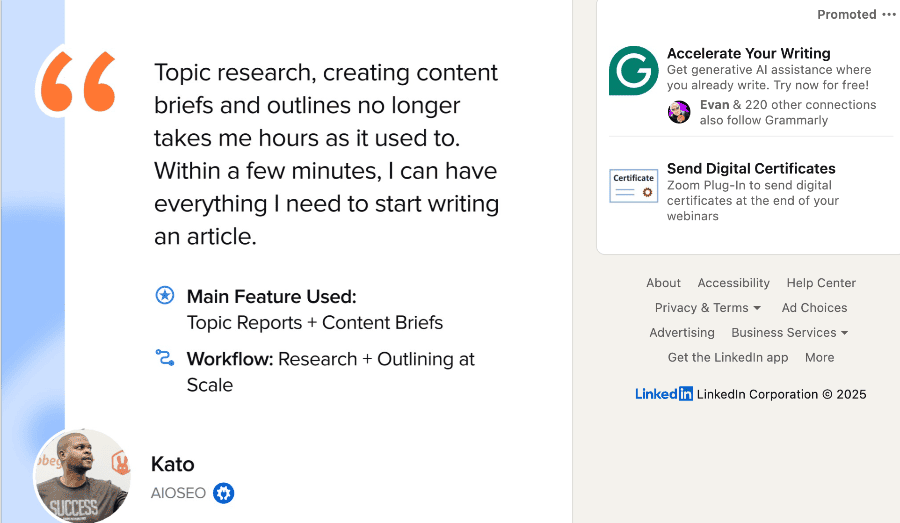
6. Update and Refresh Old Content
One of the easiest ways to repurpose content is to revisit and improve what you already have. This could mean:
- Adding new statistics
- Improving your writing
- Updating internal and external links
- Optimizing for a different keyword
It could also include updating your SEO titles and meta descriptions to reflect search trends.
You can even change the format, like turning an old how-to blog into a quick video tutorial.
These updates not only improve user experience but also signal freshness to search engines, which can help boost rankings.
Check out our tutorial on optimizing existing content for more tips.
How to Choose the Right Content to Repurpose
Not every piece of content is worth repurposing. To get the best results, you need to focus on content that will help you reach your business or SEO goals.
So, how do you know which content to repurpose?
Look at Performance Metrics
When checking for content to repurpose, I like to start by finding my best content. I focus on the pages that already bring in results, so I’m building on a strong foundation instead of starting from scratch.
A tool you can use for this is AIOSEO’s Search Statistics. It integrates with Google Search Console (GSC) and pulls data straight from there.
I appreciate that I can get valuable SEO data right inside my WordPress dashboard instead of having to switch between tools.
To find content to repurpose, I look for:
- Pages with high traffic (these are proven to attract visitors)
- Posts with strong backlinks (they already have trust and authority)
- Articles with high engagement (such as comments, shares, and time on page) show that people enjoy the content
These high-performing pieces are your best candidates for repurposing because they’ve already proven their value and are likely to perform well in new formats too.
Check out our Search Statistics power hacks to boost your SEO.
Focus on Evergreen Content
Evergreen content is always relevant, no matter when someone reads it. These are topics that continue to get searched month after month and year after year. Think about:
This content doesn’t rely on current trends or news.
Topics like “how to write a blog post” or “tips for better SEO” don’t go out of style. You can reuse them in different formats without needing a full rewrite every few months. These types of posts are ideal for repurposing because their long shelf life means they’ll keep delivering traffic and engagement.
Avoid time-sensitive content like news updates unless you have a specific reason or strategy to tie them into evergreen themes.
See What Your Competitors Are Doing
Competitive research can reveal innovative ways to repurpose content that you might not have considered. Look at the top-ranking pages for your target keywords and pay attention to the formats they’re using. Are they using long-form blogs, short videos, carousels, or infographics?
Notice what’s missing, too. Maybe competitors have blog posts but no videos, or they haven’t created a checklist or downloadable version of their guide. These content gaps are opportunities. You can repurpose your content into a new format that gives you a better chance to stand out.
Check out our guide to competitor analysis for more information.
Building a Content Repurposing Workflow to 10x Your Reach
Once you’ve picked the right content and strategy, it’s time to put your ideas into action. Here’s a simple workflow I’ve used to consistently repurpose content without feeling overwhelmed.
1. Audit Your Existing Content
Start by listing all your current blog posts, videos, and podcasts. I like to keep everything in a Notion board, but Trello or even a basic spreadsheet works just as well. Organize your content by topic, format, and publish date. Then, highlight top performers based on traffic, shares, or backlinks. This gives you a clear picture of what’s worth repurposing first.
Again, this is where AIOSEO’s Search Statistics comes in handy. You can use the Content Performance report to see which content is driving the most traffic to your site.

You can also use the same report to identify top-performing content that has lost its rankings and impact. This loss in performance is called content decay.
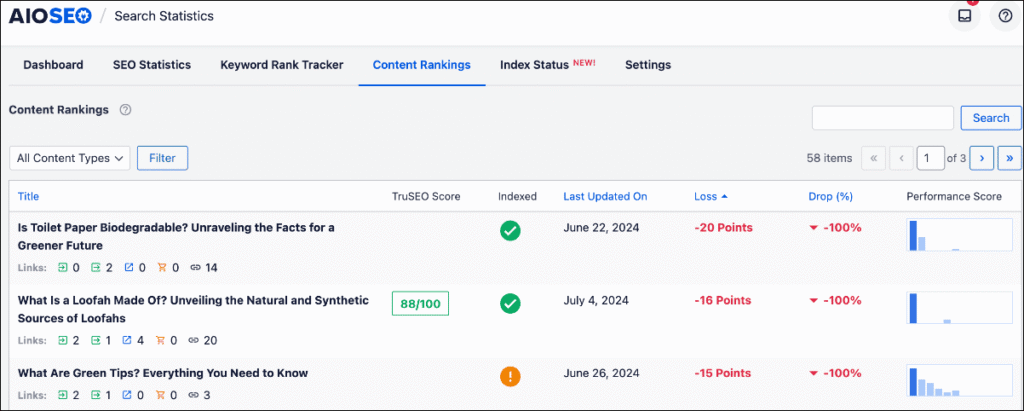
Including this type of content is a strategic way to revitalize older posts, helping them recapture lost search engine traffic. It also helps get that content back in front of the people who need to see it.
2. Choose Your Format
Every platform has its strengths. Think about where your audience hangs out and what content performs well there. For example, professionals may prefer LinkedIn carousels, while creatives scroll Instagram Reels.
Choose the format that makes sense for the message and the platform. Don’t try to force a long blog post into a tweet unless it can stand on its own.
3. Use Templates
Templates are time-savers. I use them for everything from social media graphics to email layouts to AI prompts.
Create reusable templates for quotes, carousels, videos, or emails. This not only speeds up production but also helps you keep your branding and voice consistent across platforms.
4. Track Your Results
Repurposing without tracking is like driving with your eyes closed. Keep an eye on how your repurposed content performs by checking key metrics. Examples include:
- Search impressions
- Rankings
- Traffic
- Likes
- Shares
- And more
Use tools like MonsterInsights, Google Analytics (GA), or Google Search Console (GSC) for this. For social media content, you can even use built-in social media insights.
Adjust your strategy based on what’s getting clicks and what’s falling flat. Over time, you’ll get a feel for what types of content and which formats work best for your audience.
Content Repurposing: Work Smarter, Not Harder
Content repurposing is one of the best ways to grow your SEO without burning out. It helps you get more from your best work and reach more people in more places.
Start by picking one blog post, then turn it into a new format. From there, build a system that saves time and gets results.
The key is to repurpose with purpose. Use the right tools, track your progress, and keep testing what works. SEO is a long game, and smart content repurposing can give you a serious edge.
I hope this post helped you know what content repurposing is and how to do it the right way. You may also want to check out other articles on our tutorial on using an AI Content writer in WordPress or our list of the best LLMs.txt generators.
If you found this article helpful, then subscribe to our YouTube Channel. You’ll find many more helpful tutorials there. You can also follow us on X (Twitter), LinkedIn, or Facebook to stay in the loop.
Content Repurposing: Your FAQs Answered
What is content repurposing?
Content repurposing is the process of transforming a single piece of content into multiple new formats, such as blog posts, videos, infographics, or social posts. This helps you reach different audiences, extend the life of your content, and maximize your marketing efforts.
How does content repurposing help SEO?
Content repurposing helps SEO by giving search engines more ways to discover and index your content. It drives more organic traffic through different formats, increases topical authority by covering subjects in depth, and strengthens internal linking, which boosts your overall search visibility.
What types of content can be repurposed?
Almost any type of content can be repurposed. For example, you can turn blog posts into videos, podcasts, or infographics; convert webinars into articles or social clips; and transform social posts into email content. This flexibility makes repurposing valuable for any content strategy.
Which is the best content repurposing tool for WordPress?
The best content repurposing tool for WordPress is AIOSEO. You can repurpose your blog posts into FAQs, key points, social media posts, email copy, and more. The best part is that you can do all this right from inside your WordPress dashboard.