Upgrading to the premium version will give you access to even more features and powerful addons, as well as support from us.
In this article, we will show you how to upgrade from the Lite version of our plugin to the Pro version.
You can purchase your desired license of All in One SEO Pro from our website.
In This Article
Tutorial Video
Automatic Installation
When you purchased the Pro plugin, you should have received a purchase receipt email which contains your license key and login for the Account area on our site. Please locate this email and copy your license key.
If you can't find the email, please log into our website here – https://aioseo.com/login/. Click on the Downloads tab to find your license key.
Now, log into your WordPress site and click on General Settings in the All in One SEO menu.

You should see the License Key field. Paste your license key in this field and click the Connect button.

Now you'll see a Connect with AIOSEO and Upgrade to Pro screen. Click the Connect and Install AIOSEO Pro button.
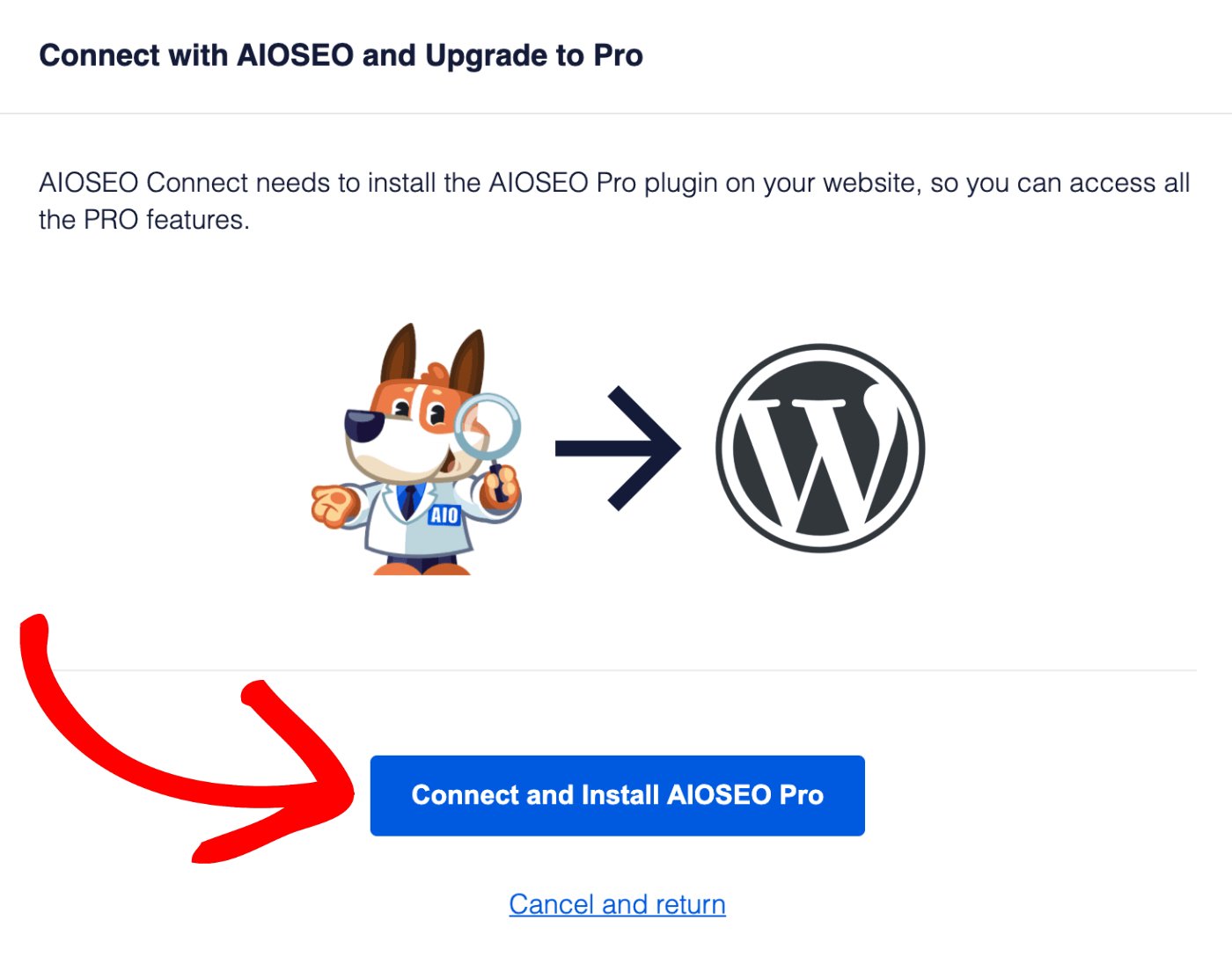
That's all! You've now successfully activated All in One SEO Pro.
You'll see that the free version of All in One SEO has been deactivated and you can now delete that plugin.
Manual Installation
You can follow these instructions for Installing All in One SEO Pro manually.
NOTE:
All of the settings and data will automatically be migrated from the free plugin into All in One SEO Pro.
In This Article
Let's get started!
Tutorial Video
Downloading All in One SEO Pro
Before installing All in One SEO Pro on your site, you first need to download it to your computer.
Start by logging into our website here – https://aioseo.com/login/.
You should have received a purchase receipt email from us that contains your username and password.
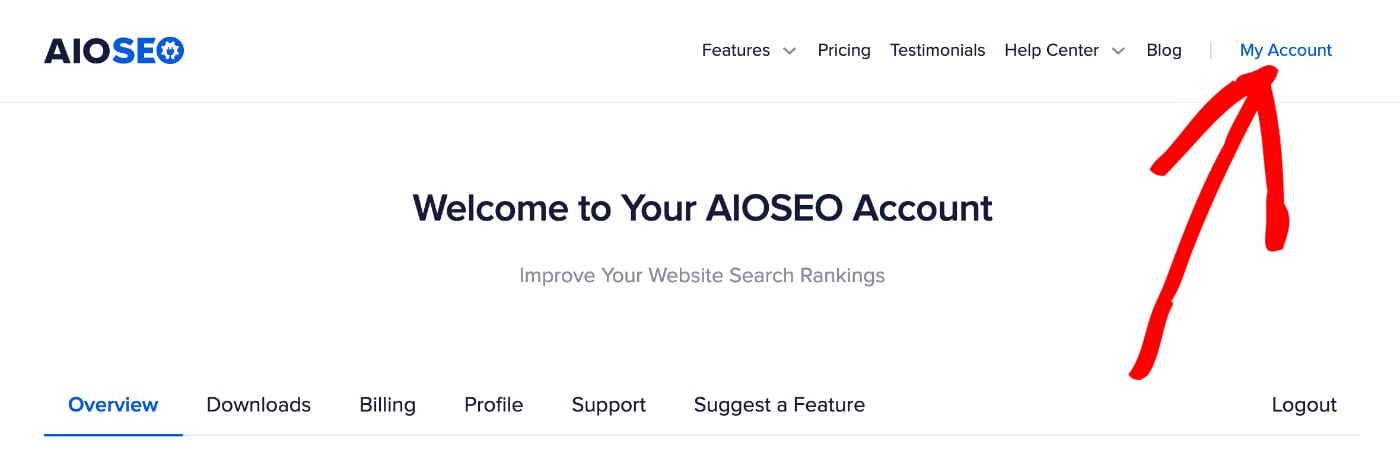
Next, click the My Account link in the top right corner of our site.
Next, click on the Downloads tab and then click the Download AIOSEO button.
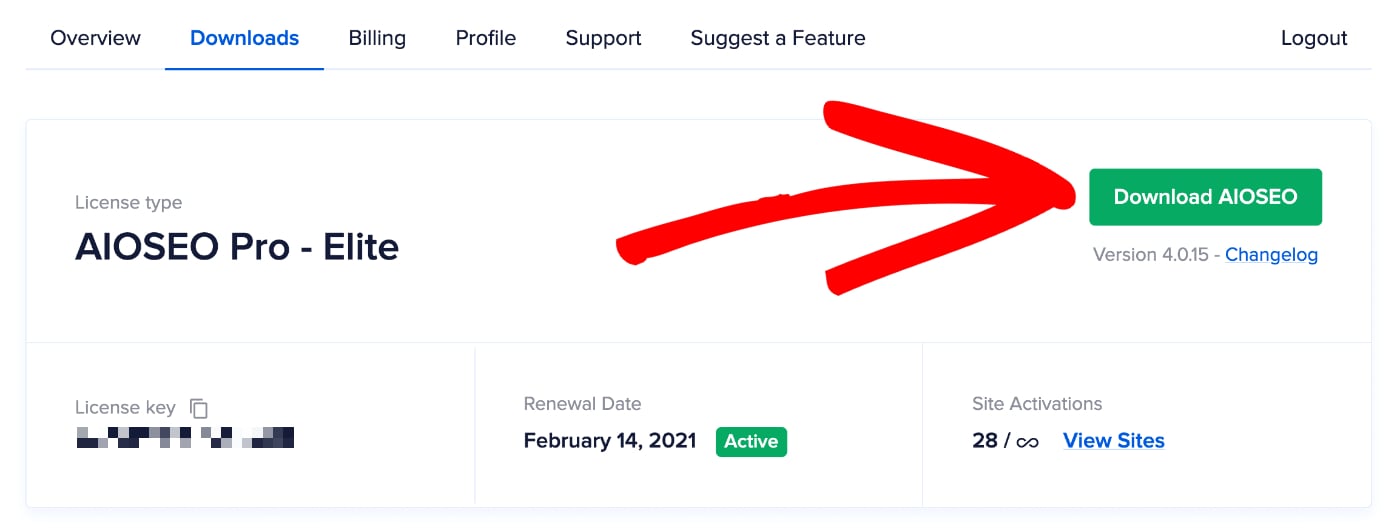
A ZIP file called aioseo-pro-v###.zip (v### indicates the version number) will download to your computer.
IMPORTANT:
If the file gets unzipped when you download it, make sure you check your browser settings to ensure downloads don't get unzipped and then download the file again. WordPress will not accept an unzipped file.
Installing All in One SEO Pro
Now, you need to upload the ZIP file to your WordPress site.
To do this, log in to your WordPress site and go to Plugins and click on the Add New button.

Then click the Upload Plugin button at the top of the screen.
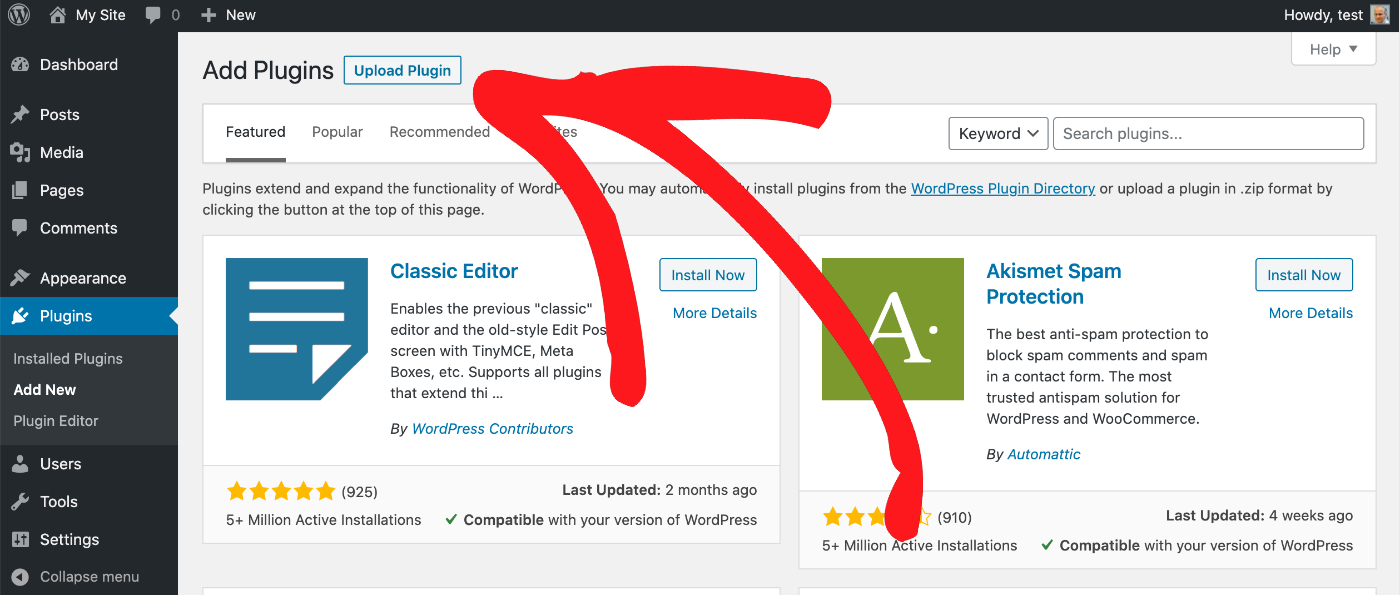
Click the Choose File button and browse your computer for the downloaded ZIP file of All in One SEO Pro.
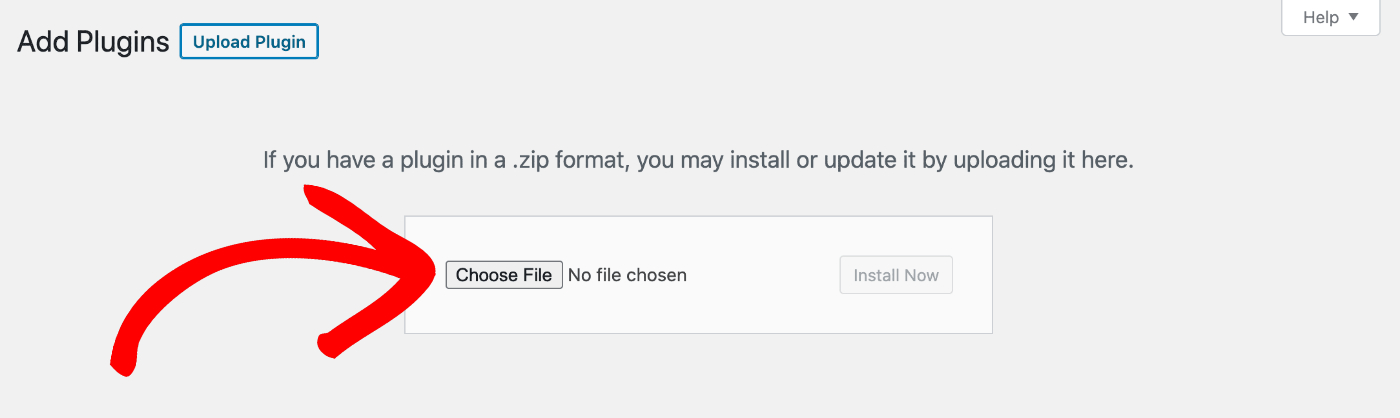
Once you've found it, select it and click the Install Now button.

IMPORTANT:
If you get an error message related to maximum upload file size whist installing All in One SEO Pro, please refer to the instructions here.
Once the plugin has installed, click on the Activate Plugin button.

NOTE:
Activating the Pro version will automatically import all SEO data and configuration settings from the free version with no data loss.
Activating your License Key
Finally, you need to activate your license key.
Click on General Settings in the All in One SEO menu and you'll see the License screen.
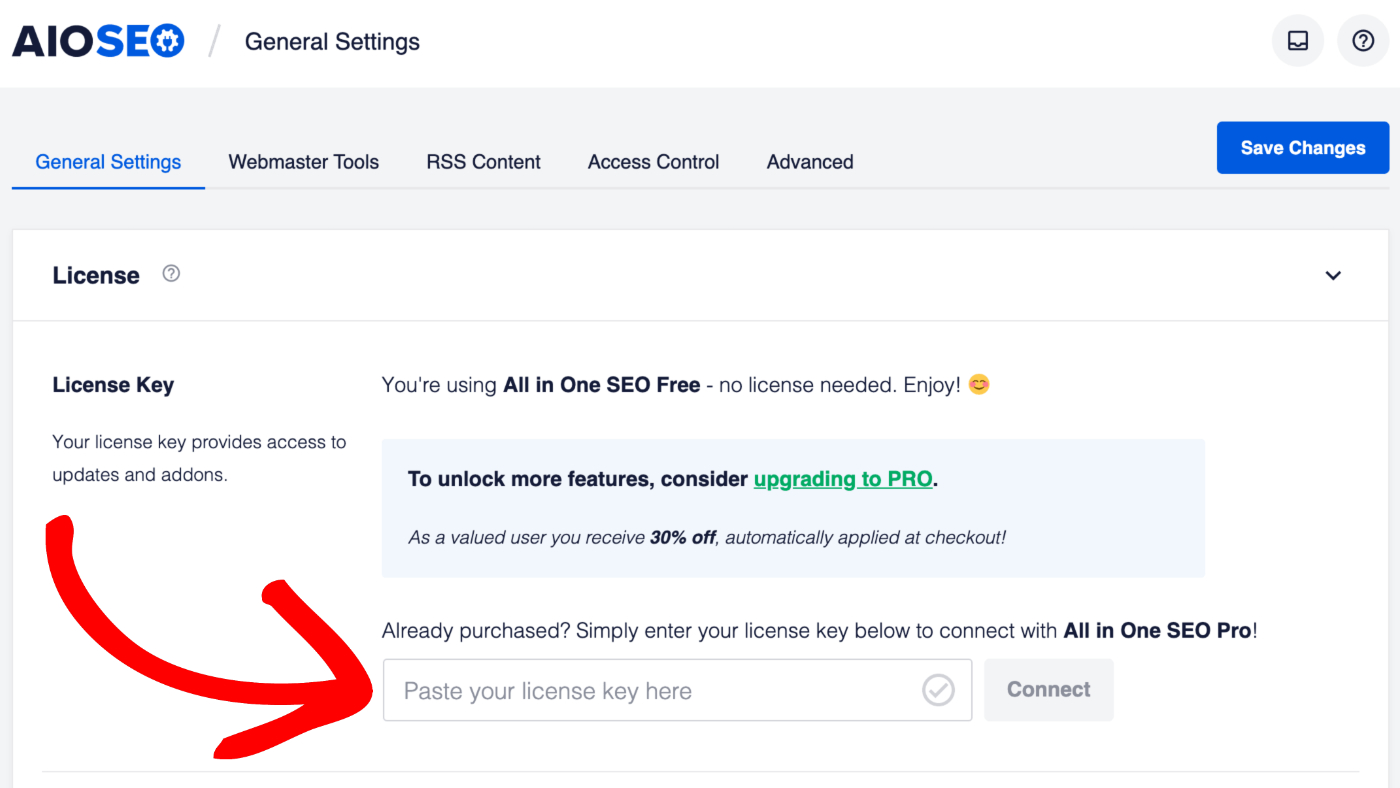
Enter your license key which you received in your purchase receipt in the License Key field, then click the Connect button.
The post Installing All in One SEO Pro first appeared on AIOSEO.]]>All in One SEO Pro has a number of addons that extend or add features to the base plugin, these currently include:
- Author SEO (E-E-A-T) addon
- Image SEO addon
- IndexNow addon
- Link Assistant addon
- Local SEO addon
- News Sitemap addon
- Redirection Manager addon
- REST API addon
- Video Sitemap addon
These addons are included in specific plans. Our Pricing page lists which plans include each addon.
There are three ways to install an addon for All in One SEO which are detailed below.
In This Article
Installing Addons Via the Feature Manager
To install an addon via the Feature Manager, click on Feature Manager in the All in One SEO menu.

You'll see each of the addons and a toggle that says Deactivated.
Click the toggle to install andactivate that addon, or click the Activate All Features to install and activate all the addons.
Installing Addons Via the Splash Screen
You can also install addons via the splash screens on their settings pages.
For example, to install and activate the Local SEO addon, click on Local SEO in the All in One SEO menu.
You'll see a splash screen with an Activate button. Click the button to install and activate that addon.
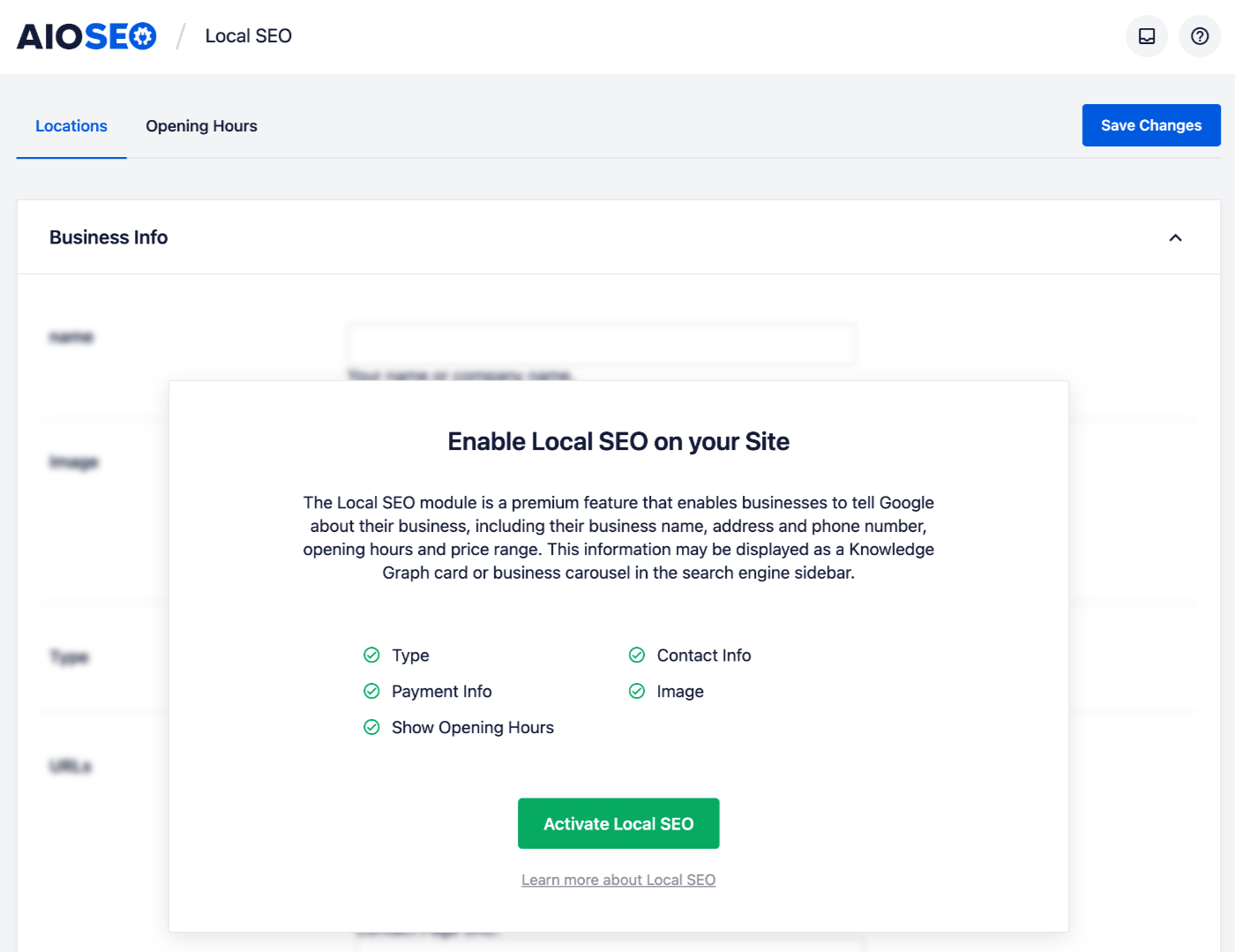
You can find the splash screens for each addon at these locations:
- Author SEO (E-E-A-T) addon – Go to All in One SEO » Search Appearance » Author SEO
- Image SEO addon – Go to All in One SEO » Search Appearance » Image SEO
- Link Assistant addon – Go to All in One SEO » Link Assistant
- Local SEO addon – Go to All in One SEO » Local SEO
- News Sitemap addon – Go to All in One SEO » Sitemaps » News Sitemap
- Redirection addon – Go to All in One SEO » Redirects
- Video Sitemap addon – Go to All in One SEO » Sitemaps » Video Sitemap
Installing Addons Via the Plugins Screen
Finally, you can install addons via the Plugins screen in WordPress.
To do this, go to Plugins » Add New and click on the Upload Plugin button. Then upload the ZIP file for the addon which you can get by logging into the Account area on our site and clicking on the Downloads tab.
The post Installing Addons for All in One SEO Pro first appeared on AIOSEO.]]>Before installing All in One SEO Pro on your site you first need to download it to your computer.
Start by logging into our website here – https://aioseo.com/login/.
You should have received a purchase receipt email from us that contains your username and password.
Next, click the My Account link in the top right corner of our site.
Next, click on the Downloads tab and then click the Download AIOSEO button.
A ZIP file called aioseo-pro-v###.zip (v### indicates the version number) will download to your computer.
IMPORTANT:
If the file gets unzipped when you download it, make sure you check your browser settings to ensure downloads don’t get unzipped and then download the file again. WordPress will not accept an unzipped file.
Now, you need to upload the ZIP file to your WordPress.com site. To do this, log in to your WordPress.com My Site Dashboard and navigate to Plugins in the left-hand menu.
Click on the Upload Plugin button in the top right corner of the screen.
Drag and drop the ZIP file you downloaded into the designated area or click on the field to navigate to the folder where the plugin file was downloaded to. WordPress.com will now automatically install and activate the plugin for you.
In order to use the plugin, navigate to the WP Admin panel at the bottom of the left-hand menu.
Now the only thing left to do is to enter the license key that you received from us in your purchase receipt email.
That's it! You're all done.
The post Installation instructions for WordPress.com Users first appeared on AIOSEO.]]>The uploaded file exceeds the upload_max_filesize directive
The reason you're seeing this error is because your hosting company has set a very low limit on the maximum size for uploads.
This error is not specific to All in One SEO and would affect the uploading of all other plugins, themes, and files that have a filesize above the set limit by your hosting provider
The only way to resolve this problem is to contact your hosting provider and ask them to increase the PHP maximum upload file size directive in the php.ini file on your server.
The file size for All in One SEO Pro is around 6 MB which is very small. We recommend increasing the PHP maximum upload file size directive to at least 7 MB.
If your hosting provider refuses, you will need to manually install All in One SEO Pro using FTP.
Here are the standard instructions for manually installing a plugin:
- Download All in One SEO Pro to your computer and unzip the downloaded file
- Connect to your server using FTP (you can find instructions on how to do this here)
- Navigate to the /wp-content/plugins/ directory
- Upload the unzipped folder called all-in-one-seo-pro to your server
- Log into your site and go to Plugins and activate All in One SEO Pro
NOTE:
If you've been directed to this article, then it means that the installation of All in One SEO Pro failed for one of the reasons given below.
If you're having a problem with installing All in One SEO Pro, this article will help you complete the installation.
Plugin installation can happen for a number of reasons which we've detailed below.
In This Article
Destination Folder Already Exists
This error can happen when a previous install of All in One SEO Pro failed for some reason. When this happens, the plugin files are installed on your server but the plugin doesn't show up under Plugins on your site.
To fix this, follow these steps:
- Connect to your web server using FTP. We have an article on how to use FTP here.
- Once you've connected to your web server, navigate to the /wp-content/plugins folder.
- Look for the all-in-one-seo-pack-pro folder and delete it.
If you're not comfortable using FTP, you can install the File Manager plugin and use this to browse to the /wp-content/plugins folder and delete All in One SEO Pro.
Permission Denied / Could Not Create Directory
You may see an error related to permissions. This means that there's a server filesystem issue that prevents the WordPress user from being able to upload files.
In this case, you can either try manually installing All in One SEO Pro using FTP or contact your hosting provider for help with changing the permissions on your web server.
Follow these steps to manually install All in One SEO Pro using FTP:
- Download All in One SEO Pro to your computer and unzip the downloaded file.
- Connect to your server using FTP (you can find instructions on how to do this here).
- Navigate to the /wp-content/plugins/ directory.
- Upload the unzipped folder called all-in-one-seo-pro to your server.
- Log into your site and go to Plugins and activate All in One SEO Pro.
The uploaded file exceeds the upload_max_filesize directive
If you're seeing this error then please check out our article on how to increase the maximum upload size for your site here.
Other Errors
If you experience any other error not listed above, then try installing All in One SEO Pro using FTP by following these steps:
- Download All in One SEO Pro to your computer and unzip the downloaded file.
- Connect to your server using FTP (you can find instructions on how to do this here).
- Navigate to the /wp-content/plugins/ directory.
- Upload the unzipped folder called all-in-one-seo-pro to your server.
- Log into your site and go to Plugins and activate All in One SEO Pro.
If you're still experiencing problems then please contact our Support team here.
The post How to Handle Issues With Installing All in One SEO Pro first appeared on AIOSEO.]]>